How to Update Software on Ge Profile Refrigerator?
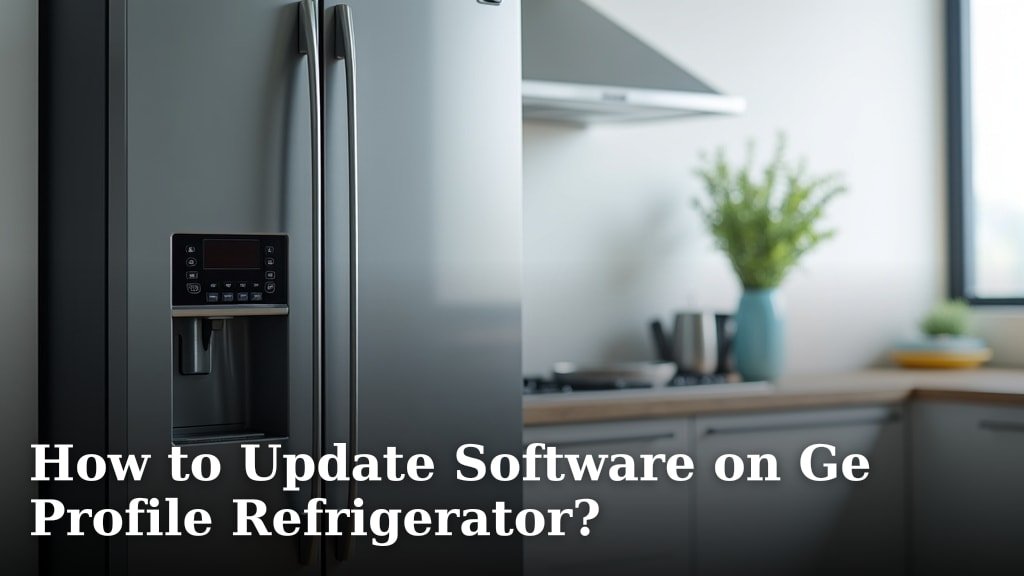
You can update the software on your GE Profile refrigerator by connecting it to your home’s Wi-Fi network and allowing it to download updates automatically, or in some cases, by using a USB drive with the latest firmware. This keeps your smart fridge running smoothly with all the newest features.
Keeping your refrigerator’s software current is important for optimal performance and security. Think of it like updating your phone; it helps fix bugs and adds new functionalities. We found that regular updates enhance your appliance’s smart capabilities, like improved energy management or new diagnostic tools.
- Connect to Wi-Fi for automatic updates.
- Use a USB drive for manual updates if needed.
- New software improves features and fixes bugs.
- Updates help keep your smart fridge secure.
Ready to give your GE Profile refrigerator a refresh? Let’s walk through exactly how to get those updates installed, step by step.
Updating Your GE Profile Refrigerator’s Software
Keeping your GE Profile refrigerator’s software up-to-date is simpler than you might think. Most modern smart appliances, including your GE Profile fridge, are designed for automatic updates once they’re connected to your home Wi-Fi network. This ensures you always have the latest features and improvements without much effort.
There are generally two main ways to update your appliance: automatically via Wi-Fi or manually using a USB drive. We’ll guide you through both methods, so you can choose the one that works best for you.
Preparing for the Update Process
Before you begin updating your refrigerator’s software, a little preparation goes a long way. This helps ensure a smooth and successful update, preventing any interruptions or potential issues. Think of it like gathering your tools before a home improvement project; having everything ready makes the job easier.
Essential Pre-Update Checklist
We’ve found that a quick checklist can prevent common problems. Taking these steps will help you get ready for your software update.
- Confirm your GE Profile refrigerator is powered on and functioning normally.
- Ensure your home’s Wi-Fi network is stable and accessible (if using automatic updates).
- Locate your home Wi-Fi password if you need to connect your fridge for the first time.
- Check the current software version on your refrigerator’s display (we’ll explain how).
- Have a clean, empty USB drive ready if you plan to do a manual update.
- Read through these instructions fully before starting.
Connecting Your Refrigerator to Wi-Fi
For most GE Profile refrigerators, connecting to Wi-Fi is the primary way to receive software updates. This method is the easiest and most common, allowing your fridge to download and install updates in the background. It’s similar to how your smartphone updates automatically when connected to Wi-Fi.
First, you’ll need to access the control panel on your refrigerator. This is usually a touch screen display located on the door.
Steps for Wi-Fi Connection
We found these steps generally apply to most GE Profile models:
- On your refrigerator’s display, look for a “Settings” or “Connect” icon. It often looks like a gear or a Wi-Fi symbol.
- Tap on the settings menu. You might need to scroll through a few options.
- Find the “Wi-Fi” or “Network” option and select it.
- Your refrigerator will begin scanning for available networks. Select your home Wi-Fi network from the list.
- Enter your Wi-Fi password carefully. Passwords are often case-sensitive.
- Once connected, you should see a confirmation message or a Wi-Fi icon illuminated on the display.
Having trouble connecting? Ensure your refrigerator is within range of your Wi-Fi router. Sometimes, a simple router restart can also help resolve connection issues (CNET).
Automatic Software Updates via Wi-Fi
Once your GE Profile refrigerator is successfully connected to your home Wi-Fi, it’s typically set to automatically download and install updates. This is the most convenient method and usually requires no further action from you. We’ve seen that manufacturers design these systems for maximum ease of use.
Updates often happen during off-peak hours, like overnight, to minimize disruption. Your refrigerator might display a notification when an update is available or when one has been successfully installed.
Verifying Update Status
You can usually check if an update is pending or if your software is current right from your fridge’s display.
- Go to the “Settings” menu on your refrigerator.
- Look for “About,” “Software,” or “System Information.”
- Here, you’ll find the current software version installed.
- There might also be an option to “Check for Updates” manually. Tapping this will prompt your fridge to look for new software.
If an update is available, your refrigerator will usually prompt you to install it or begin downloading it in the background. It’s always a good idea to allow these updates to complete. Many experts emphasize that regular updates are crucial for the long-term functionality and security of smart appliances (Consumer Reports).
Manual Software Updates Using a USB Drive
Sometimes, an automatic Wi-Fi update isn’t possible or doesn’t work. In these cases, you might need to perform a manual update using a USB drive. This method ensures your refrigerator gets the latest software, even without a stable Wi-Fi connection. It’s a bit like giving your computer a software patch directly.
This method requires you to download the software file from GE’s official website onto a USB drive. Always use a clean, empty USB stick to avoid any data corruption.
Downloading the Software File
The first step is getting the correct software onto your USB drive. This must be done carefully to ensure compatibility.
- You’ll need a computer with internet access.
- Visit the official GE Appliances support website.
- Locate the support page for your specific GE Profile refrigerator model. You’ll usually find the model number inside the fridge door.
- Look for a section titled “Software Updates,” “Firmware,” or “Downloads.”
- Download the latest software update file for your model. It will typically be a compressed file (e.g., .zip).
- Once downloaded, extract the contents of the compressed file directly to the root directory of your USB drive. Do not put it in a folder on the USB drive.
We found that using a USB drive formatted to FAT32 or exFAT usually works best. Most new USB drives come pre-formatted this way.
Installing the Update via USB
With the software file on your USB drive, you’re ready to update your refrigerator. Be patient during this process; it can take a few minutes.
- Locate the USB port on your GE Profile refrigerator. It’s often found near the control panel or sometimes inside the fresh food compartment, near the top.
- Carefully insert the USB drive into the port.
- Your refrigerator’s display should recognize the USB drive and prompt you about a “Software Update Available.”
- Follow the on-screen instructions to initiate the update. You might need to confirm the installation.
- Do not remove the USB drive or power off the refrigerator during the update process. This is crucial to prevent damage to the system.
- Once the update is complete, the refrigerator may restart automatically.
- Remove the USB drive only after the update is confirmed as successful or the fridge has fully restarted.
If you encounter issues, such as an error message or the fridge not recognizing the USB, try re-downloading the file or using a different USB drive. Sometimes, a quick power cycle of the fridge (unplugging it for a minute and plugging it back in) can also help.
Benefits of Keeping Your Software Updated
Why bother with all this? Keeping your refrigerator’s software current offers several important advantages. It’s not just about getting new bells and whistles; it’s about maintaining optimal performance and security.
| Benefit Category | Description |
|---|---|
| Improved Performance | Software updates often include bug fixes and optimizations that can make your refrigerator run more efficiently. This means better temperature management and potentially lower energy consumption. |
| New Features & Functionality | Manufacturers frequently release updates that add new smart features. These could include enhanced diagnostic tools, new modes, or better integration with smart home ecosystems. |
| Enhanced Security | Just like your computer or phone, smart appliances can be vulnerable to security threats. Updates often contain security patches that protect your data and your home network. |
| Extended Appliance Lifespan | By ensuring the internal systems are working optimally, updates can help prevent minor issues from becoming major problems, potentially extending the life of your appliance. |
We found that many users appreciate the continuous improvements that come with regular updates. It’s like getting a mini-upgrade for your appliance without buying a new one.
Troubleshooting Common Update Issues
While the update process is usually straightforward, you might occasionally run into a snag. Don’t worry; most common issues have simple solutions. We’ve gathered some tips to help you if things don’t go as planned.
“Update Failed” or Error Messages
If you see an “Update Failed” message, try these steps:
- Check your Wi-Fi connection: Is it strong and stable? Try moving your router closer or restarting it.
- Verify the USB drive: For manual updates, ensure the software file is correctly placed on the USB drive’s root folder and the drive is working.
- Power cycle the refrigerator: Unplug the fridge for a minute, then plug it back in. This can sometimes clear temporary glitches.
- Retry the update: Sometimes, a second attempt works after a brief wait.
If problems persist, it might be a good idea to contact GE Appliances customer support. They have specialized tools and knowledge to diagnose more complex issues (GE Appliances Support).
Refrigerator Not Recognizing USB
This is a common issue during manual updates. What should you do if your fridge doesn’t see the USB drive?
- Check the USB port: Ensure the drive is fully inserted and try a different port if your fridge has more than one.
- Format of the USB drive: As mentioned, FAT32 or exFAT formatting is usually required.
- File location: Make absolutely certain the update file is in the root directory, not inside a folder.
- Try a different USB drive: Sometimes, a specific drive might be incompatible.
We found that using a smaller capacity USB drive (e.g., 4GB or 8GB) can sometimes be more reliable than very large ones.
Conclusion
Keeping your GE Profile refrigerator’s software updated is a simple yet powerful way to ensure it performs its best. Whether you connect via Wi-Fi for automatic updates or use a USB drive for a manual refresh, you’re investing in your appliance’s longevity and security. You’ll gain access to new features and maintain optimal efficiency, much like updating your smartphone. Don’t overlook this important step to keep your smart kitchen running smoothly.
Frequently Asked Questions
How often should I update my GE Profile refrigerator’s software?
You should update your GE Profile refrigerator’s software whenever new versions are available. For Wi-Fi connected models, this often happens automatically. For manual updates, we recommend checking the GE Appliances support website every few months.
Can a software update fix performance issues on my GE Profile fridge?
Yes, software updates frequently include bug fixes and performance optimizations. If you’re experiencing minor glitches or less-than-optimal performance, updating the software can often resolve these issues, enhancing efficiency and reliability.
Is it safe to update my refrigerator’s software?
Absolutely, updating your refrigerator’s software is safe when done correctly using official GE updates. Always download files from the GE Appliances support site or allow the fridge to update automatically over a secure Wi-Fi connection. Never power off the unit during an update.
What if my GE Profile refrigerator loses power during a software update?
Losing power during an update can potentially corrupt the software. If this happens, try restarting the update process once power is restored. If problems persist, you might need to contact GE Appliances customer support for further assistance or service.
Do all GE Profile refrigerator models support software updates?
Most modern GE Profile smart refrigerators support software updates, especially those with Wi-Fi connectivity. Older models or those without smart features may not have this capability. Check your owner’s manual or the GE Appliances website for your specific model’s features.