How to Connect Ge Profile Refrigerator to Alexa?
To connect your GE Profile refrigerator to Alexa, you will need to download the SmartHQ app and link your appliance through the app’s settings. This process allows you to control your fridge with voice commands and access smart features. It’s a straightforward way to integrate your kitchen into your smart home system.
Many smart home users find that connecting appliances like your GE Profile refrigerator to Alexa adds a lot of convenience. You can ask Alexa to preheat your oven, check the status of your laundry, or even make ice faster if your fridge supports it. This integration brings hands-free control right into your daily routine.
- Download the SmartHQ app.
- Ensure your GE Profile refrigerator is Wi-Fi enabled.
- Register your appliance within the SmartHQ app.
- Link your SmartHQ account to your Alexa app.
- Use voice commands to control your refrigerator.
Ready to make your kitchen even smarter? Let’s walk through the steps to connect your GE Profile refrigerator to Alexa and start enjoying all the benefits.
Connecting Your GE Profile Refrigerator to Alexa
Connecting your GE Profile refrigerator to Alexa brings your kitchen into the modern smart home. You gain voice control and easy access to many helpful features.
This integration makes daily tasks simpler. Imagine telling Alexa to “make ice” without lifting a finger.
Pre-Connection Checklist: What You Need
Before you begin, let’s make sure you have everything ready. This helps ensure a smooth setup process.
A little preparation goes a long way. Do you have all your tools prepared?
Essential Items for Setup
You’ll need a few key things before connecting. These items are pretty standard for smart home setups.
Make sure each item is in working order and easily accessible.
- Your GE Profile refrigerator must be Wi-Fi enabled. Not all models have this feature.
- A stable home Wi-Fi network with good signal strength in your kitchen.
- An active Amazon account. You’ll use this for your Alexa app.
- An Alexa-enabled device (like an Echo Dot or Amazon Echo speaker).
- Your smartphone or tablet to download the apps.
- Your refrigerator must be plugged in and powered on.
- Your refrigerator’s model and serial number, often found inside the door.
Setting Up Your SmartHQ Account
The SmartHQ app is the bridge between your GE Profile appliance and the smart home world. It’s where all your GE appliances live digitally.
Think of it as your refrigerator’s digital passport. You’ll register it here first.
Downloading and Installing SmartHQ
First things first: get the app. You can find it in your phone’s app store.
Search for “SmartHQ” in the Apple App Store or Google Play Store.
- Download the SmartHQ app to your smartphone or tablet.
- Open the app once it’s installed.
- If you’re a new user, tap “Create Account” and follow the prompts. You’ll need to enter your email and create a password.
- If you already have an account, simply log in.
We found that having your Wi-Fi password handy makes this step quicker.
Registering Your GE Profile Refrigerator
Now, let’s add your actual refrigerator to the app. This step links the physical appliance to your digital account.
The app will guide you through connecting to your fridge’s Wi-Fi. It’s usually quite simple.
- In the SmartHQ app, tap the “Add Appliance” or “+” icon.
- Select “Refrigerator” from the list of appliance types.
- The app will ask you to confirm your refrigerator’s model. You might need to look for a “Connected” or “Wi-Fi Connect” sticker on your fridge.
- Follow the on-screen instructions to put your refrigerator into “connect mode.” This often involves pressing and holding a button on the control panel until a light flashes (GE Appliances support).
- Your phone will then connect directly to your refrigerator’s temporary Wi-Fi network.
- Once connected, the app will ask you to select your home Wi-Fi network and enter its password.
- Wait for the app to confirm your refrigerator is successfully connected to your home Wi-Fi and registered. You should see a confirmation message.
It’s like teaching your fridge how to talk to your home network.
Integrating SmartHQ with Your Alexa App
With your refrigerator talking to SmartHQ, the next step is connecting SmartHQ to Alexa. This is where the magic of voice control truly begins.
Think of it as introducing two good friends so they can chat directly.
Enabling the SmartHQ Skill in Alexa
Alexa uses “skills” to interact with different smart devices. You need to enable the SmartHQ skill.
This skill is like an interpreter, allowing Alexa to understand your refrigerator’s language.
- Open the Amazon Alexa app on your smartphone or tablet.
- Tap the “More” icon in the bottom right corner.
- Select “Skills & Games.”
- In the search bar at the top, type “SmartHQ.”
- Tap on the “SmartHQ” skill when it appears in the search results. It usually has the GE Appliances logo.
- Tap the “Enable To Use” button.
- The Alexa app will then prompt you to log in to your SmartHQ account. Use the same email and password you created earlier.
- Grant permission for Alexa to access your SmartHQ appliances.
- Once linked, Alexa will usually say, “Your SmartHQ account has been successfully linked.”
- You might then be prompted to “Discover Devices.” Tap this button to have Alexa find your newly connected GE Profile refrigerator.
Many users find this step very intuitive. It’s designed to be user-friendly.
Verifying the Connection
After enabling the skill and discovering devices, it’s a good idea to double-check everything.
A quick check ensures your fridge is ready for voice commands.
- In the Alexa app, go back to the “Devices” tab.
- Look for “All Devices” or “Appliances.”
- You should see your GE Profile refrigerator listed there. Its name might be something like “Kitchen Refrigerator” or a name you assigned in SmartHQ.
If you don’t see it, try tapping “Discover Devices” again in the Alexa app (under the “Devices” tab, then the “+” icon, then “Add Device,” then “Other Device”).
Using Voice Commands with Your GE Profile Refrigerator
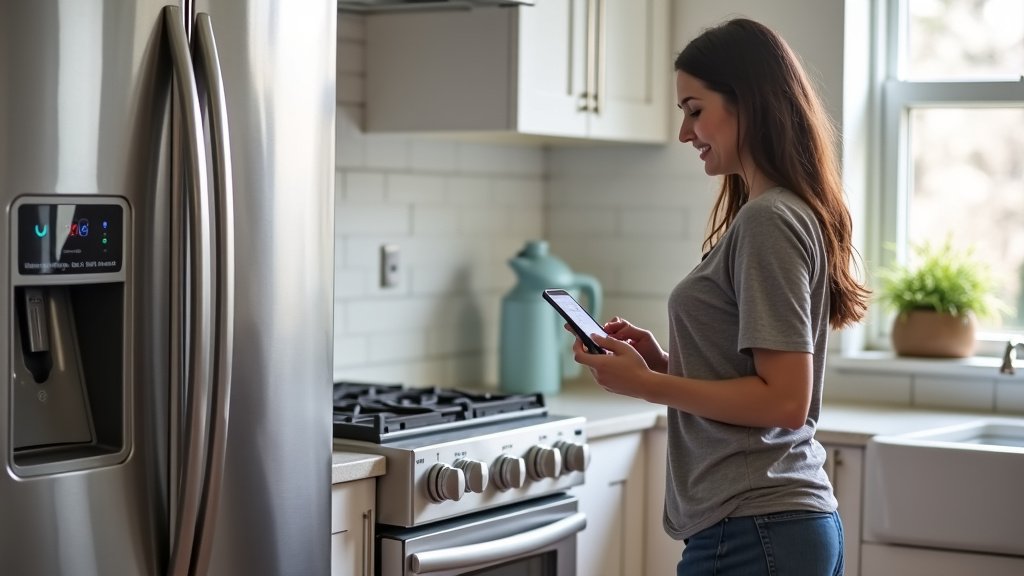
Now for the fun part: talking to your fridge! Alexa is ready to take your commands.
Voice commands make kitchen tasks surprisingly convenient. You’ll wonder how you lived without it.
Common Voice Commands for Your Fridge
What can you actually ask your refrigerator to do? It depends on your model, but here are some popular commands.
Remember to start with “Alexa” for each command.
| Voice Command | Refrigerator Action | Notes |
|---|---|---|
| “Alexa, tell SmartHQ to turn on Turbo Cool.” | Activates rapid cooling for a set time. | Useful after a grocery run. |
| “Alexa, ask SmartHQ for the refrigerator status.” | Reports current settings or alerts. | Might include door open warnings. |
| “Alexa, tell SmartHQ to turn on Turbo Ice.” | Speeds up ice production. | Great for parties or hot days. |
| “Alexa, ask SmartHQ if the refrigerator door is open.” | Checks door status. | Helps save energy and prevent spoilage. |
| “Alexa, ask SmartHQ to preheat the oven to 375 degrees.” | (Only if you have a GE Profile oven linked to SmartHQ) | Shows the power of integrating multiple appliances. |
We found that using the exact phrasing “tell SmartHQ to…” or “ask SmartHQ for…” is crucial. Alexa needs that specific prompt to route the command correctly.
Tips for Effective Voice Control
Getting the most out of your voice commands can sometimes take a little practice.
Here are some pointers for smoother interactions.
- Speak clearly: Alexa understands you better when you speak naturally and clearly.
- Be specific: Use the full command, like “Alexa, tell SmartHQ to…”
- Name your devices: In the Alexa app, you can rename your refrigerator to something simpler, like “Kitchen Fridge.” This can make commands easier to remember.
- Know your model’s features: Not all GE Profile refrigerators have all features. Your model might not have “Turbo Ice,” for example. Check your fridge’s manual or the SmartHQ app for available features.
- Check Wi-Fi: If Alexa isn’t responding, ensure both your Alexa device and refrigerator are connected to Wi-Fi.
It’s like learning a new language with your appliances. A little effort at the start pays off big time.
Conclusion
Connecting your GE Profile refrigerator to Alexa truly transforms your kitchen experience. You’ve now seen that with the SmartHQ app and a few simple steps, you can enjoy the convenience of voice control. No more fumbling with buttons when your hands are full – just speak a command. This integration simplifies daily routines, from rapidly chilling drinks to checking if the door is closed. We encourage you to start using these voice commands regularly. Embrace the smart features your GE Profile refrigerator offers and enjoy a more connected home today.
Frequently Asked Questions
What if my GE Profile refrigerator isn’t Wi-Fi enabled?
If your specific GE Profile model doesn’t have built-in Wi-Fi, you won’t be able to connect it directly to Alexa using the SmartHQ app. We found that only Wi-Fi enabled models support this smart home integration. You might consider checking your refrigerator’s manual or the GE Appliances website for your model’s exact specifications.
Can I control other GE appliances with Alexa through SmartHQ?
Yes, absolutely! The SmartHQ app is designed to manage many GE smart appliances. Once you link your SmartHQ account to Alexa, you can often control other compatible appliances like ovens, dishwashers, and washing machines with voice commands. This creates a unified smart home experience.
My refrigerator isn’t showing up in the Alexa app after linking SmartHQ. What should I do?
First, ensure your refrigerator is successfully registered and connected to Wi-Fi within the SmartHQ app. Then, in the Alexa app, go to “Devices,” tap the “+” icon, select “Add Device,” then “Other Device,” and finally “Discover Devices.” We often find that a second discovery scan helps Alexa find newly linked appliances.
Do I need a separate Alexa device to use voice commands?
Yes, you need an Alexa-enabled device like an Amazon Echo, Echo Dot, or even the Alexa app on your smartphone to issue voice commands. Your GE Profile refrigerator doesn’t have a built-in Alexa speaker. The Alexa device acts as the receiver for your commands and sends them to your refrigerator via the SmartHQ skill.
Can I change the name of my refrigerator in Alexa?
Yes, you can rename your refrigerator within the Alexa app. After it’s discovered, go to “Devices,” find your refrigerator, and tap its name. You’ll usually see an option to edit the name, which can make voice commands more natural and easier to remember for you.