How to Change WiFi Network on Lg InstaView Refrigerator?
On this page (9 sections)
- Switching Your LG InstaView Refrigerator’s WiFi Connection
- Accessing Your InstaView’s Network Settings
- Disconnecting and Selecting a New Network
- Entering Your New WiFi Password
- Confirming the Connection Status
- Troubleshooting Common Connection Issues
- A Quick Checklist for Success
- Conclusion
- Frequently Asked Questions
You can absolutely change the WiFi network on your LG InstaView refrigerator. This process is straightforward and helps keep your smart fridge connected to your home’s internet. You’ll simply need to access your refrigerator’s settings menu to make the switch. It’s a common task when you update your home network or move your fridge.
Keeping your LG InstaView connected ensures you can use its smart features, like remote monitoring and software updates. Sometimes, your router might get a new password, or you might switch to a new provider. When that happens, your fridge needs to be pointed to the new WiFi connection. We found that reconnecting is usually a quick fix.
- Access the settings menu on your InstaView.
- Navigate to the network or WiFi settings.
- Select your new WiFi network from the list.
- Enter your new WiFi password carefully.
- Confirm the connection to finalize the change.
Below, we’ll guide you step-by-step on how to easily change the WiFi network on your LG InstaView refrigerator so you can get back to enjoying all its smart capabilities.
Switching Your LG InstaView Refrigerator’s WiFi Connection
Your LG InstaView refrigerator is a smart appliance, and like any smart device, it needs a stable internet connection to work its magic. Changing your WiFi network might seem like a big deal, but it’s usually a quick fix. You’ll typically need to do this when you get a new router, change your WiFi password, or even if your network name (SSID) gets updated.
We found that reconnecting is a common task for many smart home users. It’s about ensuring your fridge can still communicate with your home network. This guide will walk you through the simple steps to get your InstaView back online with your new WiFi connection. Think of it like helping your fridge find its way home again on the digital highway.
Accessing Your InstaView’s Network Settings
The first step is always to get to the right menu on your refrigerator’s display. LG InstaView models have a touch screen interface that makes this pretty easy. You’ll want to be near the fridge for this, as you’ll be interacting directly with its screen.
Navigating the Main Menu
When you wake up your InstaView display, you’ll see a main screen. Look for an icon that typically represents ‘Settings’ or a gear symbol. It’s often located on the main panel or within an app menu if you’ve downloaded LG’s ThinQ app. Tapping this will open up a world of options.
Finding the Network or WiFi Section
Once you’re in the settings menu, you’ll need to find the section dedicated to connectivity. This is usually labeled as ‘Network,’ ‘WiFi,’ or ‘Internet Settings.’ Sometimes, it might be under a broader category like ‘System’ or ‘General Settings.’ We found that LG usually keeps these labels quite clear.
Look for options that clearly state ‘WiFi Settings’ or ‘Network Connection.’ This is where you’ll manage your refrigerator’s connection to your home’s wireless network. Don’t worry if you don’t see your current network name immediately; that’s normal when you’re preparing to change it.
Disconnecting and Selecting a New Network
Once you’ve located the WiFi settings, the next step is to disconnect from your old network (if it’s still connected) and then choose your new one. This process is similar to how you’d connect your smartphone or laptop to a new WiFi spot.
Forgetting the Old Network
If your InstaView is still connected to your old WiFi, it’s a good idea to “forget” that network. This clears the saved password and connection details. It prevents the fridge from trying to reconnect to the wrong network automatically. You’ll usually find an option like ‘Forget Network’ or ‘Disconnect’ next to the currently connected network name.
Simply tap on your current network name and look for this option. It’s usually quite visible. This ensures a clean slate for connecting to your new network. We found this step helpful to avoid any lingering connection conflicts.
Scanning for Available Networks
After you’ve either disconnected or if you’re setting up for the first time, you’ll need to find your new network. There should be an option to ‘Scan for Networks’ or ‘Available Networks.’ Tap this, and your InstaView will search for all the WiFi signals within range.
You’ll see a list of network names (SSIDs). Find the name of your new WiFi network. Make sure you select the correct one. It’s easy to pick the wrong one if you have similar network names in your area. Double-checking the name is always a smart move here.
Selecting Your New Network
Tap on the correct network name from the list. This will prompt you to enter the password. If your network isn’t appearing, ensure your router is on and broadcasting its SSID. You might also need to move closer to the router if the signal is weak.
Entering Your New WiFi Password
This is arguably the most critical step. A typo in your password is the most common reason for connection failures. Take your time and be precise.
The Importance of Accuracy
Your WiFi password is like a secret key. If it’s not entered exactly as it is, your InstaView won’t be able to get access. Passwords are case-sensitive, meaning capital letters matter. So, “MyHomeWiFi” is different from “myhomewifi.”
We recommend having your password written down somewhere easily accessible. Many people use a password manager or have it noted in a secure app. It’s also helpful if someone else in your household knows the password. This ensures you don’t accidentally lock yourself out of your own network!
Inputting the Password Correctly
A virtual keyboard will appear on your InstaView’s screen. Carefully type in your WiFi password. There’s usually an option to ‘Show Password’ (often represented by an eye icon). We found this very useful to double-check your entry before confirming. If you see the characters, you can verify they match your known password.
After typing, tap ‘Connect,’ ‘Join,’ or ‘OK.’ Your refrigerator will then attempt to connect to your network. This might take a few moments. You’ll usually see a status message indicating it’s trying to connect.
Confirming the Connection Status
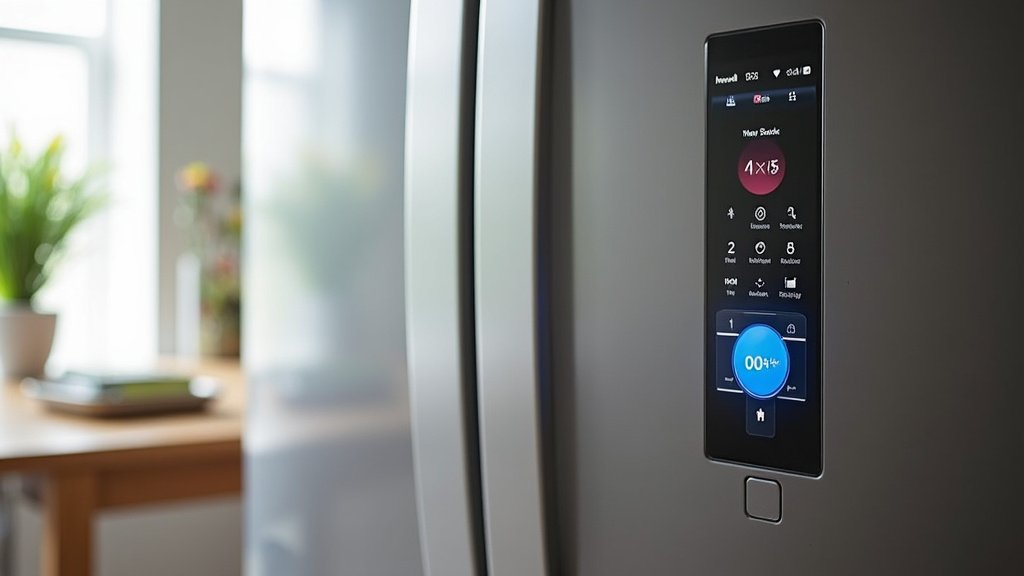
Once you’ve entered the password, your InstaView will try to establish a connection. It’s important to see if it was successful. Most smart appliances will give you a clear indication.
What to Look For
You should see a confirmation message like ‘Connected,’ ‘Successfully Connected,’ or a WiFi icon appearing steadily on the screen. This means your InstaView is now online and ready to use its smart features. If it fails, don’t panic!
Common reasons for failure include a wrong password, your router being too far away, or an issue with your internet service provider. If it doesn’t connect, go back and double-check the password entry. Then, try the process again. Sometimes, restarting your router can also help resolve temporary network glitches (Google, for example, recommends rebooting routers for common connection issues).
Troubleshooting Common Connection Issues
While changing your WiFi network is usually smooth, you might run into a few hiccups. Here are some common problems and how to solve them. We’ve found these steps resolve most connectivity issues.
Incorrect Password Entries
This is the most frequent culprit. Double-check the password’s capitalization and any special characters. Remember that passwords can be quite long and complex these days. If you’re unsure, find the password written down or reset it if absolutely necessary.
Weak Signal Strength
If your router is far from your refrigerator, the signal might be too weak. Consider moving your router closer if possible, or using a WiFi extender to boost the signal in your kitchen. We found that Wi-Fi extenders can make a big difference in areas with spotty coverage.
Router Issues or Conflicts
Sometimes, the issue isn’t with your fridge but with your router. Try rebooting your router by unplugging it for about 30 seconds and then plugging it back in. Wait a few minutes for it to fully restart and broadcast its network before trying to connect your InstaView again.
Network Band Compatibility
Most modern refrigerators support both 2.4GHz and 5GHz WiFi bands. However, if you have a very old router or a specific network setup, ensure your InstaView is compatible with the band you’re trying to connect to. The 2.4GHz band offers a wider range, while 5GHz offers faster speeds.
A Quick Checklist for Success
Here’s a handy checklist to make sure you have everything covered when changing your WiFi network:
- Ensure your router is powered on and broadcasting.
- Know your exact WiFi network name (SSID).
- Have your WiFi password readily available.
- Check for correct password spelling and capitalization.
- Verify the signal strength is adequate in your kitchen.
- Be patient; connections can take a minute or two.
By following these steps, you should be able to successfully update your LG InstaView refrigerator’s WiFi connection. Keeping your smart appliances connected ensures you can enjoy all their convenience and advanced features. If you continue to have trouble, consulting your refrigerator’s user manual or contacting LG support might be the next best step.
Conclusion
You’ve successfully learned how to update your LG InstaView refrigerator’s WiFi connection. Changing networks is straightforward when you know the steps. Remember to access your settings, select your new network, and enter your password accurately. If you encounter issues, troubleshooting common problems like incorrect passwords or weak signals can get you back online quickly. Keeping your InstaView connected ensures you enjoy all its smart features. Your next step is to power up your fridge and confidently make that network change!
Frequently Asked Questions
How do I find my LG InstaView refrigerator’s WiFi password?
You can typically find your WiFi password on a sticker located on your internet router. If you’ve changed it since setting up your network, you’ll need to use that updated password. If you’re unsure or can’t find it, you may need to reset your router’s password, which is often done through your internet service provider’s website.
What if my new WiFi network doesn’t appear in the list on my InstaView?
If your network isn’t showing up, first ensure your router is powered on and broadcasting its SSID. Try refreshing the network list on your InstaView. If it still doesn’t appear, your refrigerator might be too far from the router, or there could be a compatibility issue with your network band; try moving closer to the router.
Can I connect my InstaView to a 5GHz WiFi network?
Most modern LG InstaView refrigerators support both 2.4GHz and 5GHz WiFi bands. However, it’s always best to check your specific model’s user manual to confirm compatibility. If you have issues connecting to 5GHz, try connecting to the 2.4GHz band, which generally has a wider range.
Do I need to reconnect all my smart devices if I change my WiFi network?
Yes, generally, you will need to reconnect any smart devices that rely on your home’s WiFi network, including your LG InstaView refrigerator. This is because the network name (SSID) and password have changed, so devices need to be updated with the new credentials to establish a connection.
How often should I check my refrigerator’s WiFi connection?
There’s no strict schedule for checking your refrigerator’s WiFi connection. However, it’s a good idea to ensure it’s connected after any changes to your home network, like a new router or password update. If you notice smart features aren’t working, that’s a good indicator to check the connection status.



