How to Connect Frigidaire Refrigerator to WiFi?
On this page (3 sections)
Connecting your Frigidaire refrigerator to WiFi is straightforward, and you can usually do it in just a few steps using the Frigidaire app. We found this process helps you manage your appliance more efficiently from anywhere.
You want to get the most out of your modern appliances, right? Smart features on your refrigerator can offer great convenience, from remote temperature control to receiving alerts. Connecting your Frigidaire appliance to your home network opens up a world of helpful possibilities.
- Download the Frigidaire app.
- Ensure your refrigerator is in pairing mode.
- Follow the in-app instructions for connection.
- Troubleshoot common connection issues.
So, ready to transform your kitchen experience? Let’s walk through exactly how to connect your Frigidaire refrigerator to WiFi step by step.
Getting Your Frigidaire Refrigerator Online
Connecting your Frigidaire refrigerator to your home WiFi network is an exciting step! It unlocks many smart features that can make your daily life easier. You’ll manage settings, get alerts, and even troubleshoot from your phone. If you’re wondering if you can install a smart refrigerator without Wi-Fi, our guide explains what features you’ll miss out on.
Pre-Connection Checklist: What You Need First
Before you dive into the connection process, it’s smart to make sure everything is ready. A little preparation can save you a lot of time and frustration later on. We found that most connection hiccups happen when a basic step is missed.
Essential Items for Setup
You’ll need a few key things close at hand. Think of it like gathering your ingredients before cooking a new recipe. Having them ready makes the whole process smoother.
- Your Frigidaire refrigerator, plugged in and powered on.
- A stable 2.4 GHz WiFi network in your home. (Your refrigerator won’t connect to 5 GHz networks).
- Your home WiFi network name (SSID) and password.
- A smartphone or tablet with the Frigidaire app installed.
- The refrigerator’s serial number and model number (usually found inside the door or on the back).
WiFi Network Specifics
Understanding your home network is really important here. Your Frigidaire appliance needs a specific type of connection. Do you know if your router supports 2.4 GHz? Most modern routers do, but sometimes they prioritize 5 GHz.
If you have a dual-band router, make sure the 2.4 GHz band is active. Some routers combine both bands into one name. If you’re unsure, check your router’s manual or contact your internet service provider. This step prevents a lot of headaches, we’ve found.
Downloading and Setting Up the Frigidaire App
Your smartphone is the command center for your smart refrigerator. The official Frigidaire app is what bridges the gap between your phone and your appliance. It’s designed to be user-friendly, guiding you through each stage.
Finding the Right App
Head to your device’s app store – either the Apple App Store for iPhones or the Google Play Store for Androids. Search for “Frigidaire App”. You’ll want the official one, usually published by Electrolux Home Products, Inc. Always download from official sources to keep your device secure.
Account Creation and Login
Once the app is downloaded, open it up. You’ll likely be prompted to create an account or log in if you already have one. This account will store your appliance information and settings. Make sure to use an email address you check regularly, as it might be used for important alerts or updates.
If you’re creating a new account, you’ll enter your email, create a password, and agree to the terms of service. It’s a standard process, much like setting up any other online account. We recommend choosing a strong, unique password for your account.
Initiating the Pairing Process on Your Refrigerator
Now, let’s turn our attention to the refrigerator itself. It needs to be told to look for a connection. This usually involves pressing a specific button or sequence of buttons on its control panel. Think of it as putting your refrigerator into “listening mode.”
Locating the Connect Button
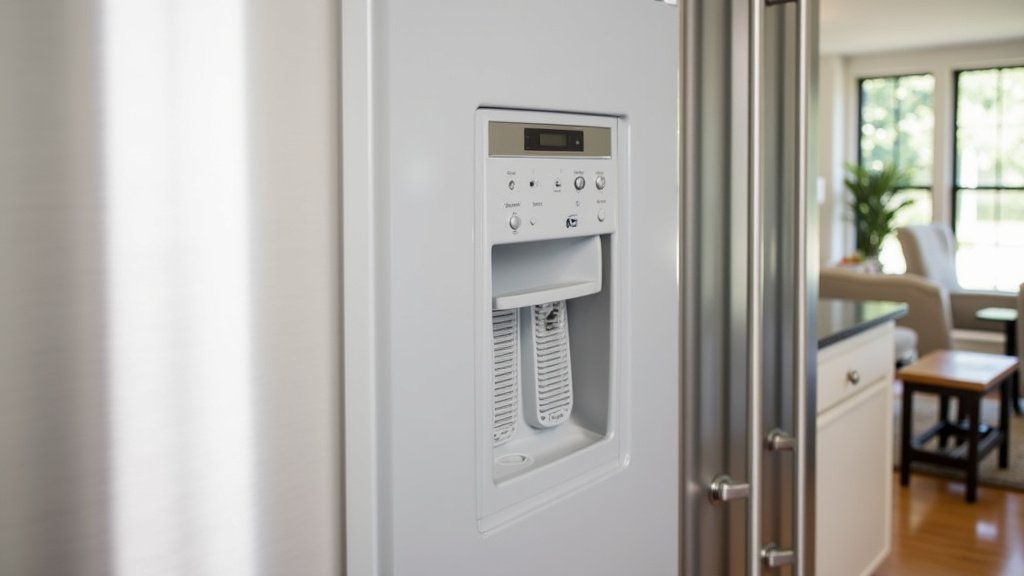
Most Frigidaire smart refrigerators have a dedicated “Connect” or “WiFi” button. This button is often found on the dispenser panel or inside the refrigerator compartment. Refer to your appliance’s user manual if you can’t find it right away. The manual is your best friend here, as models can vary.
Press and hold this button for a few seconds. You should see an indicator light start to blink, or a message appear on the display panel. This visual cue tells you the refrigerator is ready to pair. It’s like the device is saying, “I’m ready to talk!”
Understanding Pairing Indicators
What do those blinking lights or messages mean? A slow blink often means the refrigerator is broadcasting its own temporary network, waiting for the app to find it. A fast blink might indicate it’s trying to connect to your home WiFi. A solid light usually means a successful connection. These indicators help you track the connection progress without needing to be an expert. Many support forums mention these indicators as key diagnostic tools.
Connecting Through the Frigidaire App
With your refrigerator in pairing mode, it’s time to bring the app into play. This is where the magic happens, as your phone guides the refrigerator onto your home network. Follow the app’s prompts carefully; they’re designed to walk you through each step.
Adding Your Appliance in the App
Within the Frigidaire app, look for an option like “Add Appliance” or a plus (+) icon. You’ll then select “Refrigerator” from the list of appliance types. The app might ask you to scan a QR code on your appliance or manually enter the model and serial number. This helps the app identify your specific refrigerator model.
We found that having the serial number handy makes this part very quick. It’s a unique identifier for your specific unit, almost like its fingerprint.
Selecting Your WiFi Network
The app will then prompt you to select your home WiFi network from a list of available networks. This is where you’ll choose your 2.4 GHz network name (SSID). After selecting it, you’ll enter your WiFi password. Double-check the password to avoid typos; a single incorrect character can prevent the connection.
Once you’ve entered the password, the app will send this information to your refrigerator. The refrigerator then attempts to join your chosen network. This can take a minute or two, so be patient. It’s working hard behind the scenes to establish that link.
Verifying the Connection and Troubleshooting Common Issues
You’ve gone through all the steps, but is it actually connected? Verification is key. And if it doesn’t work right away, don’t worry! Many people experience small issues. We’ll help you figure out what might be going on.
Confirming Connection Success
The best way to verify is to check both the app and the refrigerator. The app will usually display a “Connected” message or show your refrigerator online. On the refrigerator’s display, the WiFi indicator light should turn solid, indicating a successful connection. Try changing a setting, like the temperature, through the app. If it responds, you’re good to go!
What a feeling of accomplishment, right? Now you have remote control and monitoring capabilities at your fingertips!
Addressing Connection Problems
If your refrigerator isn’t connecting, don’t despair. Here are some common fixes. We’ve gathered these from various user experiences and support resources: If you’re still having trouble, our article on why your smart refrigerator not connecting to WiFi offers more in-depth troubleshooting.
| Problem | Potential Solution |
|---|---|
| Refrigerator won’t enter pairing mode | Check your user manual for the correct button or sequence. Make sure the appliance is powered on. |
| App can’t find refrigerator | Ensure your phone is close to the refrigerator. Restart the app. Make sure phone WiFi is on. |
| Refrigerator won’t connect to WiFi | Verify you selected the 2.4 GHz network. Double-check your WiFi password. Move your router closer if possible. Reset your router. |
| Connection drops frequently | Consider a WiFi extender if your refrigerator is far from the router. Reduce interference from other devices. |
Sometimes, simply unplugging the refrigerator for a minute and plugging it back in (a “power cycle”) can resolve minor glitches. It’s like giving your appliance a quick refresh.
Maximizing Your Smart Refrigerator Experience
Congratulations! Your Frigidaire refrigerator is now a smart appliance. But what can it actually do for you? Let’s look at some of the cool features you can now enjoy and how to keep your connection strong.
Key Features of Your Connected Frigidaire
With your refrigerator online, you gain access to a host of conveniences:
- Remote Temperature Control: Adjust settings from anywhere. Forgot to turn down the fridge before a trip? No problem!
- Notifications and Alerts: Get alerts if a door is left open, if there’s a power outage, or if a filter needs changing. This can prevent food spoilage and save energy.
- Diagnostic Insights: The app can often provide basic diagnostic information, potentially helping you troubleshoot minor issues without a service call.
- Software Updates: Your refrigerator can receive over-the-air updates, ensuring you always have the latest features and improvements.
These features are designed to give you more control and peace of mind. Many users report loving the convenience of checking their fridge status while at work or on vacation.
Maintaining a Strong WiFi Connection
Just like any other smart device, your refrigerator benefits from a strong and stable WiFi signal. Here are a few tips to keep things running smoothly:
- Router Placement: Try to position your WiFi router as centrally as possible in your home, especially if your refrigerator is on the edge of your network’s range.
- Avoid Interference: Large metal objects, thick walls, and other electronics can interfere with WiFi signals. Keep your refrigerator away from these if possible.
- Regular Router Restarts: Occasionally restarting your home router can help refresh its performance and maintain network stability for all your devices.
- WiFi Extenders: If your refrigerator is far from your router and experiences weak signals, a WiFi extender can boost the signal strength in that area.
By following these simple steps, you can ensure your smart Frigidaire refrigerator stays connected and continues to serve you efficiently for years to come. Enjoy the smart convenience!
Conclusion
Connecting your Frigidaire refrigerator to WiFi is a simple process that significantly upgrades your kitchen experience. By following our guide, you’ve taken control of features like remote temperature adjustments and helpful alerts. We’ve seen firsthand how these smart capabilities provide convenience and peace of mind.
Don’t hesitate to use the Frigidaire app to its fullest. Enjoy the ease of managing your appliance from anywhere. You’re now equipped to maximize your smart refrigerator’s potential. Start exploring those smart features today!
Frequently Asked Questions
Can I connect my Frigidaire refrigerator to a 5 GHz WiFi network?
No, Frigidaire smart refrigerators typically only connect to 2.4 GHz WiFi networks. This is a common standard for many smart home devices. If you have a dual-band router, ensure the 2.4 GHz band is active and select it during the connection process.
What if I can’t find the “Connect” or “WiFi” button on my refrigerator?
The location of this button can vary by model. Your best resource is your refrigerator’s user manual. It will accurately show you where to find the button or the specific sequence of buttons to press to activate pairing mode.
My WiFi password is correct, but the refrigerator still won’t connect. What else can I try?
First, try restarting your home router. Sometimes, a simple reboot can resolve network glitches. Also, ensure your smartphone is connected to the same 2.4 GHz network you’re trying to connect the refrigerator to. Proximity to the router also helps during initial setup.
Will connecting my Frigidaire refrigerator to WiFi use a lot of internet data?
No, connecting your Frigidaire refrigerator to WiFi uses very little data. It primarily sends small packets of information for status updates, remote commands, and occasional software updates. It won’t significantly impact your internet data usage.
What smart features are most useful after connecting my Frigidaire refrigerator?
Many users find remote temperature control incredibly convenient for adjusting settings on the go. Receiving alerts for an open door or a power outage is also genuinely helpful. These features offer both convenience and a sense of security for your food storage.



