How to Connect Whirlpool Refrigerator to WiFi?
On this page (3 sections)
To connect your Whirlpool refrigerator to WiFi, you’ll generally need to download the Whirlpool mobile app, enable your refrigerator’s network settings, and then follow the app’s guided pairing process. This usually involves pressing a specific button on your appliance to activate discovery mode for your home network. You’ll need your home WiFi password ready.
Many modern Whirlpool refrigerators are designed with smart features, letting you manage settings right from your phone. We found that connecting your appliance can offer conveniences like remote temperature adjustments or timely alerts. It’s a handy way to stay in control, even when you’re not in the kitchen.
TL;DR:
- Download the Whirlpool app.
- Enable your fridge’s network settings.
- Follow the in-app pairing instructions.
- Have your WiFi password ready.
Ready to make your kitchen smarter? Let’s walk through the steps to get your Whirlpool refrigerator connected to your home’s WiFi network.
Getting Your Whirlpool Refrigerator Connected to Your Network
Connecting your Whirlpool smart refrigerator to your home network can simplify your kitchen routine. This process typically involves a few key steps, from preparing your appliance to syncing it with the Whirlpool app.
Prerequisites: What You Need Before You Start
Before you begin the connection process, it’s helpful to gather a few items and check some basic settings. This preparation can make the entire setup smoother and faster.
Checking Your Refrigerator Model
First, confirm that your specific Whirlpool refrigerator model supports WiFi connectivity. While many newer models do, not all do. You can usually find this information on the appliance itself, in your owner’s manual, or on the Whirlpool website by searching your model number.
If your refrigerator doesn’t have smart features, you won’t be able to connect it to WiFi. It’s always good to double-check compatibility first.
Ensuring Strong WiFi Signal Strength
Your refrigerator needs a reliable WiFi signal to connect. If your fridge is far from your router, or if there are many walls in between, the signal might be weak. A weak signal can cause connection issues or frequent disconnections.
Try to place your router optimally, or consider a WiFi extender if the signal is poor in your kitchen. We found that a strong, stable signal is crucial for a successful connection.
Downloading the Whirlpool App
You’ll need the official Whirlpool app to manage your smart refrigerator. It’s available for both iOS and Android devices. Search for “Whirlpool” in your app store and download the application. This app is your central hub for controlling and monitoring your appliance.
Once downloaded, you’ll need to create an account or log in if you already have one. Make sure you use an email address you check regularly.
Step-by-Step Connection Guide
Now that you’ve prepared, let’s walk through the actual steps to get your Whirlpool refrigerator online. The process is designed to be user-friendly, guiding you along the way.
Preparing Your Refrigerator for Connection
The first step is to activate the network settings on your refrigerator itself. This often involves a specific button press or a sequence of actions on the appliance’s control panel.
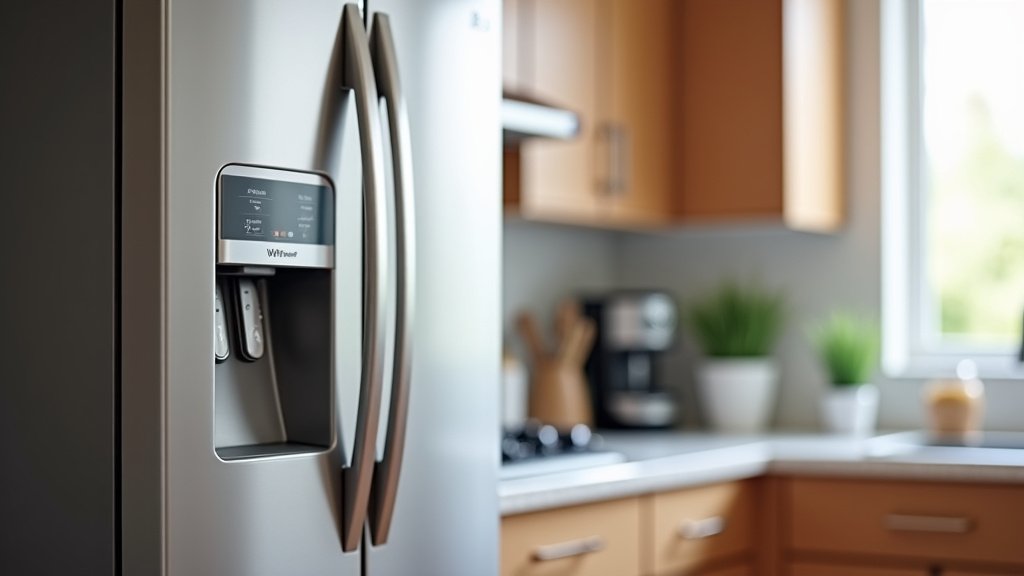
Look for a button labeled “Connect,” “Pair,” or a WiFi symbol. Pressing this button usually puts your refrigerator into discovery mode. You might see a blinking WiFi icon on the display, indicating it’s ready to be found.
Refer to your refrigerator’s manual if you can’t find the exact button or sequence. Each model can be slightly different.
Using the Whirlpool App to Connect
With your refrigerator in discovery mode, open the Whirlpool app on your smartphone or tablet. The app will guide you through the remaining steps.
- Select “Add Appliance”: Look for an option to add a new appliance within the app.
- Choose “Refrigerator”: Specify that you are connecting a refrigerator.
- Scan for Appliances: The app will then search for nearby Whirlpool appliances in discovery mode. This might take a moment.
- Enter WiFi Credentials: Once your refrigerator is detected, the app will ask for your home WiFi network name (SSID) and password. Make sure you enter these correctly. WiFi passwords are often case-sensitive.
- Confirm Connection: After entering your details, the app will attempt to connect to your refrigerator. You’ll usually see a confirmation message once the connection is successful. Your refrigerator’s display might also show a steady WiFi icon.
This whole process typically takes just a few minutes if everything goes smoothly. We found that having your WiFi password written down can speed things up.
Troubleshooting Common Connection Issues
Sometimes, things don’t go perfectly on the first try. Don’t worry if you encounter a hiccup. Many connection issues have simple solutions. We’ve compiled some common problems and their fixes. If you’re still having trouble, our guide on why your smart refrigerator not connecting to WiFi offers more in-depth solutions.
“Refrigerator Not Found” or “Connection Failed” Errors
If the app can’t find your refrigerator or the connection fails, consider these possibilities:
- Is Your Refrigerator in Discovery Mode?: Double-check that the WiFi indicator on your fridge is blinking or active. If not, restart the discovery mode process.
- Is Your Phone on the Same Network?: Your phone needs to be connected to the same home WiFi network (2.4 GHz) that you’re trying to connect your refrigerator to.
- Router Distance and Obstacles: Move your phone closer to the refrigerator and router. Walls, large appliances, and even certain building materials can interfere with WiFi signals.
- Incorrect WiFi Password: Even a single incorrect character can prevent a connection. Carefully re-enter your WiFi password.
Understanding 2.4 GHz vs. 5 GHz WiFi
Most smart home appliances, including many Whirlpool refrigerators, connect to the 2.4 GHz WiFi band. Newer routers often broadcast both 2.4 GHz and 5 GHz networks. The 5 GHz band is faster but has a shorter range and struggles more with obstacles.
Your refrigerator might not be able to “see” the 5 GHz network. Ensure your router is broadcasting a 2.4 GHz network and that your phone is connected to it during the setup process. Sometimes, naming your 2.4 GHz and 5 GHz networks differently can help distinguish them.
Resetting and Retrying
If all else fails, a simple reset can often resolve minor glitches. You can try:
- Restarting Your Refrigerator: Unplug it for about 60 seconds, then plug it back in.
- Restarting Your Router: Unplug your internet router for 30 seconds, then plug it back in. Wait a few minutes for it to fully boot up.
- Restarting the Whirlpool App: Close the app completely and reopen it.
Then, try the connection process again from the beginning. Many guidelines point to restarting devices as a good first step for network issues (Whirlpool Support).
We found that patience is key when troubleshooting. Sometimes, a brief pause and a fresh start can make all the difference.
Post-Connection: What Can Your Smart Fridge Do?
Congratulations! Your Whirlpool refrigerator is now connected to WiFi. What’s next? A world of convenience and control awaits you through the Whirlpool app.
Exploring App Features and Benefits
Once connected, your Whirlpool app becomes a control panel for your refrigerator. You can:
- Adjust Temperatures Remotely: Change freezer or refrigerator temperatures from anywhere. This is handy if you’re going on vacation or just bought a lot of groceries.
- Receive Alerts: Get notifications if the door is left open, if there’s a power outage, or if a filter needs changing. This can help prevent food spoilage and save energy.
- Access Vacation Mode: Activate a specific mode to save energy while you’re away.
- Run Diagnostics: The app might offer diagnostic tools to help identify issues.
- Order Replacement Parts/Filters: Some apps allow you to directly order parts like water filters when they’re needed.
The specific features available will depend on your refrigerator model. We found these smart features add a surprising amount of convenience to daily life.
Maintaining Your Connection
To ensure your smart refrigerator remains connected and functional, consider these tips:
- Keep Your App Updated: Regularly update the Whirlpool app to get the latest features and bug fixes.
- Check for Firmware Updates: Your refrigerator itself might receive firmware updates via WiFi. The app will usually notify you when these are available. Installing updates keeps your appliance secure and performing optimally.
- Monitor Your WiFi Network: Ensure your home WiFi is stable and doesn’t frequently drop out.
A well-maintained connection ensures you get the most out of your smart appliance.
Checklist for a Smooth Connection Process
Here’s a quick checklist to help you ensure you have everything ready for a successful Whirlpool refrigerator WiFi connection:
- Confirm your Whirlpool refrigerator model supports WiFi.
- Download the official Whirlpool app and create an account.
- Ensure your smartphone is connected to a 2.4 GHz WiFi network.
- Have your home WiFi network name (SSID) and password ready.
- Make sure your refrigerator is within good range of your WiFi router.
- Locate the Connect/Pair button on your refrigerator’s control panel.
By following these steps, you’ll be on your way to a smarter, more connected kitchen. Enjoy the newfound control and convenience!
Conclusion
Successfully connecting your Whirlpool refrigerator to WiFi brings a new level of convenience to your kitchen. By confirming compatibility, preparing your network, and carefully following the app’s instructions, you can easily access smart features. We found that taking a moment to troubleshoot common issues, like WiFi band differences or signal strength, can quickly resolve most problems.
Enjoy the benefits of remote control, timely alerts, and simplified appliance management. Go ahead and start exploring how your newly connected smart fridge can make your daily routine a little easier.
Frequently Asked Questions
Why isn’t my Whirlpool refrigerator connecting to my 5 GHz WiFi network?
Most smart home appliances, including many Whirlpool refrigerators, are designed to connect only to the 2.4 GHz WiFi band. The 5 GHz band is faster but has a shorter range and isn’t typically supported by these devices. Ensure your router broadcasts a 2.4 GHz network.
Do I need to keep the Whirlpool app open for my refrigerator to stay connected?
No, you do not need to keep the app open for your refrigerator to remain connected to your home WiFi. Once paired, the refrigerator communicates directly with your router. You’ll only need to open the app when you want to adjust settings or check its status.
What if my Whirlpool refrigerator loses its WiFi connection frequently?
Frequent disconnections often point to a weak WiFi signal or interference. Try moving your router closer, reducing obstacles between the fridge and router, or using a WiFi extender. Also, ensure your refrigerator’s firmware and the Whirlpool app are both updated.
Can I control my Whirlpool refrigerator with voice commands after connecting it to WiFi?
Many WiFi-connected Whirlpool refrigerators can integrate with popular voice assistants like Amazon Alexa or Google Assistant. You’ll typically need to enable the Whirlpool skill or action within your voice assistant’s app. Check your refrigerator’s manual or the Whirlpool app for specific compatibility and setup instructions.
What happens to my smart fridge features if my home internet goes out?
If your home internet goes out, your Whirlpool refrigerator will temporarily lose its smart features that rely on an internet connection, such as remote control and app alerts. It will still function as a regular refrigerator, maintaining its temperature settings. Once your internet service is restored, the smart features should reconnect automatically.



