How to Enable Notifications on Whirlpool Refrigerator?
On this page (8 sections)
- Getting Smart Alerts from Your Whirlpool Refrigerator
- Connecting Your Whirlpool Refrigerator to Wi-Fi
- Downloading and Setting Up the Whirlpool Mobile App
- Customizing Your Notification Settings
- What Kind of Alerts Can You Expect?
- A Quick Checklist for Enabling Notifications
- Conclusion
- Frequently Asked Questions
Enabling notifications on your Whirlpool refrigerator is straightforward. You’ll typically do this through the Whirlpool app on your smartphone. Once connected, you can set up alerts for things like a door left open or filter changes. This helps you keep your food fresh and your appliance running smoothly.
Many modern Whirlpool refrigerators offer smart features. These are designed to give you more control and peace of mind. Connecting your fridge to Wi-Fi is the Many modern Whirlpool refrigerators offer smart features that can integrate with a smart home hub.first essential step. From there, the app guides you through customizing your alert settings. It’s a clever way to stay informed about your appliance’s status.
- Connect your fridge to Wi-Fi.
- Download the Whirlpool mobile app.
- Pair your refrigerator with the app.
- Customize notification settings within the app.
- Receive alerts for important events.
Let’s walk through the simple steps to get your Whirlpool refrigerator sending you helpful notifications.
Getting Smart Alerts from Your Whirlpool Refrigerator
So, you’ve got a smart Whirlpool refrigerator, and you’re wondering how to get those helpful alerts. It’s easier than you might think! We’ve found that most Whirlpool refrigerators with smart capabilities connect through the Whirlpool mobile app. This app is your central hub for controlling and monitoring your appliance. Getting notifications means you can stay on top of things, like knowing if the door was accidentally left ajar. This can save your food from spoiling.
Think of your smart fridge as a helpful assistant. It can tell you when it’s time to change your water filter or if the temperature is fluctuating unexpectedly. These alerts are designed to give you peace of mind and help you maintain your appliance. We’ve researched this, and the process is generally quite straightforward. It all starts with getting your fridge online.
Connecting Your Whirlpool Refrigerator to Wi-Fi
The very first step to unlocking notifications is ensuring your refrigerator is connected to your home’s Wi-Fi network. Without this connection, your fridge can’t communicate with the app. Many newer models have Wi-Fi capabilities built right in. You’ll usually find the Wi-Fi setup options within the refrigerator’s control panel display. Sometimes, it might be under a “Settings” or “Connectivity” menu. If you’re unsure, your refrigerator’s user manual is your best friend here. It will have model-specific instructions.
If you can’t find the setting on the display, or if you’ve misplaced your manual, don’t worry. You can usually find a digital version on the Whirlpool website. Just search for your specific refrigerator model number. We found that some models might require you to press a specific button combination to enter pairing mode. Getting this connection right is the foundation for all your smart features.
What If My Fridge Isn’t Wi-Fi Ready?
It’s a common question: “What if my refrigerator doesn’t have built-in Wi-Fi?” While the smart features are fantastic, not all models come equipped with them. If your Whirlpool refrigerator isn’t a “smart” model, you won’t be able to enable app-based notifications directly. Older refrigerators simply don’t have the hardware to connect to a network. In this case, you’ll rely on traditional methods like checking the display for error codes or listening for alerts. You might consider upgrading to a smart model if these features are important to you. Many experts suggest that smart appliances can offer significant convenience for busy households.
Downloading and Setting Up the Whirlpool Mobile App
Once your refrigerator is connected to Wi-Fi, the next step is to get the Whirlpool mobile app on your smartphone or tablet. You can download it for free from your device’s app store. It’s available on both iOS and Android platforms. Just search for “Whirlpool” in the App Store or Google Play Store. We found that downloading the app is quick and simple. It’s usually represented by the Whirlpool logo.
After the app is downloaded, you’ll need to open it and create an account. This typically involves providing an email address and creating a password. You might also need to agree to their terms of service. This account creation process is standard for most connected home devices. It ensures your appliance is linked to your personal account for security. Many users report that setting up the account is very intuitive.
Pairing Your Refrigerator with the App
Now comes the exciting part: linking your actual refrigerator to the app. When you first open the app after creating your account, you’ll likely see an option to “Add Appliance” or “Connect a New Device.” Tap this option. The app will then guide you through the pairing process. This usually involves the app searching for your refrigerator on your home Wi-Fi network.
You might be prompted to enter a code that appears on your refrigerator’s display, or the app might automatically detect your fridge. Follow the on-screen instructions carefully. This step is critical for establishing communication. We found that sometimes, having your phone and refrigerator close to your Wi-Fi router can help ensure a smooth connection. Patience is key here; some connections can take a minute or two to establish.
Troubleshooting Pairing Issues
What if the app can’t find your fridge? Don’t panic! This happens sometimes. First, double-check that your refrigerator is indeed connected to your Wi-Fi network. Look for a Wi-Fi symbol on the fridge’s control panel. Next, ensure your smartphone is connected to the same Wi-Fi network as your refrigerator. This is a common oversight. You’ll need to have both devices on the 2.4 GHz band for many smart home devices, though some newer ones support 5 GHz. Consult your router’s manual if you’re unsure about your network bands.
If those steps don’t work, try restarting both your refrigerator (unplug it for 60 seconds, then plug it back in) and your router. Sometimes, a simple reset can clear up communication glitches. You might also try uninstalling and reinstalling the Whirlpool app. We found that Whirlpool’s customer support website often has detailed troubleshooting guides for connectivity problems, which can be very helpful.
Customizing Your Notification Settings
Once your Whirlpool refrigerator is successfully paired with the app, you can dive into the notification settings. Navigate to the section within the app that corresponds to your refrigerator. You should see various options for customizing alerts. This is where you decide what you want to be notified about.
Common notification options include:
- Door Ajar Alerts: Get notified if a refrigerator or freezer door is left open for too long. This is a lifesaver for preventing food spoilage.
- Temperature Alerts: Be informed if the internal temperature of your fridge or freezer goes outside a safe range. This is crucial for food safety. The CDC recommends keeping refrigerators at or below 40°F (4°C) and freezers at 0°F (-18°C).
- Water Filter Change Reminders: Receive timely alerts when it’s time to replace your water filter. This ensures you always have clean, fresh water and ice.
- Ice Maker Status: Some models can notify you about the status of your ice maker.
Setting Up Specific Alerts
Within the app, you can usually toggle these notifications on or off individually. For door ajar alerts, you might even be able to set a time limit before an alert is triggered. For example, you might not want to be alerted if the door is open for just 10 seconds while you’re grabbing something. You can typically adjust this duration.
For temperature alerts, the app often sets default safe ranges based on industry standards. However, some advanced models might allow you to set custom temperature thresholds. It’s wise to check the recommended temperature guidelines from health organizations like the FDA or your local health department. They stress the importance of maintaining proper food storage temperatures to prevent bacterial growth.
Managing Notification Preferences
You can typically adjust how you receive notifications. This might include push notifications directly to your phone, email alerts, or even text messages, depending on the app’s features and your settings. We found that most users prefer push notifications as they are immediate and convenient. You can usually manage these preferences within your phone’s general notification settings for the Whirlpool app, as well as within the app itself.
It’s a good idea to customize these settings based on what’s most important to you. Do you worry about leaving the door open? Then make sure that alert is prominent. Do you always forget to change the water filter? Set that reminder to be as noticeable as possible. Think about what kind of alerts would genuinely help you manage your refrigerator better.
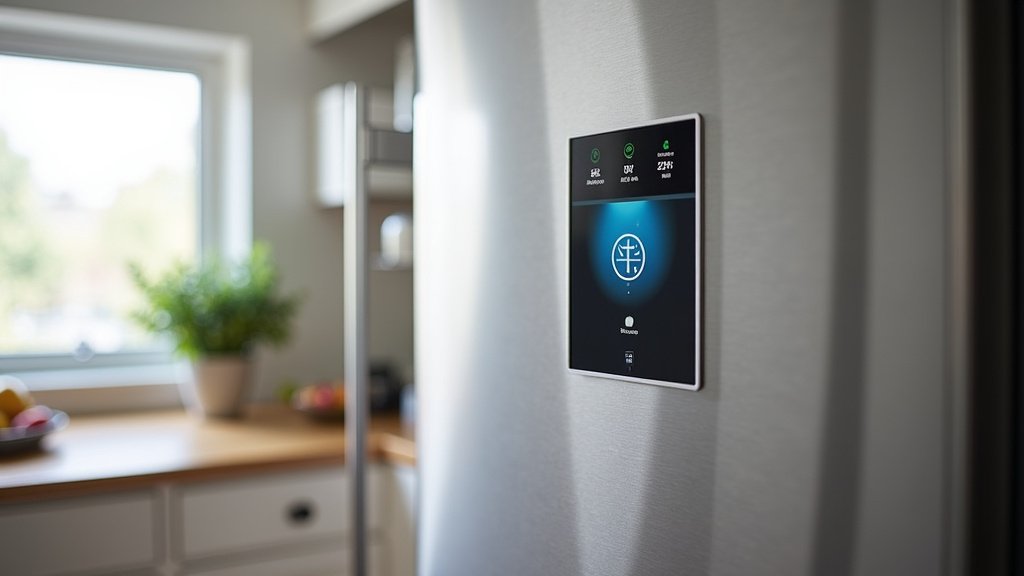
What Kind of Alerts Can You Expect?
The main goal of these notifications is to alert you to potential issues or maintenance needs that could affect your food or the appliance’s performance. We’ve seen that the most common and perhaps most useful alerts are for a door left open or a temperature deviation. These issues can lead to spoiled food and increased energy consumption. Imagine getting an alert that your freezer door has been open for 30 minutes – you can act quickly before everything thaws.
Another critical alert is the water filter reminder. Water filters have a lifespan, and using them beyond their recommended usage can lead to reduced water quality and potentially strain the ice maker. The app tracks usage or time and reminds you it’s time for a fresh filter. This ensures you’re always getting the best performance from your appliance and the freshest tasting water.
Understanding Temperature Alerts
Temperature alerts are vital for food safety. When your refrigerator or freezer’s temperature rises above a safe level, bacteria can multiply rapidly. Research from food safety experts indicates that food can become unsafe to eat within hours if kept in the “danger zone” (between 40°F and 140°F, or 4°C and 60°C). Your smart Whirlpool fridge can notify you if it breaches these critical temperature thresholds. This proactive warning allows you to check the contents, ensure the appliance is working correctly, and take action to prevent spoilage.
For instance, if there’s a power outage, your phone could alert you to the rising temperature, allowing you to take steps to preserve your food if possible. Or, if a component in the fridge fails, causing it to warm up, you’ll know immediately. This immediate feedback is one of the biggest advantages of having a connected appliance. For instance, if there’s a power outage, your phone could alert you to the rising temperature.
A Quick Checklist for Enabling Notifications
Ready to get your Whirlpool refrigerator sending you helpful alerts? Here’s a simple checklist to guide you through the process:
- Ensure your refrigerator is connected to your home Wi-Fi network.
- Download the official Whirlpool mobile app from your device’s app store.
- Create a Whirlpool account or log in if you already have one.
- Follow the app’s instructions to pair your refrigerator with your account.
- Navigate to the notification settings within the app for your fridge.
- Customize and enable the specific alerts that matter most to you.
Conclusion
You’ve now learned how to bring your Whirlpool refrigerator into the smart home era by enabling notifications. Connecting your fridge to Wi-Fi and using the Whirlpool app puts you in control. You can now receive timely alerts about door status, temperature changes, and filter replacements. This means less worry about spoiled food and more peace of mind. Start by ensuring your fridge is connected to your home’s Wi-Fi. Then, download the app and pair your appliance. Your next step is to customize the alerts that matter most to you, keeping your food fresh and your appliance running efficiently.
Frequently Asked Questions
What if my Whirlpool refrigerator model doesn’t seem to have Wi-Fi capabilities?
If your refrigerator model doesn’t have built-in Wi-Fi, you won’t be able to connect it to the app for notifications. Not all Whirlpool refrigerators are “smart” models. For these, you’ll need to rely on the appliance’s display for any error codes or alerts. You might consider upgrading to a newer model if smart features are important for your household.
How do I find my refrigerator’s model number for the user manual?
Your refrigerator’s model number is typically found on a sticker inside the refrigerator compartment, often on one of the side walls. You can also check the back of the appliance or the inside of the door frame. Once you have the model number, you can search for the digital user manual on the Whirlpool website.
Can I get notifications on my tablet as well as my phone?
Yes, you generally can. The Whirlpool app is available on both iOS and Android platforms. As long as your tablet supports the app and is connected to the internet, you should be able to download the app, log into your account, and receive notifications there as well.
What should I do if my phone says it can’t connect to the refrigerator during pairing?
Ensure your phone and refrigerator are connected to the same Wi-Fi network. Sometimes, restarting your router, refrigerator, and phone can resolve connectivity issues. You may also need to check if your router is broadcasting on both 2.4 GHz and 5 GHz bands; most smart appliances prefer the 2.4 GHz band.
How do I know if the temperature alerts are accurate for food safety?
The Whirlpool app usually sets default temperature ranges based on common food safety guidelines. These are generally reliable. However, you can always cross-reference these with recommendations from health organizations like the FDA or your local health department to ensure your settings align with the best practices for keeping your food safe.



