How to Set Up Bosch Refrigerator App?
On this page (6 sections)
Setting up your Bosch refrigerator app means connecting your smart appliance to your home network. You’ll need to download the Home Connect app and follow the on-screen instructions. This process usually involves pairing your phone with your refrigerator’s Wi-Fi signal.
We understand that navigating new tech can feel a bit daunting. But don’t worry, we’re here to help you get your Bosch refrigerator connected. Once set up, you can control your fridge remotely and get helpful notifications, making your daily life a little easier. You’ll be managing your appliance with a few taps!
- Download the Home Connect app.
- Connect your phone to your refrigerator’s Wi-Fi.
- Pair the appliance within the app.
- Troubleshoot common connection issues.
- Enjoy smart features and remote control.
Let’s walk through exactly how this works, step by step. We’ll cover everything from downloading the app to troubleshooting common issues, so you can enjoy all the smart features your Bosch refrigerator offers.
Getting Your Bosch Refrigerator Connected to Home Connect
Connecting your Bosch refrigerator to the Home Connect app might seem like a futuristic step, but it’s really quite simple. You’re basically creating a direct line between your smart appliance and your smartphone. This connection unlocks a world of convenience, letting you monitor and manage your fridge from anywhere.
The first step is always the app. Think of it as your remote control for your kitchen. We’ll walk you through downloading it and then finding your fridge within the app.
Downloading the Home Connect App
Before you can do anything with your smart refrigerator, you need the right tool. The Home Connect app is available for both Apple and Android devices. It’s free to download and acts as the central hub for all your Bosch smart appliances.
Go to your phone’s app store. For iPhone users, that’s the App Store. For Android users, it’s the Google Play Store. Search for “Home Connect.” You’ll see an app with a clear, distinctive logo. Always download the official app to ensure security and proper functionality.
Once you find it, tap “Install” or “Get.” The download should only take a moment, depending on your internet speed. After it’s installed, open the app. You’ll likely be prompted to create an account or log in if you already have one. This account stores your appliance information securely (Home Connect Support). Make sure to remember your login details.
Preparing Your Refrigerator for Connection
Your Bosch refrigerator is ready to connect, but sometimes a small nudge helps. It’s like preparing your car for a road trip – a quick check ensures everything runs smoothly. There are a few things to consider before you start the pairing process.
Checking Wi-Fi Requirements
The Home Connect system relies on your home Wi-Fi network. Most Bosch smart appliances operate on the 2.4 GHz frequency band. If you have a dual-band router, make sure your phone is connected to the 2.4 GHz network during the setup process. Many routers broadcast both 2.4 GHz and 5 GHz signals, sometimes with different names. For example, you might see “MyHome” and “MyHome_5G.” For those wondering about initial setup, our guide explains if you can install a smart refrigerator without WiFi.Connect to the one without the “5G” for the best results when pairing.
Ensure your Wi-Fi signal is strong where your refrigerator is located. Just like streaming a movie, a weak signal can cause connection issues. If your router is far away, consider a Wi-Fi extender (TechRadar).
Power Cycling Your Appliance (If Needed)
Sometimes, a simple restart can fix minor electronic glitches. If you’re having trouble getting your refrigerator into pairing mode, try a “power cycle.” This means unplugging the refrigerator from its power outlet, waiting about 30 seconds, and then plugging it back in. This can sometimes clear temporary software issues and prepare the appliance for a fresh connection attempt. It’s a quick troubleshooting step that often works wonders.
The Step-by-Step Connection Process
Now that you have the app and your fridge is ready, it’s time to make the connection. This is where your phone and your refrigerator will “talk” to each other. We’ll guide you through each click and tap.
Adding Your Appliance in the Home Connect App
Open the Home Connect app. You’ll usually see an option to “Add Appliance” or a plus (+) icon. Tap on this. The app will then ask you what type of appliance you’re connecting. Select “Refrigerator” or “Cooling Appliance” from the list. The app is designed to be intuitive, guiding you through specific steps tailored to your appliance model.
The app might ask you to scan a QR code. This code is typically found on a sticker inside your refrigerator, often near the model number. Sometimes it’s on the instruction manual. Scanning this code helps the app identify your specific model and simplify the setup.
Activating the Refrigerator’s Pairing Mode
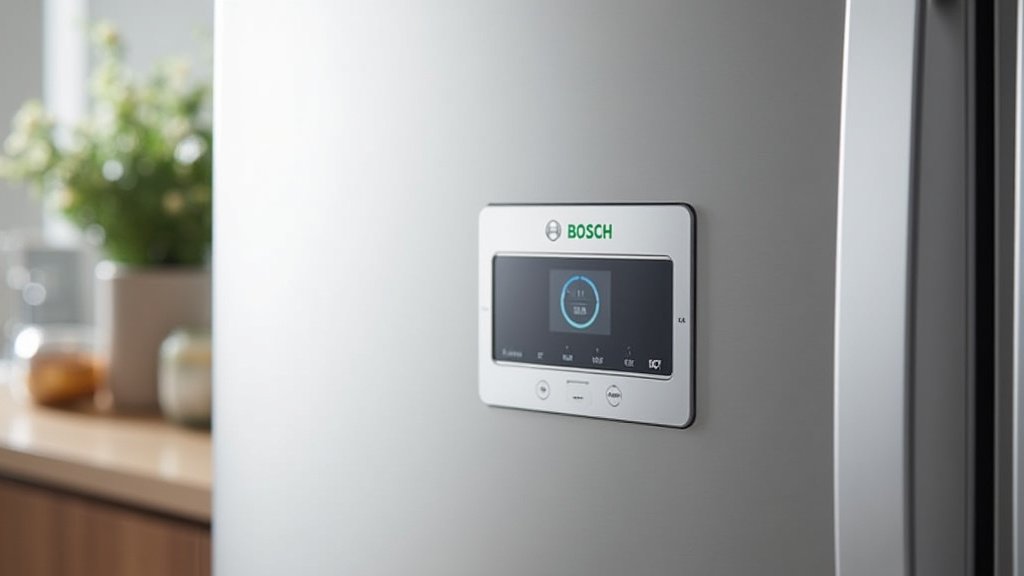
Your refrigerator needs to know you’re trying to connect it. This is called “pairing mode” or “connection mode.” The exact way to activate this varies slightly by Bosch model. Many models have a specific button combination or a hold-down action on the display panel. Look for symbols like a Wi-Fi icon, a house icon, or the words “Connect” or “Pairing.”
For example, some models require you to press and hold the “Options” or “Settings” button for a few seconds until a Wi-Fi symbol flashes on the display. Others might have a dedicated “Connect” button. Refer to your refrigerator’s user manual if you’re unsure. The manual is your best friend here. Once in pairing mode, the refrigerator typically broadcasts its own temporary Wi-Fi signal.
Connecting Your Phone to the Refrigerator’s Wi-Fi
This is a crucial step. Your phone needs to temporarily connect to your refrigerator directly. The Home Connect app will tell you when to do this. Go to your phone’s Wi-Fi settings. You’ll see a new network listed, often starting with “HomeConnect” followed by some numbers or letters (e.g., “HomeConnect-1234”). Select this network.
It’s important to understand that this is a temporary connection. Your phone isn’t connecting to the internet through the fridge. It’s simply creating a bridge to transfer your home Wi-Fi credentials to the appliance. Don’t worry if your phone shows “no internet connection” during this step; that’s normal. Once connected to the fridge’s Wi-Fi, return to the Home Connect app.
Transferring Home Network Credentials
Back in the Home Connect app, it will now ask you to select your home Wi-Fi network from a list. Choose your main 2.4 GHz network. Then, you’ll enter your home Wi-Fi password. This is where the magic happens: your phone securely sends your home Wi-Fi name and password to the refrigerator through that temporary direct connection. The refrigerator then uses this information to join your home network. Double-check your password for accuracy; a single typo can prevent connection.
Once the refrigerator successfully connects to your home Wi-Fi, it will stop broadcasting its temporary network. Your phone will usually automatically switch back to your home Wi-Fi network. The Home Connect app will then confirm that your appliance is connected. You should see a solid Wi-Fi symbol on your refrigerator’s display as well.
What to Do If Connection Fails
Sometimes, technology can be a bit stubborn. Don’t get discouraged if your Bosch refrigerator doesn’t connect on the first try. Connection issues are common, but they’re often easy to fix. We’ve compiled some common troubleshooting steps to help you get back on track. Many of these solutions are recommended by appliance support teams (Consumer Reports).
Common Troubleshooting Steps Checklist
- Check Wi-Fi password: Are you absolutely sure you typed it correctly? Passwords are case-sensitive.
- Verify 2.4 GHz network: Is your phone connected to the 2.4 GHz band of your home Wi-Fi during setup?
- Router proximity: Is your router too far from the refrigerator? Try moving it closer temporarily or using an extender.
- Power cycle everything: Unplug your refrigerator, turn off your router, wait 30 seconds, then plug them back in.
- App updates: Is your Home Connect app the latest version? Check your app store for updates.
- Router settings: Are there any firewalls or network settings on your router blocking new device connections? Sometimes you need to temporarily disable advanced security features during setup.
Understanding Error Messages
The Home Connect app or your refrigerator’s display might show an error message if something goes wrong. These messages can be incredibly helpful. For example, an “Incorrect Password” error points directly to the password entry. A “Network Not Found” message suggests your refrigerator can’t see your home Wi-Fi, possibly due to distance or frequency issues. Pay close attention to these messages; they often tell you exactly what’s wrong.
If you see a generic error like “Connection Failed,” go back through the steps systematically. Retrace your steps in the app. Did the Wi-Fi symbol on the fridge activate? Did your phone connect to the fridge’s temporary Wi-Fi? Sometimes, simply trying again from the beginning resolves the issue (Bosch Home Appliances Support). It’s like giving your tech a gentle reboot.
Leveraging Your Smart Refrigerator Features
Congratulations! Your Bosch refrigerator is now connected to the Home Connect app. This opens up a world of convenience. You’re no longer just opening a door; you’re interacting with a smart hub in your kitchen. So, what can you actually do with this newfound power?
Remote Control and Monitoring
One of the biggest benefits is the ability to control and monitor your fridge from anywhere. Did you leave the door open? The app will send you a notification. Want to adjust the temperature before you get home from the grocery store? Just tap a button. You can also activate special modes, like “Holiday Mode” when you’re away, saving energy. This level of control puts your kitchen at your fingertips, whether you’re at work or on vacation.
The app can also provide insights into your appliance’s performance and energy consumption. Think of it as a health tracker for your fridge. Over time, you might notice patterns or learn ways to use your refrigerator more efficiently. We found that users often appreciate the peace of mind knowing they can check on their appliance remotely (Home Connect user reviews).
Smart Features and Integrations
Beyond basic control, your Bosch smart refrigerator can integrate with other smart home systems. For example, some models work with voice assistants like Amazon Alexa or Google Assistant. Imagine saying, “Hey Google, set my fridge to super cool,” and it instantly responds. This hands-free operation is incredibly convenient, especially when your hands are full.
The Home Connect ecosystem is always evolving. New features and integrations are regularly added. Keep your app updated to access the latest functionalities. You might find recipes tailored to your fridge’s contents or get reminders when certain foods are about to expire. It’s designed to make your daily life smoother and your kitchen smarter.
The table below summarizes some key benefits of a connected Bosch refrigerator:
| Feature Category | Benefit to You | Example Use Case |
|---|---|---|
| Remote Control | Manage settings from anywhere. | Adjust temperature while grocery shopping. |
| Notifications | Stay informed about fridge status. | Get alerts if the door is left open. |
| Energy Management | Optimize power consumption. | Activate “Holiday Mode” for efficiency. |
| Voice Control | Hands-free operation. | Ask Alexa to activate “Super Freeze.” |
| Diagnostics | Receive maintenance tips and error codes. | Understand minor issues before they become major. |
Conclusion
You’ve now got all the information to confidently connect your Bosch refrigerator to the Home Connect app. We’ve walked you through downloading the app, preparing your appliance, and troubleshooting any snags. This connection brings a new level of convenience to your kitchen. You’re ready to enjoy remote control and smart features.
Take that next step to smart living. If you encounter any issues, remember the troubleshooting tips. Your smart kitchen experience is just a few taps away. Go ahead, connect your Bosch refrigerator and start enjoying its full potential today.
Frequently Asked Questions
Is the Home Connect app free to use with my Bosch refrigerator?
Yes, the Home Connect app is completely free to download and use. There are no subscription fees for connecting and managing your Bosch smart appliances. You simply need a compatible smartphone or tablet and a Wi-Fi connection.
Can I connect multiple Bosch appliances to the same Home Connect app?
Absolutely! The Home Connect app is designed to be a central hub for all your compatible Bosch smart appliances. You can add multiple refrigerators, ovens, dishwashers, and more to the same app. This allows for centralized control and monitoring.
What if my Bosch refrigerator model doesn’t have Wi-Fi?
If your Bosch refrigerator doesn’t explicitly state “Home Connect” or have a Wi-Fi symbol, it likely isn’t a smart appliance. Only specific models are designed with integrated Wi-Fi capabilities for app connectivity. Check your appliance’s manual or Bosch’s website for model specifications.
Does my phone need to be on the same Wi-Fi network as my refrigerator to control it remotely?
No, once your Bosch refrigerator is successfully connected to your home Wi-Fi network and paired with the Home Connect app, you can control it from anywhere. Your phone just needs an internet connection (Wi-Fi or cellular data) to communicate with the appliance through the app.
What kind of data does the Home Connect app collect from my refrigerator?
The Home Connect app primarily collects data related to appliance usage and performance. This can include operating status, temperature settings, and error codes. This data helps improve service and app functionality. Your personal information and data are handled according to strict privacy guidelines outlined by Bosch and Home Connect.



