How to Use the LG ThinQ Refrigerator Control Panel
To use the LG ThinQ refrigerator control panel, tap the display to wake it, adjust fridge and freezer temps with the up and down buttons, and hold the lock button to prevent changes. Use the ThinQ app for alerts, settings, and filter reminders that the panel alone cannot show you.
On this page (8 sections)
- What controls are on the LG ThinQ refrigerator control panel?
- How do I set fridge and freezer temperatures?
- How do I use panel lock and child lock?
- What does the ThinQ app add that the panel cannot?
- How do I check water, ice, and filter alerts?
- Can I use the panel without the ThinQ app?
- How do I clean and care for the control panel?
- Which LG ThinQ models should you check before you buy?
To use the LG ThinQ refrigerator control panel, wake the display, set temperatures in small steps, and use the lock button when you do not want changes. The lg thinq refrigerator control panel is the main place you check settings on the fridge itself, while the ThinQ app adds remote control and alerts.
Most owners use only a few controls day to day. Learn those first, then add app features and care tasks as you need them.
What controls are on the LG ThinQ refrigerator control panel?
The panel shows fridge and freezer temperatures, plus icons for lock, water, ice, and alerts. Exact layout differs by model, so icons may sit in a different order on yours.
Look for the fridge temp display and the freezer temp display. You will also see a lock icon, a water dispenser icon on some models, and an ice maker icon where applicable.
A door alarm icon may appear when a door has been open too long.
Some models add a filter reminder icon. That icon does not mean the filter is dirty today.
It means the fridge expects a replacement soon based on time or use.
If you are not sure what an icon means, check your model manual before pressing buttons at random. A wrong press rarely causes harm, but it can turn off ice making or change a setting you wanted to keep.
For a wider look at screen types, see our guide to Top Touchscreen Refrigerator Functions & How to Use Them.
How do I set fridge and freezer temperatures?
Set the fridge to about 37°F and the freezer to about 0°F for most households. Tap the panel to wake it, select the fridge or freezer display, then use the up and down buttons.
Change one compartment at a time. Wait at least 24 hours before you judge the result, since food, door openings, and room temperature all affect the reading.
If milk freezes in the fridge, lower the temp setting by 1 or 2 degrees and wait. If food in the freezer thaws, check that vents are not blocked by packages before you change the setting again.
Keep food away from the cold air vents at the back and sides. Blocked vents can make one shelf too cold and another too warm, even when the panel number looks right.
For step by step app and panel steps, use lg thinq refrigerator settings as a companion to this guide.
How do I use panel lock and child lock?
Use panel lock when you want to stop accidental taps from kids, guests, or leaning bags. Press and hold the lock button until the lock icon shows on the display.
While locked, the panel should ignore temperature and mode changes. The fridge keeps running at the last settings, so locking does not turn the fridge off.
Hold the lock button again to release it. Your manual will list the hold time, and some models beep or flash the icon as confirmation.
Lock the panel before cleaning the door or wiping the display. That stops a cloth from changing settings while you clean.
If the panel seems dead, check lock first. A locked panel is working as designed, not broken.
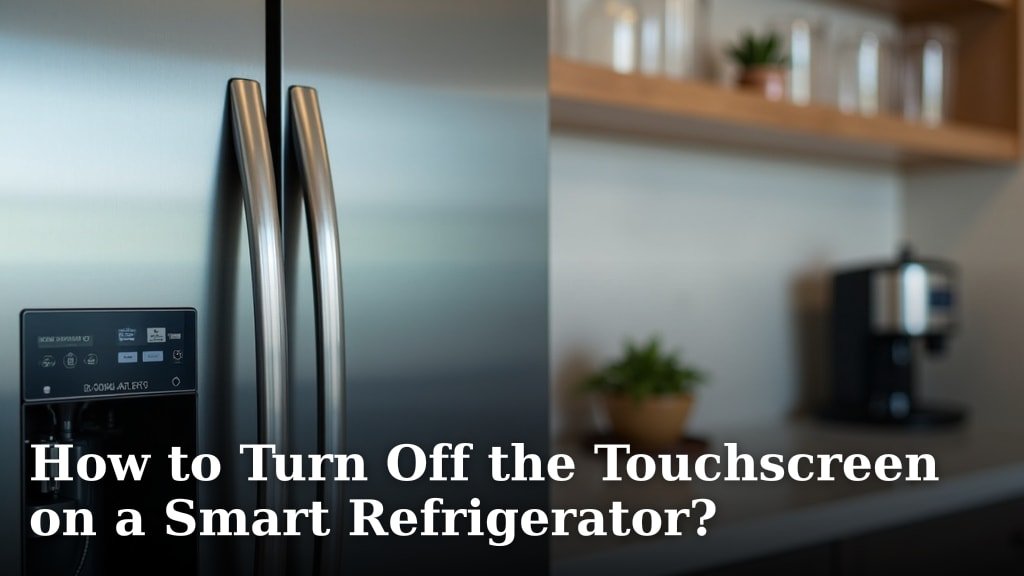
If you prefer to reduce screen activity on some models, see How to Turn Off the Touchscreen on a Smart Refrigerator?.
What does the ThinQ app add that the panel cannot?
The ThinQ app adds remote alerts, energy reports, and filter reminders beyond the panel display. You can check temperatures away from home and get a phone alert if a door stays open.
The panel shows the current setting. The app can tell you why that setting changed, or warn you when the fridge is warming up while you are out.
Use the app to confirm that a change you made at the panel saved correctly. That check helps on models where the panel and app can show a brief delay.
The app also helps during setup. Pairing, Wi-Fi, and account steps are easier to follow on a phone than on a small fridge display.
For full connection steps, follow the LG ThinQ Refrigerator Setup Guide: Get Connected Fast.
How do I check water, ice, and filter alerts?
Check the panel for a filter icon, a water icon, and an ice icon when alerts appear. The maker sets filter life by time, and most households replace the cartridge about every 6 months.
Replace the filter on schedule even if water still tastes fine. A spent filter may not reduce contaminants as well as a fresh one.
After a filter change, reset the reminder on the panel or in the app. Run water through the dispenser until it runs clear, following your manual, before you drink it.
Ice alerts usually mean the bin is full or the ice maker is off. For the faster-production mode, see Ice Plus on an LG ThinQ refrigerator.
Check the bin level and the on and off switch before you assume a fault.
What should you know about replacement filters?
A correct filter matters more than a low price. Use only the cartridge made for your exact fridge model, and check the model number before you order.
The Electrolux EWF2CBPA PureAdvantage filter is a white cassette filter, 1 count, with carbon filter media. Electrolux says it is designed for most Electrolux Icon side-by-side refrigerators.
It is certified by NSF against NSF/ANSI Standards 42 and 53 for reduction of claims on the performance data sheet, including lead.
The SAMSUNG Genuine Filter for Refrigerator Water and Ice, HAF-CIN/EXP, is 1 pack. Samsung says it reduces contaminants with ultra high grade carbon block filtration.
Samsung also says to replace it every 6 months and to use the authentication tag to confirm a genuine filter.
Can I use the panel without the ThinQ app?
Yes, you can use the panel for temps, lock, water, and ice without the app. The fridge still cools, dispenses, and makes ice based on panel settings.
You lose remote alerts and app-only reports without Wi-Fi. That is fine for many households who mainly need steady temps and a lock for kids.
If you move or change routers, you may need to reconnect the fridge to restore app features. The panel itself should keep working during that process.
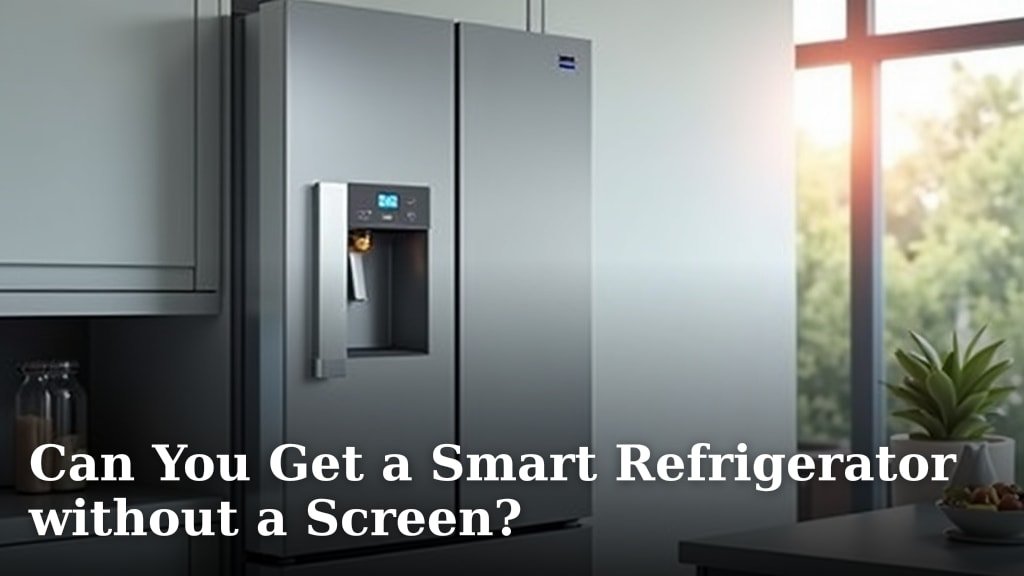
Some buyers prefer fewer screens in the kitchen. Our post on Can You Get a Smart Refrigerator without a Screen? explains that trade off.
How do I clean and care for the control panel?
Clean the panel with a soft, dry cloth or a cloth lightly dampened with water. Do not spray cleaner directly on the display or use abrasive pads.
Dry the surface right away. Moisture around the edges can seep into seams if you soak the display.
Keep the fridge vents clear and the door seals clean. A clean seal helps the fridge hold temp, which means the panel reading stays closer to the real temp inside.
How do I fix common panel problems?
Start with lock, power, and door checks before you call for service. Confirm the panel lock is off, the fridge is plugged in, and the breaker has not tripped.
Unplug the fridge for about one minute, then plug it back in. Wait for the display to restart and check temps after a few hours.
If the display stays blank, try a different outlet if safe to do so. If it still fails, note the model number and any error code for the service team.
Which LG ThinQ models should you check before you buy?
Check your exact model number in the manual before you follow any panel steps. LG uses similar ThinQ names across fridges, but button layout and icons can change.
Look at models only if you need a new fridge. For a current fridge, your manual and the panel icons are the best source.
For shopping help, compare the Best Smart Refrigerator With Lg ThinQ options and match the panel type to your kitchen layout.
In short, wake the panel, set 37°F for the fridge and 0°F for the freezer, and use lock when kids may tap it.
Pick the app for alerts, pick the panel for quick changes, and check your manual for your exact icons.
Frequently asked questions
What does the LG ThinQ refrigerator control panel do?
It shows and changes fridge and freezer temperatures, locks controls, and displays alerts for doors, water, ice, and filters. On connected models, it also confirms settings changed in the ThinQ app.
Exact icons vary by model, so your manual is the final guide for button names and locations.
How do I set the temperature on an LG ThinQ refrigerator?
Wake the panel, tap the fridge or freezer temp display, then use the up and down buttons to set about 37°F for the fridge and 0°F for the freezer. Wait several hours for the cabinet to stabilize before judging the result.
Avoid frequent changes, since the compressor needs steady conditions to run well.
How do I lock the LG refrigerator control panel?
Press and hold the lock button on the panel until the lock icon lights up, following the hold time in your model manual. The panel will not respond to taps while locked, which helps prevent accidental changes from kids or guests.
Hold the same button again to release the lock.
Why is my LG ThinQ panel not responding?
Check panel lock first, then unplug the fridge for about one minute and plug it back in to reset the controls. Confirm the door is fully closed, since some panels stay awake or show a door alert.
If the display stays blank, the breaker, outlet, or control board may need service.