How to Add a Recipe to Bosch Refrigerator App?
On this page (6 sections)
- Adding Your Recipes to Your Bosch Smart Fridge
- Getting Started with the Home Connect App
- How to Manually Add Recipes to the App Once your refrigerator is successfully connected to the Home Connect app, adding your own recipes is straightforward. The app provides a dedicated space for your personal culinary collection. We believe this manual addition method is perfect for those tried-and-true family recipes or your own special creations. Navigating to the Recipe Section Open the Home Connect app on your smartphone or tablet. You should see a dashboard or menu. Look for an option that says “Recipes,” “My Recipes,” or something similar. This is your digital recipe box within the app. It might be a prominent icon or a listed menu item. Tap on it to enter the recipe management area. Creating a New Recipe Entry Within the recipe section, you’ll find an option to “Add New Recipe,” “Create Recipe,” or a “+” symbol. Tap this to begin entering the details for your dish. You’ll typically be presented with fields to fill in. Think of this like typing a recipe out on a computer instead of on a recipe card. Entering Recipe Details You’ll usually have several fields to complete: Recipe Name: Give your recipe a clear and descriptive name. Description: Add a short note about the dish, like its origin or a special tip. Ingredients: List all the necessary ingredients. You can usually specify quantities and units (e.g., 2 cups flour, 1 tsp salt). Instructions: Detail the step-by-step cooking method. Break it down into clear, actionable steps. Prep Time & Cook Time: Estimate how long each part of the process takes. Servings: Indicate how many people the recipe typically serves. Category/Tags: Assign categories (like “Dessert,” “Main Course,” “Vegetarian”) or tags to help you find it later. Some apps might also allow you to add photos, making your recipes even more appealing. We found that adding a picture of the finished dish is a great visual reminder. Saving Your Masterpiece After you’ve entered all the details for your recipe, look for a “Save” or “Done” button. Tap it to store your recipe within the Home Connect app. It will now be part of your personal recipe collection, accessible anytime. Importing Recipes from the Web (If Available) Bosch is always looking for ways to make your kitchen smarter. Depending on your app version and refrigerator model, there might be features that allow you to import recipes directly from websites. This can be a real time-saver if you frequently find recipes online. How the Import Feature Works If your app supports web imports, you’ll typically find an option within the recipe section to “Import from Web” or a similar phrase. You would then copy the URL (web address) of the recipe you want to add and paste it into the designated field in the app. The app then tries to automatically extract the recipe details—ingredients, instructions, etc.—from that webpage. It’s important to note that this feature relies on the website’s formatting. Sometimes, it works perfectly, pulling in all the information accurately. Other times, you might need to manually adjust or add missing details after the import. We found that simpler recipe formats on websites tend to import more reliably. Tips for Successful Web Imports Use reputable recipe sites: Websites with clear, standard recipe layouts tend to work best. Check after importing: Always review the imported recipe for accuracy. Ensure all ingredients and steps are present and correct. Manual adjustments: Be prepared to edit the imported recipe. You might need to reformat instructions or add missing ingredient quantities. This feature can be incredibly convenient for building your recipe library quickly. Just remember to give it a quick check-up after it’s done its initial import. Organizing and Accessing Your Recipes
- Tips for a Seamless Recipe Experience
- Conclusion
- Frequently Asked Questions
Yes, you absolutely can add your favorite recipes to your Bosch refrigerator app! It’s a fantastic way to keep your culinary creations organized right where you need them. You can easily store and access recipes directly through the Home Connect app on your smartphone or tablet. You can use digital recipe books on your Bosch refrigerator app to keep your culinary creations organized.
This feature turns your smart fridge into a handy recipe hub. Imagine pulling up dinner ideas while you’re at the grocery store or finding that perfect dessert recipe without searching through piles of cards. Your Bosch appliance is designed to make your kitchen experience more convenient and connected.
- Add recipes directly to the Home Connect app.
- Access your recipes on your phone or tablet.
- Keep your favorite dishes organized in one place.
- Enhance your kitchen’s smart functionality.
Ready to get your recipes into your Bosch fridge? Let’s walk through exactly how to do it, step by step, so you can start cooking smarter.
Adding Your Recipes to Your Bosch Smart Fridge
Your Bosch refrigerator with the Home Connect app is more than just a place to keep food cold. It’s a smart kitchen assistant! We’ve found that many users love the ability to store their favorite recipes directly on the app. This means you can pull up instructions while you’re cooking, or even glance at ingredients needed for your next meal when you’re at the store. It really simplifies meal planning and preparation.
Getting Started with the Home Connect App
Before you can add any recipes, you need to make sure your Bosch refrigerator is connected to your home Wi-Fi network and linked to the Home Connect app. This connection is the backbone of all the smart features your appliance offers. If you haven’t done this yet, take a moment to set it up. It usually involves downloading the app on your smartphone or tablet and following the on-screen prompts to pair your appliance.
Downloading and Installing the Home Connect App
First things first, you’ll need the Home Connect app. It’s available for both iOS and Android devices. Simply head to your device’s app store, search for “Home Connect,” and download the official app from Bosch Home Appliances. Once it’s installed, open it up. You’ll likely be prompted to create a Bosch account or log in if you already have one. This account links all your Bosch smart appliances.
Connecting Your Bosch Refrigerator to the App
This step can vary slightly depending on your specific Bosch refrigerator model. Generally, you’ll need to initiate a connection process on your refrigerator’s display panel. Look for settings related to “Wi-Fi,” “Network,” or “Home Connect.” Once your fridge is broadcasting its connection, you’ll use the Home Connect app on your phone to find and select your appliance. Follow the in-app instructions carefully to complete the pairing process. You might need to enter a code displayed on your fridge into the app, or vice versa.
We found that having a stable Wi-Fi signal near your refrigerator really helps make this connection smooth. Sometimes, restarting your router can also resolve connectivity issues if you run into any problems. Patience is key here, as some appliances take a few minutes to establish a solid link.
How to Manually Add Recipes to the App
Once your refrigerator is successfully connected to the Home Connect app, adding your own recipes is straightforward. The app provides a dedicated space for your personal culinary collection. We believe this manual addition method is perfect for those tried-and-true family recipes or your own special creations.
Navigating to the Recipe Section
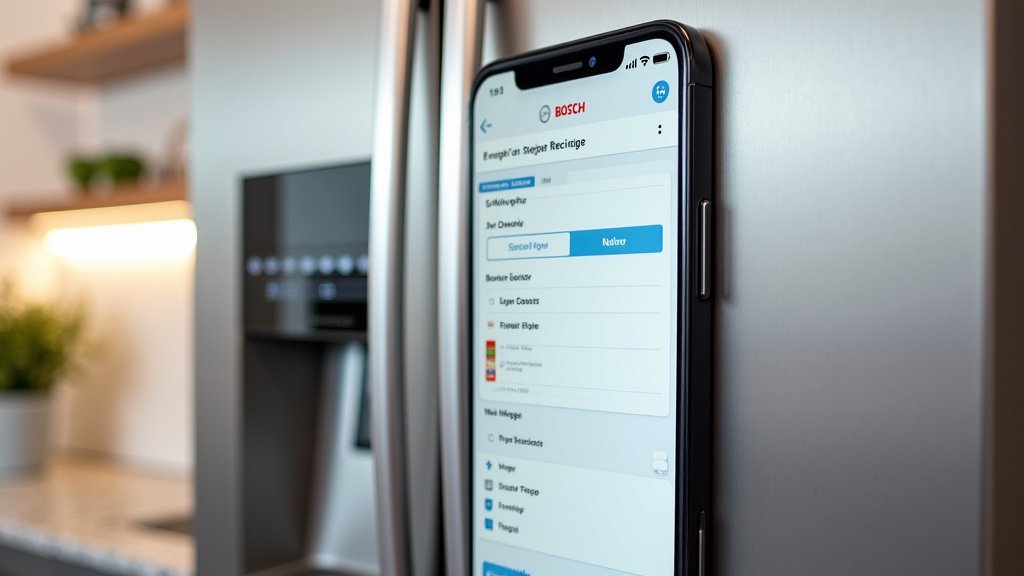
Open the Home Connect app on your smartphone or tablet. You should see a dashboard or menu. Look for an option that says “Recipes,” “My Recipes,” or something similar. This is your digital recipe box within the app. It might be a prominent icon or a listed menu item. Tap on it to enter the recipe management area.
Creating a New Recipe Entry
Within the recipe section, you’ll find an option to “Add New Recipe,” “Create Recipe,” or a “+” symbol. Tap this to begin entering the details for your dish. You’ll typically be presented with fields to fill in. Think of this like typing a recipe out on a computer instead of on a recipe card.
Entering Recipe Details
You’ll usually have several fields to complete:
- Recipe Name: Give your recipe a clear and descriptive name.
- Description: Add a short note about the dish, like its origin or a special tip.
- Ingredients: List all the necessary ingredients. You can usually specify quantities and units (e.g., 2 cups flour, 1 tsp salt).
- Instructions: Detail the step-by-step cooking method. Break it down into clear, actionable steps.
- Prep Time & Cook Time: Estimate how long each part of the process takes.
- Servings: Indicate how many people the recipe typically serves.
- Category/Tags: Assign categories (like “Dessert,” “Main Course,” “Vegetarian”) or tags to help you find it later.
Some apps might also allow you to add photos, making your recipes even more appealing. We found that adding a picture of the finished dish is a great visual reminder.
Saving Your Masterpiece
After you’ve entered all the details for your recipe, look for a “Save” or “Done” button. Tap it to store your recipe within the Home Connect app. It will now be part of your personal recipe collection, accessible anytime.
Importing Recipes from the Web (If Available)
Bosch is always looking for ways to make your kitchen smarter. Depending on your app version and refrigerator model, there might be features that allow you to import recipes directly from websites. This can be a real time-saver if you frequently find recipes online.
How the Import Feature Works
If your app supports web imports, you’ll typically find an option within the recipe section to “Import from Web” or a similar phrase. You would then copy the URL (web address) of the recipe you want to add and paste it into the designated field in the app. The app then tries to automatically extract the recipe details—ingredients, instructions, etc.—from that webpage.
It’s important to note that this feature relies on the website’s formatting. Sometimes, it works perfectly, pulling in all the information accurately. Other times, you might need to manually adjust or add missing details after the import. We found that simpler recipe formats on websites tend to import more reliably.
Tips for Successful Web Imports
- Use reputable recipe sites: Websites with clear, standard recipe layouts tend to work best.
- Check after importing: Always review the imported recipe for accuracy. Ensure all ingredients and steps are present and correct.
- Manual adjustments: Be prepared to edit the imported recipe. You might need to reformat instructions or add missing ingredient quantities.
This feature can be incredibly convenient for building your recipe library quickly. Just remember to give it a quick check-up after it’s done its initial import.
Organizing and Accessing Your Recipes
Now that your recipes are in the app, keeping them organized is key to making this feature truly useful. You want to be able to find that perfect recipe with minimal fuss.
Using Categories and Tags
As you add recipes, use the category and tag features effectively. Assigning categories like “Breakfast,” “Lunch,” “Dinner,” “Desserts,” or “Quick Meals” can help you filter your collection. Tags can be more specific, such as “Vegan,” “Gluten-Free,” “Spicy,” or “Holiday.” The more detailed you are, the easier it will be to search later.
Searching for Recipes
The Home Connect app will have a search function. You can typically search by recipe name, ingredient, or even by tags you’ve assigned. If you’re at the grocery store and need to remember if you have a recipe for chicken stir-fry, a quick search can tell you instantly.
Viewing Recipes on Your Fridge (Model Dependent)
Some Bosch refrigerators with advanced displays allow you to view recipes directly on the appliance’s screen. Check your refrigerator’s manual to see if this is a feature of your specific model. If it is, imagine following a recipe step-by-step right on your fridge door while you cook. It’s like having a built-in digital cookbook!
Tips for a Seamless Recipe Experience
To get the most out of adding recipes to your Bosch refrigerator app, a few practices can make a big difference. Think of these as little helpers to keep your digital recipe box tidy and useful.
Keep it Simple and Clear
When adding your own recipes, use clear, concise language for instructions. Avoid jargon or overly complex steps. This makes it easier to follow when you’re busy in the kitchen.
Be Consistent with Formatting
Try to use a consistent format for ingredients and measurements. For example, always write “1 cup flour” or “1 c. flour.” This consistency makes recipes easier to read and compare.
Regularly Review and Update
Periodically go through your recipe collection. Remove duplicates, update ingredient lists if you’ve made changes, or add new notes. Keeping it current ensures you’re always working with the best version of your recipes.
Here’s a quick checklist to help you manage your recipes:
- ✅ Connect your Bosch fridge to Wi-Fi and the Home Connect app.
- ✅ Locate the “Recipes” section in the app.
- ✅ Manually add your favorite family recipes with details.
- ✅ Try importing recipes from websites if your app supports it.
- ✅ Use categories and tags for easy organization.
- ✅ Review and update your recipes regularly.
By following these steps, you’ll transform your Bosch refrigerator into a personalized recipe hub, making mealtime planning and preparation more enjoyable and efficient. Happy cooking!
Conclusion
You’ve learned how to transform your Bosch refrigerator into a smart recipe hub. By connecting your appliance to the Home Connect app, you can easily store and access all your favorite dishes. Whether you’re manually adding family secrets or importing recipes from the web, organization is key. Using categories and tags will make finding the perfect meal effortless. Take the next step and start adding your recipes today!
Frequently Asked Questions
Can I add recipes to my Bosch fridge if I don’t have a smart model?
No, this feature is exclusive to Bosch refrigerators equipped with the Home Connect app. You’ll need a smart appliance that can connect to your home Wi-Fi network to utilize the app’s recipe storage capabilities.
What if the web import feature doesn’t work perfectly?
It’s common for web imports to require manual adjustments. Websites format recipes differently, so the app might miss some details. Always review the imported recipe and edit it to ensure accuracy and completeness.
How do I find the recipe section in the Home Connect app?
Once you open the Home Connect app and ensure your fridge is connected, look for a menu option labeled “Recipes” or “My Recipes.” It might also appear as a distinct icon on your app’s main dashboard.
Can I share my added recipes with others?
Currently, the Home Connect app’s personal recipe storage is primarily for your own use. The app does not have a built-in feature to directly share your manually added recipes with other users.
Is there a limit to how many recipes I can add?
The Home Connect app generally allows you to store a large number of recipes. While there isn’t a strict published limit, your storage capacity would be dependent on your device and the app’s current programming.