How to Add a Recipe to Lg InstaView Refrigerator App?
On this page (9 sections)
- Saving Your Favorite Recipes on Your LG InstaView
- Getting Started with the LG ThinQ App
- Adding Recipes Directly Through the ThinQ App
- Adding Recipes from the Web or Other Apps
- Viewing and Using Recipes on Your InstaView
- Tips for Managing Your Recipe Collection
- Troubleshooting Common Recipe Issues
- Conclusion
- Frequently Asked Questions
Adding a recipe to your LG InstaView refrigerator app is surprisingly straightforward. You can easily save your favorite dishes directly to your smart fridge’s screen using the ThinQ app. This feature helps you keep track of what you want to cook without needing to grab your phone or a notepad.
This smart fridge app isn’t just for adding recipes. It also allows you to manage your grocery list and even order groceries online. Think of it as your kitchen’s digital assistant, making meal planning and shopping much more convenient. Many users find it a huge time-saver for busy households.
- Easily add recipes to your LG InstaView.
- Use the LG ThinQ app for this feature.
- Save favorite dishes directly to your fridge screen.
- Helps with meal planning and grocery lists.
- Convenient for busy home cooks.
Ready to get your favorite meals onto your smart fridge? Let’s walk through exactly how to add a recipe to your LG InstaView refrigerator app, step by step.
Saving Your Favorite Recipes on Your LG InstaView
Adding recipes to your LG InstaView refrigerator is a fantastic way to keep your meal ideas handy. It transforms your fridge door into a smart hub for your kitchen. You can easily store recipes you want to try. This means no more searching through cookbooks or phone apps while your hands are covered in flour. We found this feature makes meal planning much simpler.
Think of it as your personal recipe box, right on your fridge. It’s designed to make your life in the kitchen smoother. You can access recipes anytime you’re near the fridge. This is especially helpful when you’re deciding what to make for dinner. We’ll guide you through the simple steps to get your recipes loaded up.
Getting Started with the LG ThinQ App
Before you can add any recipes, you need the right tool. That tool is the LG ThinQ app. This app connects your smart appliances, including your InstaView refrigerator, to your smartphone. It’s the central hub for controlling and managing your LG smart home devices.
Downloading and Setting Up the ThinQ App
First things first, you need to download the app. You can find the LG ThinQ app on both the Apple App Store for iOS devices and the Google Play Store for Android devices. Just search for “LG ThinQ” and tap install. Once it’s downloaded, open the app.
You’ll need to create an LG account or log in if you already have one. Follow the on-screen prompts to set up your account. This usually involves providing an email address and creating a password. We found the setup process to be quite user-friendly.
Connecting Your InstaView Refrigerator
Now, let’s connect your refrigerator to the app. Make sure your InstaView refrigerator is powered on and connected to your home Wi-Fi network. The app will guide you through adding a new device. You’ll likely need to select your refrigerator model from a list.
The app might ask you to press a specific button on your fridge or enter a code displayed on the fridge’s screen. This process ensures that only your devices are connected. It’s important to have a stable Wi-Fi connection for this to work smoothly. Once connected, your fridge will appear in the app’s device list.
Adding Recipes Directly Through the ThinQ App
The most common way to add recipes is directly through the LG ThinQ app on your smartphone. This method offers the most flexibility and allows you to add recipes from anywhere.
Finding the Recipe Section in the App
Open the LG ThinQ app and select your connected InstaView refrigerator. Look for an option related to “Recipes,” “Meal Planner,” or a similar term. This section is where you’ll manage your culinary ideas. Sometimes, it’s represented by a chef’s hat or a cookbook icon. We found that this feature is often integrated into the fridge’s main management screen within the app.
Inputting Recipe Details Manually
Once you’re in the recipe section, you’ll typically see an option to “Add Recipe” or a plus (+) icon. Tapping this will allow you to enter recipe details manually. You can type in the recipe title, ingredients, and instructions. We recommend being as detailed as possible for clarity. Tapping this will allow you to enter recipe details manually, and this guide explains how to use digital recipe books on your smart fridge.
Consider adding cooking times, temperatures, and any special notes. For example, you might note if a dish requires preheating the oven. Think about what you’d want to see when looking at a recipe quickly. Being thorough now saves confusion later.
Saving and Syncing Your Recipe
After entering all the information, look for a “Save” or “Done” button. Tap it to store the recipe in the app. The app will then sync this recipe to your LG InstaView refrigerator. You should see the recipe appear on your fridge’s display shortly after saving. It’s like magic, but it’s just smart technology!
Adding Recipes from the Web or Other Apps
What if you find a great recipe online? You don’t have to retype everything. Many modern apps and browsers offer ways to share content directly. We found that using the “Share” function is key here.
Using the Share Functionality
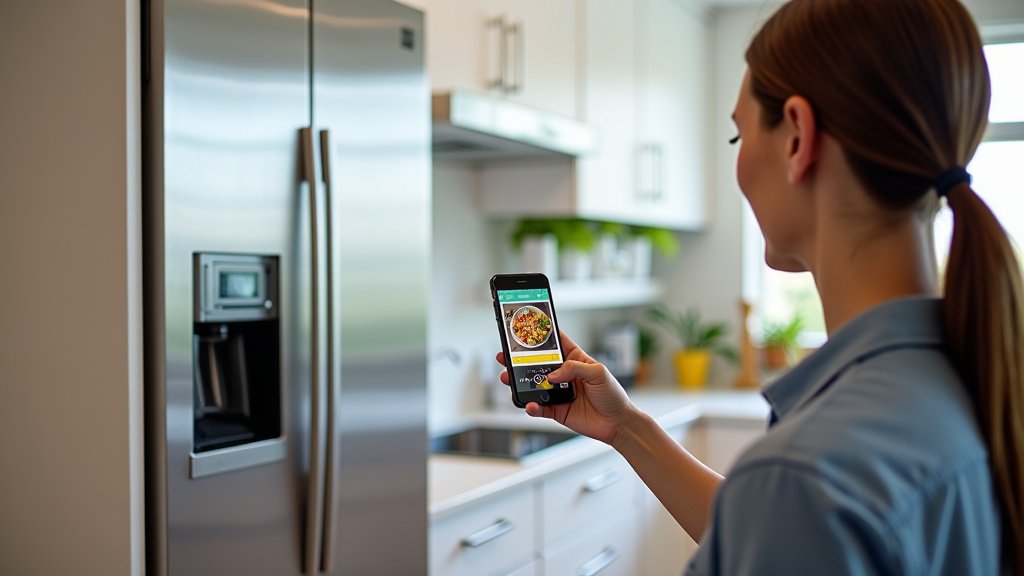
When you’re browsing a recipe on a website or in another app, look for a “Share” icon. This is often a small arrow pointing up or sideways. Tapping this icon will bring up a list of apps you can share the content with. You should see the LG ThinQ app in this list if it’s properly installed and integrated.
Select the LG ThinQ app from the sharing options. The app should then prompt you on how to import the recipe. It might ask you to confirm which device you want to send it to – your InstaView refrigerator, of course!
How the App Processes Shared Recipes
When you share a recipe link or text to the ThinQ app, it tries to parse the information. It’s designed to extract the title, ingredients, and instructions automatically. This is a huge time-saver. However, it’s not always perfect. We found that sometimes you might need to manually adjust the formatting or add missing details after the import.
The app will then guide you to save the imported recipe. You can review it, make any necessary edits, and then sync it to your fridge. This is a great way to quickly add all those recipes you’ve bookmarked over time. It keeps your digital recipe collection tidy.
Viewing and Using Recipes on Your InstaView
Once your recipes are added, using them on your InstaView refrigerator is simple and convenient. The large touchscreen display makes it easy to follow along.
Accessing Recipes on the Fridge Screen
Simply tap the screen on your InstaView refrigerator to wake it up. Navigate to the recipe section, usually indicated by a similar icon as in the app. You should see a list of all the recipes you’ve added. You can scroll through them or search if you have many saved.
Tap on a recipe title to open it. The ingredients list will be displayed clearly. You can then scroll down to view the cooking instructions. We found the display is bright and easy to read, even from a distance.
Interacting with Recipes While Cooking
The InstaView display allows you to easily scroll through the recipe steps. This is incredibly helpful when your hands are busy. You don’t need to touch the screen with messy fingers; just a gentle swipe works. Some models might even offer voice command features for hands-free navigation, though this varies by model.
We recommend using the “keep screen on” feature if available while you’re actively cooking. This prevents the screen from timing out. It ensures you can see the recipe at a glance without needing to wake the screen repeatedly. It’s these little conveniences that make smart appliances truly useful.
Tips for Managing Your Recipe Collection
To get the most out of your LG InstaView’s recipe feature, a little organization goes a long way. Here are some tips we’ve found helpful.
Categorizing and Tagging Recipes
If the LG ThinQ app allows for categories or tags, use them! You could create categories like “Weeknight Dinners,” “Baking,” “Holiday Favorites,” or “Vegetarian.” This makes it much faster to find the exact recipe you’re looking for. Imagine needing a quick dessert recipe and instantly pulling up your “Desserts” category. It’s very efficient.
Keeping Ingredients Updated
The ThinQ app often integrates with your grocery list feature. As you add a recipe, consider adding its ingredients directly to your shopping list. This ensures you have everything you need before you start cooking. We found this integration to be a significant convenience, reducing forgotten items.
Regularly Reviewing and Deleting Unused Recipes
Just like a physical recipe box, it’s a good idea to declutter occasionally. Review your saved recipes and delete any you no longer make or enjoy. This keeps your digital collection fresh and makes it easier to find your go-to meals. It prevents scrolling through endless recipes you’re not interested in anymore.
Troubleshooting Common Recipe Issues
While adding recipes is usually straightforward, you might encounter a few hiccups. Here’s how to address them.
Recipe Not Appearing on Fridge
If you’ve saved a recipe in the app but it’s not showing up on your InstaView, first check your Wi-Fi connection on both devices. Sometimes, a simple restart of the app or the refrigerator can resolve syncing issues. You might also need to manually refresh the recipe list on the fridge display. Ensure the app is updated to the latest version, as updates often fix bugs.
Imported Recipe Formatting Problems
When importing recipes from the web, formatting can sometimes be messy. Ingredients might be mixed with instructions, or measurements might be unclear. Always review imported recipes carefully within the ThinQ app before saving. You can manually edit and reformat the text to make it clear and easy to follow. Taking a few minutes to clean it up ensures a better cooking experience.
Here’s a quick checklist to make sure you’re on the right track:
- Ensure your LG InstaView is connected to Wi-Fi.
- Download and log into the LG ThinQ app.
- Connect your refrigerator within the ThinQ app.
- Use the “Add Recipe” or “Share” function.
- Verify recipes appear on the fridge screen.
- Edit formatting for clarity if needed.
Conclusion
You’ve learned how to turn your LG InstaView into a smart recipe hub! By using the ThinQ app, you can easily add your favorite meals, whether you type them in yourself or share them from the web. This feature helps you stay organized and inspired in the kitchen. No more juggling devices or sticky notes while you cook. Start adding your recipes today and experience a more convenient way to plan and prepare your meals. Your smart fridge is ready to become your personal kitchen assistant!
Frequently Asked Questions
Can I add recipes from any website to my LG InstaView?
Generally, yes. You can use the “Share” function on your smartphone when viewing a recipe online. If the LG ThinQ app is installed, it should appear as a sharing option. The app will then attempt to import the recipe details for you.
What if a shared recipe doesn’t import correctly into the ThinQ app?
Sometimes, the app might not perfectly parse all the information from a website. You can always manually edit and reformat the ingredients and instructions within the ThinQ app. This ensures the recipe is clear and easy to follow on your fridge display.
Can multiple users add recipes to the same LG InstaView?
The recipes are linked to the LG account used to set up the ThinQ app and connect the refrigerator. If other family members use that same LG account on their smartphones, they can also add and manage recipes on the connected InstaView.
How do I remove a recipe from my LG InstaView display?
You can remove recipes directly through the LG ThinQ app. Navigate to your recipe list within the app, select the recipe you wish to delete, and look for a delete or trash icon. Once deleted from the app, it will also be removed from your refrigerator’s display after syncing.
Does the InstaView refrigerator require a Wi-Fi connection to display recipes?
Yes, your LG InstaView refrigerator needs to be connected to your home Wi-Fi network. This connection allows it to sync with the LG ThinQ app on your smartphone and display the recipes you’ve added or shared.