How to Add a Recipe to Samsung Family Hub Refrigerator App?
On this page (3 sections)
Yes, you can easily add your favorite recipes to your Samsung Family Hub refrigerator app. This feature lets you save and organize all your go-to meals right where you can see them. It’s a super handy way to keep your family’s favorite dishes organized and accessible.
Imagine never losing a recipe card again! The Family Hub app makes it simple to digitize your cookbook. You can store recipes from anywhere, like your grandma’s handwritten notes or a favorite blog. It’s all about making your kitchen smarter and more convenient for everyone.
- Add recipes from your phone or tablet.
- Keep all your favorites in one organized place.
- Access recipes directly on your fridge screen.
- Share recipes with family members easily.
Let’s walk through exactly how to get your cherished recipes into your Samsung Family Hub app, step by step.
Getting Your Recipes Onto Your Samsung Family Hub
Adding your favorite recipes to your Samsung Family Hub refrigerator app is a fantastic way to organize your kitchen. It turns your fridge into a central hub for all your culinary adventures. You can keep everything from quick weeknight dinners to elaborate holiday meals right at your fingertips. This means no more searching through messy recipe boxes or bookmarking countless web pages.
Using the SmartThings App: Your Recipe Gateway
The primary method for adding recipes involves the SmartThings app. This is the control center for many of your Samsung smart devices, including your Family Hub refrigerator. You’ll use this app on your smartphone or tablet to input and manage your recipes. You’ll use this app to connect your Family Hub refrigerator.
Downloading and Connecting SmartThings
First things first, if you don’t already have it, you’ll need to download the SmartThings app. It’s available for both iOS and Android devices from their respective app stores. Once downloaded, open the app and create a Samsung account if you don’t have one. Then, follow the on-screen instructions to connect your Family Hub refrigerator to your account. This usually involves ensuring your fridge is connected to your home Wi-Fi network.
Finding the Recipe Section within SmartThings
After your fridge is linked, you’ll want to navigate to the recipe section. Within the SmartThings app, tap on your refrigerator device. You should see an option labeled “Recipes” or “Family Board”. Select this. This is where all your saved recipes will live and where you can add new ones.
Adding Recipes Manually: Step-by-Step
Manual entry is straightforward. It’s like typing a recipe into a digital notebook. You have complete control over how it looks and what information is included.
Starting a New Recipe Entry
On the Recipes screen within the SmartThings app, look for a “+” or “Add Recipe” button. Tap this to begin creating a new recipe. You’ll be presented with fields to fill in.
Filling in the Recipe Details
You’ll typically find fields for:
- Recipe Name: Give your dish a clear and descriptive title.
- Description: Add a brief overview or a personal note about the recipe.
- Ingredients: List all the ingredients you need. It’s helpful to specify quantities and units here.
- Instructions: Write out the cooking steps clearly. Numbering them makes them easy to follow.
- Prep Time & Cook Time: Estimate how long each stage will take.
- Servings: Indicate how many people the recipe serves.
- Category/Tags: You can often add tags like “dinner,” “dessert,” “vegetarian,” or “quick meal” for easier searching later.
Don’t forget to save your work frequently as you input the details. This prevents any accidental loss of data.
Adding a Photo to Your Recipe
A picture is worth a thousand words, especially in the kitchen! You can usually upload a photo of the finished dish. This makes it easier to spot the recipe at a glance on your fridge screen. Tap the camera icon or “Add Photo” button and select an image from your phone’s gallery or take a new one.
Importing Recipes from the Web or Other Apps
Many users find recipes online. Directly importing these can save a lot of typing. While the Family Hub app doesn’t have a direct “import” button for every website, there are smart workarounds.
Using the “Share” Function on Your Phone
When you’re browsing a recipe on a website or in another app, look for the “Share” icon. This is usually a small icon with an arrow pointing upwards or three connected dots. Tap this icon. You should see “SmartThings” or “Send to Family Hub” among the sharing options. If you don’t see it immediately, you might need to expand the list of apps. Selecting SmartThings will prompt you to send the recipe content to your Family Hub. The app will try to intelligently parse the recipe details.
Tips for Web Imports
Sometimes, web imports aren’t perfect. The app might not capture all the ingredients or steps correctly. It’s always a good idea to review the imported recipe in the SmartThings app. You may need to manually adjust formatting, add missing items, or reorder steps. Think of it as a quick editing pass to ensure accuracy.
Organizing and Accessing Your Recipes
Once you start adding recipes, you’ll want to keep them organized. This makes finding what you need quick and stress-free.
Using Categories and Tags
As mentioned, utilize the category and tag features. This is like creating digital dividers for your recipe collection. You can sort by meal type, dietary restrictions, cuisine, or even by who in the family likes it best. Having a good tagging system means you can quickly filter your recipes when you’re planning meals or looking for inspiration.
Syncing to Your Refrigerator Display
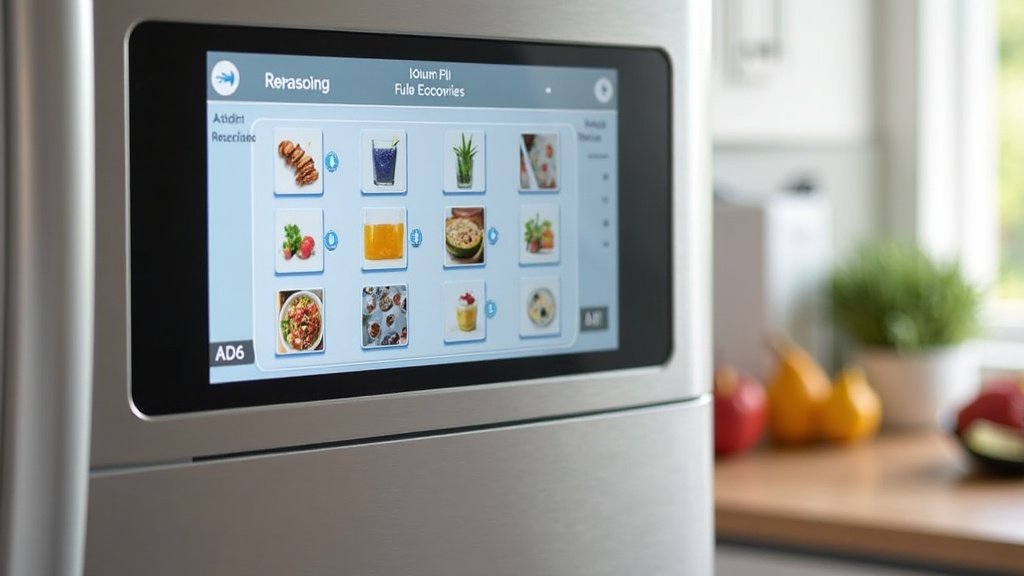
Recipes you add via the SmartThings app will automatically sync to your Family Hub refrigerator’s screen. Simply navigate to the Recipes section on your fridge display. You can scroll through your collection, search by name, or filter by tags. When you select a recipe, you’ll see the ingredients and instructions displayed clearly. This is incredibly convenient when you’re in the kitchen and don’t want to keep your phone or tablet handy.
Sharing Recipes with Family
The Family Hub app is designed for families. You can easily share recipes with other members of your household who also have the SmartThings app linked to your Family Hub. Find the recipe you want to share, tap the share icon within the app, and select the family members you wish to send it to. This is perfect for passing down family favorites or coordinating potluck dishes.
Troubleshooting Common Issues
While adding recipes is generally smooth, you might encounter a hiccup now and then.
Recipe Not Saving
If a recipe isn’t saving, first check your internet connection. Both your phone and your refrigerator need a stable connection. Try closing and reopening the SmartThings app. Sometimes, a simple restart of the app can resolve temporary glitches. If the problem persists, try restarting your refrigerator’s software or your router.
Imported Recipe Formatting Errors
As discussed, web imports can sometimes be messy. Don’t get frustrated! The solution is usually to manually edit the imported recipe within the SmartThings app. It’s a good opportunity to ensure the ingredient measurements and steps are exactly as you want them. Many users find that tidying up an imported recipe once makes it much more usable in the long run.
Your Digital Cookbook Checklist
To help you get started and make the most of this feature, here’s a quick checklist:
- Download and set up the SmartThings app on your smartphone.
- Ensure your Samsung Family Hub refrigerator is connected to your Wi-Fi and linked to your SmartThings account.
- Practice adding a recipe manually using the “+” button.
- Try importing a recipe from a website using the phone’s share function.
- Review and edit any imported recipes for accuracy.
- Use categories and tags to organize your growing digital cookbook.
By following these steps, you’ll soon have your entire collection of recipes neatly organized and accessible right on your smart refrigerator.
Conclusion
You’ve now learned how to transform your Samsung Family Hub refrigerator into a personal digital cookbook. By using the SmartThings app, you can easily add, organize, and access all your favorite recipes. This feature simplifies meal planning and makes cooking more enjoyable. Your fridge becomes a central spot for culinary inspiration.
Take the next step today. Try adding one family favorite recipe right now. You’ll be amazed at how much more organized your kitchen can become with this simple addition.
Frequently Asked Questions
Can I add recipes directly on the refrigerator screen?
While you can view recipes on the refrigerator screen, you’ll primarily use the SmartThings app on your smartphone or tablet to add and edit them. This makes the input process much easier with a keyboard and larger display.
What happens if my internet connection is unstable while adding a recipe?
An unstable internet connection can cause recipes not to save correctly. It’s best to ensure both your phone and refrigerator have a strong, stable Wi-Fi connection before you start adding or editing recipes to prevent any data loss.
How do I organize recipes once I have many saved?
You can use the category and tag features within the SmartThings app. This is like creating digital folders or labels for your recipes, making it simple to sort and find meals based on type, occasion, or dietary needs.
Is it possible to share recipes with friends who don’t have a Samsung Family Hub?
Currently, the sharing feature is designed for household members linked to your Family Hub via the SmartThings app. For friends, you might need to manually send them the recipe details or a link if it was originally from a website.
Will my recipes sync if I have multiple Samsung devices linked to SmartThings?
Yes, recipes you add to your Family Hub through the SmartThings app are associated with your Samsung account. They should sync across devices where you are logged in with the same account and have the Family Hub functionality enabled.