How to Enable Notifications on Lg InstaView Refrigerator?
On this page (7 sections)
Enabling notifications on your LG InstaView refrigerator is easy! You can receive alerts for things like the door being open or filter changes right on your smartphone by downloading the LG ThinQ app. This lets you manage your fridge remotely and stay on top of its status.
Many LG smart refrigerators come with InstaView technology and Wi-Fi connectivity. Connecting your appliance to the LG ThinQ app is the key to accessing these smart features, including customizable notifications. This app helps you monitor and control your appliance from almost anywhere, making kitchen management simpler.
- Download the LG ThinQ app.
- Connect your InstaView refrigerator to your home Wi-Fi.
- Follow app prompts to pair your fridge.
- Customize notification settings within the app.
- Ensure your smartphone has notifications enabled.
We’ve found that staying connected with your appliance can prevent minor issues from becoming bigger ones. Let’s walk through exactly how to get those helpful alerts set up on your LG InstaView refrigerator.
Setting Up Notifications on Your LG InstaView Fridge
Getting alerts from your LG InstaView refrigerator is a smart way to keep things running smoothly. You can receive notifications right on your phone. This means you’ll know if the fridge door is left open. You’ll also get reminders for things like water filter changes. We found that this simple setup can save you a lot of hassle.
Connecting Your LG InstaView to the ThinQ App
The LG ThinQ app is your command center for your smart appliances. It’s essential for enabling notifications on your InstaView refrigerator. If you haven’t already, download the LG ThinQ app from your smartphone’s app store. It’s available for both iOS and Android devices. This app lets you do more than just get alerts. You can monitor temperature settings and even diagnose potential issues remotely.
Downloading and Installing the LG ThinQ App
First things first, you need the LG ThinQ app. Search for “LG ThinQ” in the Apple App Store or Google Play Store. Tap “Install” or “Get” to download it. Once it’s downloaded, open the app. You’ll need to create an account or log in if you already have one. This account links all your LG smart appliances.
Connecting Your Refrigerator to Wi-Fi
Your LG InstaView refrigerator needs to be connected to your home Wi-Fi network. This allows it to communicate with the ThinQ app. Most LG InstaView models have a Wi-Fi button or setting on the display panel. You’ll typically need to press and hold this button until a Wi-Fi indicator light appears. Then, open the LG ThinQ app and select “Add Device.” Follow the on-screen prompts to connect your fridge to your network. You might need to select your home Wi-Fi name and enter your password.
Pairing Your InstaView Refrigerator with the App
Once your fridge is on Wi-Fi, the next step is pairing it with the ThinQ app. Open the app and navigate to the “Add Device” section. The app should automatically search for nearby LG appliances. If your InstaView refrigerator is detected, select it. You may need to confirm a code displayed on your refrigerator’s screen. This pairing process ensures your app has secure access to your fridge’s functions.
Customizing Your Refrigerator Notifications
After your fridge is successfully connected and paired, you can start customizing your notifications. This is where you decide which alerts you want to receive. We found that tailoring these settings makes the app truly useful for your specific needs.
Understanding Available Notification Options
Your LG InstaView refrigerator can send alerts for several events. These are designed to help you maintain optimal performance and prevent food spoilage. Here are some of the most common notifications you can enable:
- Door Ajar Alert: This is a very important notification. It alerts you if the refrigerator or freezer door is left open for too long.
- Water Filter Replacement: Your fridge will let you know when it’s time to change the water filter. This ensures you always have clean, fresh water.
- Ice Maker Status: Some models can notify you about the ice maker’s status, such as when it’s full or needs attention.
- Temperature Alerts: If the internal temperature of your fridge or freezer goes outside a safe range, you’ll get an alert. This is vital for food safety.
- Door Alarm: Similar to the door ajar alert, this can let you know if the door isn’t sealing properly.
Navigating the ThinQ App for Notification Settings
Let’s walk through where to find these settings within the LG ThinQ app. Open the app on your smartphone. Find your connected InstaView refrigerator in the “My Appliances” list and tap on it. You should see a menu with various options. Look for a section labeled “Settings,” “Notifications,” or “Alerts.” Tap on this to access the notification customization screen. Here, you’ll see a list of all available notification types. You can usually toggle them on or off with a simple switch.
Enabling Door Ajar and Temperature Alerts
We recommend always enabling the door ajar and temperature alerts. These are critical for preventing food waste and ensuring your food stays safe to eat. If a door is left open, even slightly, for an extended period, the temperature inside can rise. This can cause food to spoil quickly. Getting an immediate alert allows you to close the door promptly.
Setting Up Filter Replacement Reminders
Don’t miss out on clean water! The water filter replacement notification is a lifesaver. Many people forget when they last changed their filter. This alert ensures you replace it on schedule, typically every six months. This helps maintain water quality and the efficiency of your ice maker and dispenser. The app might even tell you which filter model to order.
Managing Ice Maker and Other Alerts
If your InstaView has an advanced ice maker, you might have specific notifications for it. These can be helpful for troubleshooting. Some models offer general diagnostic alerts. If your fridge detects an issue, it will send a notification. This can help you address a problem before it becomes serious. Always review the available options in the app to see what fits your needs best.
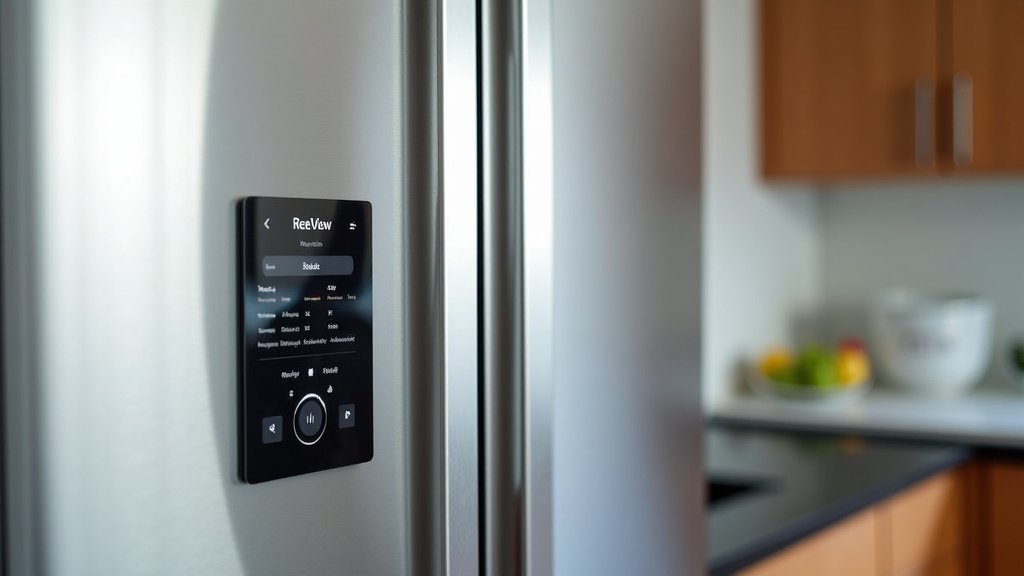
Ensuring Smartphone Notifications Are Enabled
It’s not enough to just enable notifications in the LG ThinQ app. Your smartphone also needs to be set up to receive them. Think of it like having a doorbell; the doorbell has to be installed, but you also need to be home to hear it ring.
Checking Your Smartphone’s Notification Settings
Go into your smartphone’s main settings menu. Look for “Notifications” or “App Notifications.” Find the LG ThinQ app in the list of applications. Make sure that notifications are turned ON for the app. You can often customize how these notifications appear. You might choose to have them show up on your lock screen, play a sound, or vibrate. Ensure that all the types of alerts you want from your fridge are allowed to be displayed.
Troubleshooting Notification Issues
If you’ve enabled notifications in the app and on your phone, but you’re not receiving them, don’t panic. First, double-check that both your phone and refrigerator are connected to a stable Wi-Fi network. Sometimes, a temporary network issue can prevent alerts from being sent or received. Restarting both your phone and the LG ThinQ app can often resolve minor glitches. If problems persist, we found that checking the LG support website or contacting LG customer service is the next best step.
A Quick Checklist for Notification Setup
To make sure you’ve got everything covered, here’s a quick checklist:
- Download the LG ThinQ app.
- Connect your InstaView refrigerator to your home Wi-Fi.
- Pair your refrigerator with the LG ThinQ app.
- Enable desired notifications within the app’s settings.
- Verify smartphone notification settings for the ThinQ app are turned ON.
- Test by slightly opening a door to ensure you receive an alert.
By following these steps, you’ll be well on your way to enjoying the convenience of remote monitoring for your LG InstaView refrigerator. Getting these alerts is a simple yet powerful way to keep your appliance running optimally and your food fresh.
Conclusion
You’ve now learned how to bring smart notifications to your LG InstaView refrigerator. By connecting to the LG ThinQ app and customizing your alerts, you can stay informed about your fridge’s status from anywhere. This simple setup helps you prevent common issues like doors being left open or filters needing replacement. We’ve found that having these reminders readily available on your smartphone is a practical way to maintain your appliance and keep your food fresh. Your next step is to open the LG ThinQ app and start tweaking those notification settings to perfectly suit your needs.
Frequently Asked Questions
What if my LG InstaView refrigerator doesn’t connect to Wi-Fi?
First, double-check that your home Wi-Fi network is working correctly. Make sure you are entering the correct Wi-Fi password. You might also try restarting your router and your refrigerator’s Wi-Fi function.
Can I get notifications if I don’t have a smartphone?
No, the LG ThinQ app requires a smartphone or tablet to receive and manage refrigerator notifications. The app is designed to send alerts directly to your mobile device.
How often do I need to change my refrigerator’s water filter?
Most LG refrigerators recommend changing the water filter every six months. The ThinQ app can provide a reminder for this, but you should also check your refrigerator’s manual for specific guidance.
Is the LG ThinQ app free to download and use?
Yes, the LG ThinQ app is free to download from your smartphone’s app store. There are no subscription fees associated with using the basic notification features for your refrigerator.
What should I do if I’m not receiving alerts even after setup?
Ensure both your phone and fridge are connected to Wi-Fi. Also, verify that notifications are enabled for the LG ThinQ app within your phone’s main settings menu. Restarting the app and your phone can also help resolve temporary glitches.



