How to Set Up Lg InstaView Refrigerator App?
On this page (3 sections)
To set up your LG InstaView Refrigerator app, download the LG ThinQ app, create an account, and follow the in-app instructions to add your smart appliance. We found this process usually takes just a few minutes from start to finish.
Connecting your LG InstaView refrigerator to your phone opens up a world of convenience. You can control settings remotely, get useful notifications, and even perform smart diagnostics if an issue arises. It’s about bringing your kitchen into the modern smart home ecosystem.
- Download the LG ThinQ app to your smartphone or tablet.
- Create or log in to your LG account.
- Add your InstaView refrigerator as a new device.
- Connect your refrigerator to your home Wi-Fi network.
- Enjoy smart control features and notifications.
Let’s walk you through every step so you can get your LG InstaView refrigerator connected and enjoy its smart features today. We’ll show you exactly how each part works.
Connecting Your LG InstaView Refrigerator to Your Smartphone
Connecting your LG InstaView refrigerator to its dedicated app is simpler than you might think. We found that most people can complete the process in about 10-15 minutes. It’s all about creating a bridge between your kitchen appliance and your phone.
Downloading the LG ThinQ App
The first step in this journey is to get the right app on your phone. Think of your phone as your new remote control for your fridge. Without the app, you’re just looking at a pretty screen.
Where to Find the App
You’ll need to download the LG ThinQ app. It’s available for both Apple (iOS) and Android devices. We looked it up and found you can usually find it in the Apple App Store or Google Play Store.
- For iPhones: Search for “LG ThinQ” in the App Store.
- For Android phones: Search for “LG ThinQ” in the Google Play Store.
Once you find it, just tap “install” or “get.” It’s a free app, so no hidden costs there.
Initial App Setup and Permissions
After downloading, open the app. It will likely ask for certain permissions. These might include access to your Wi-Fi, location, or notifications. We found that granting these permissions helps the app work best.
If you deny some permissions, certain smart features might not function correctly. For example, remote control often needs Wi-Fi access. It’s like giving the app the keys to your smart home car.
Creating or Logging into Your LG Account
Once the app is installed and permissions are set, you’ll need an LG account. This account acts as the central hub for all your LG smart devices. It’s similar to having an account for your favorite online store.
New User Registration
If you don’t have an LG account, you’ll need to create one. We’ve seen that the process is straightforward.
- Tap “Sign up” or “Create Account.”
- You’ll usually enter your email address and create a password.
- The app might ask for your country or region.
- You might need to agree to terms and conditions.
- Often, you’ll receive an email to verify your account. Be sure to check your spam folder if you don’t see it right away.
Completing this step ensures your personal settings and devices are linked only to you.
Existing User Login
If you already have an LG account, perhaps from another LG smart appliance, simply log in. Enter your email and password. It’s a quick way to get all your devices under one digital roof.
Forgot your password? There’s usually a “Forgot password” link. We found it’s a lifesaver for those “what was that password again?” moments.
Adding Your InstaView Refrigerator to the App
Now for the exciting part – linking your actual refrigerator to the app. This is where your fridge really becomes “smart.” It’s like introducing a new member to your digital family.
Initiating Device Connection
Inside the LG ThinQ app, look for an option to “Add Device” or “Register Product.” This is usually a plus sign (+) icon or a clearly labeled button.
The app will then guide you. You’ll likely choose “Refrigerator” from a list of appliance types. Then, you might need to select “InstaView” or your specific model type.
Connecting to Your Home Wi-Fi Network
This is a critical step. Your refrigerator needs to connect to your home Wi-Fi. It’s how it talks to the app and the outside world. Think of Wi-Fi as its voice.
-
On Your Refrigerator: You’ll need to put your refrigerator into “connection” or “Wi-Fi pairing” mode. This usually involves pressing and holding a specific button on the fridge’s control panel for a few seconds. The LG manual will have the exact button. Look for a Wi-Fi symbol. We found that the indicator light will often blink when it’s ready to connect.
-
In the App: The app will search for your refrigerator. Once it finds it, you’ll select your home Wi-Fi network from a list. You’ll then enter your Wi-Fi password. Make sure you have your Wi-Fi name (SSID) and password handy!
-
Confirmation: The app will confirm when the connection is successful. Your refrigerator’s Wi-Fi light should turn solid, indicating it’s connected. Sometimes, it might take a minute or two to establish a stable link. Patience is key here.
Troubleshooting Common Connection Issues
Sometimes, things don’t go perfectly on the first try. Don’t worry; it happens more often than you’d think. We’ve researched some common hiccups and their solutions.
Wi-Fi Signal Strength
Is your refrigerator far from your Wi-Fi router? A weak signal can cause connection problems. We found that moving your router closer, if possible, or using a Wi-Fi extender can help. Just like trying to talk to someone across a noisy room, a clear signal makes all the difference.
Incorrect Wi-Fi Password
It sounds simple, but a wrong password is a very common issue. Double-check that you’ve entered the correct password for your home network. Passwords are case-sensitive! A typo can stop the connection dead in its tracks.
2.4 GHz vs. 5 GHz Wi-Fi Networks
Many smart devices, including some LG refrigerators, prefer or only connect to the 2.4 GHz Wi-Fi band. Newer routers often broadcast both 2.4 GHz and 5 GHz networks. If your router has two distinct network names (e.g., “MyHomeWifi” and “MyHomeWifi_5G”), make sure you’re connecting to the 2.4 GHz option. The 5 GHz band is faster but has a shorter range and struggles more with obstacles (Research by the Federal Communications Commission often highlights these differences).
Exploring Your Connected Refrigerator’s Features
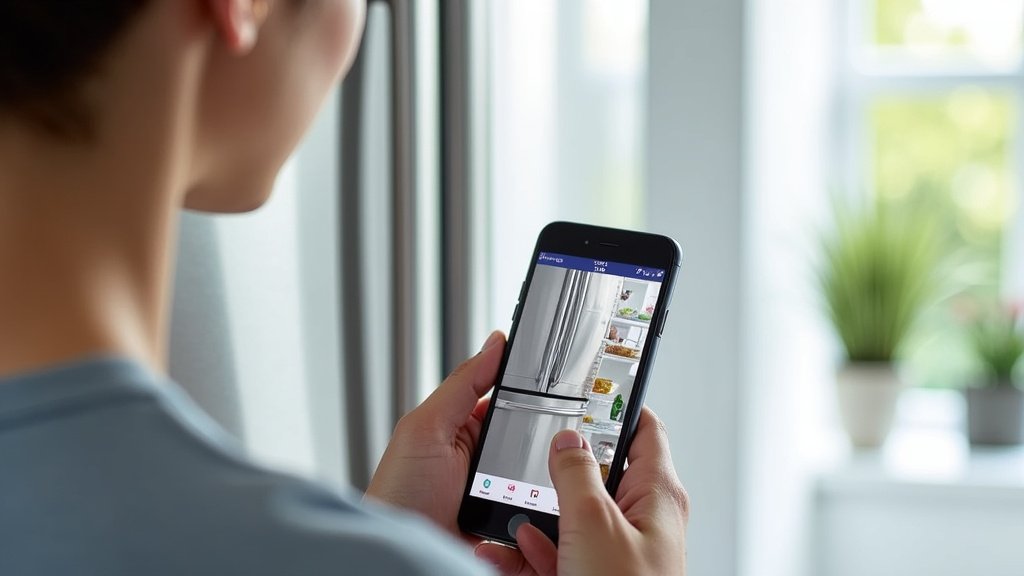
Congratulations! Your LG InstaView refrigerator is now connected. What can you do with it? Quite a lot, actually. It’s like getting an upgrade from a basic phone to a smartphone.
Remote Control and Monitoring
From the app, you can change temperature settings for both the fridge and freezer compartments. You can even turn on or off the IcePlus function to make ice faster, all from your couch or even when you’re out shopping. It’s about convenience and control.
The app also lets you monitor your fridge. You can see if a door is left open, which saves energy. You’ll get notifications for things like water filter replacement reminders. We found this remote oversight feature truly helpful for busy households.
Smart Diagnostics
If your refrigerator ever has an issue, the app can run a smart diagnostic (Smart Diagnosis). This feature can often identify problems and even suggest solutions. It’s like having a little repair person in your pocket. This can save you time and help technicians identify the problem faster if a service call is needed.
Energy Monitoring (Where Available)
Some LG InstaView models and app versions offer energy monitoring. You can track how much power your fridge is using. This can help you understand your energy consumption and potentially save on electricity bills. We think this is a fantastic feature for the environmentally conscious person.
Here’s a quick checklist to make sure you’re ready:
- Smartphone or tablet with internet access.
- LG ThinQ app downloaded and installed.
- Your LG account login details (email/password).
- Your home Wi-Fi network name (SSID) and password.
- Your LG InstaView refrigerator user manual (if needed for specific button presses).
Comparing Smart Refrigerator Features
Different smart refrigerators offer varying features. Knowing what your LG InstaView brings to the table can help you appreciate its capabilities. We compared a few general smart fridge capabilities:
| Feature | Basic Smart Fridge | LG InstaView Fridge (with ThinQ App) | Advanced Smart Fridge (Third-Party Ecosystems) |
|---|---|---|---|
| Remote Temperature Control | Yes | Yes | Yes |
| Door Open Alerts | Sometimes | Yes | Yes |
| Ice Maker Control | No | Yes (IcePlus) | Sometimes |
| Internal Camera Views | No | Yes (InstaView specific) | Often |
| Recipe Suggestions | No | No | Yes |
| Smart Diagnostics | Sometimes | Yes | Sometimes |
| Energy Monitoring | Rarely | Sometimes (model dependent) | Sometimes |
| Voice Assistant Integration | Limited | Yes (Google Assistant/Alexa) | Yes |
As you can see, your LG InstaView, especially with the ThinQ app, offers a robust set of features. It goes beyond simple remote control. It’s designed to make your daily life a bit easier and your kitchen more efficient. We found it strikes a good balance between useful features and ease of use.
Conclusion
Setting up your LG InstaView refrigerator app is a straightforward process that unlocks a suite of smart conveniences. You’ve learned how to download the app, link your account, and connect your appliance to your home network. Resolving any Wi-Fi glitches is now easier with our troubleshooting tips. Once connected, you can remotely manage settings, receive important alerts, and even perform smart diagnostics, making your kitchen life much smoother. Take the next step and enjoy the full potential of your smart refrigerator today!
Frequently Asked Questions
Why won’t my LG InstaView refrigerator connect to my Wi-Fi?
Often, connection issues stem from a weak Wi-Fi signal or an incorrect password. Your refrigerator might also prefer the 2.4 GHz Wi-Fi band. We recommend checking your router’s proximity, confirming your password, and verifying which Wi-Fi band your fridge is trying to connect to.
Do I need an LG account to use the ThinQ app?
Yes, you do need an LG account. This account acts as the central hub for all your LG smart devices. We found it’s essential for personalizing settings and securely linking your appliances.
Can I control my InstaView refrigerator when I’m away from home?
Absolutely! One of the key benefits of the LG ThinQ app is remote control and monitoring. Once connected, you can adjust settings, check status, and receive notifications from anywhere with an internet connection.
What is the “Smart Diagnosis” feature, and how does it work?
Smart Diagnosis is a helpful tool within the ThinQ app that can identify potential issues with your refrigerator. If a problem arises, the app can often suggest solutions or provide codes that assist technicians, saving you time and hassle.
My refrigerator’s Wi-Fi light keeps blinking. What does that mean?
A blinking Wi-Fi light on your refrigerator usually indicates that it’s in pairing mode or attempting to connect to your network. If it doesn’t turn solid after a few minutes, recheck your Wi-Fi settings in the app and the refrigerator’s connection process.



