How to Enable Notifications on Samsung Family Hub Refrigerator?
On this page (7 sections)
Enabling notifications on your Samsung Family Hub refrigerator is pretty straightforward. You can turn on alerts for various things like door ajar warnings or expiring food dates directly from the refrigerator’s touchscreen. This helps you manage your kitchen smarter and prevent waste.
Your Family Hub is designed to keep you connected to your kitchen. Getting the right notifications means you won’t miss important updates. We found that setting these up properly can save you time and money by avoiding spoiled groceries and ensuring your fridge runs efficiently.
- Access the main settings menu on your Family Hub screen.
- Find the “Notifications” or “Alerts” section.
- Select the specific alerts you want to receive.
- Confirm your choices to enable them.
Let’s walk through the exact steps to get those notifications buzzing for you. You’ll be up and running in no time!
Getting the Most Out of Your Samsung Family Hub Notifications
Your Samsung Family Hub refrigerator is more than just a place to keep food cold. It’s a kitchen command center. Getting the right alerts can make your life easier. You’ll be able to manage your groceries better. Plus, you can keep an eye on your appliance’s health. We found that setting up notifications is a key step.
Accessing Notification Settings on Your Family Hub
First things first, you need to get to the right screen. It’s like finding the control panel for your fridge’s alerts. Don’t worry, it’s not complicated. We’ve broken down the steps for you.
Navigating the Main Menu
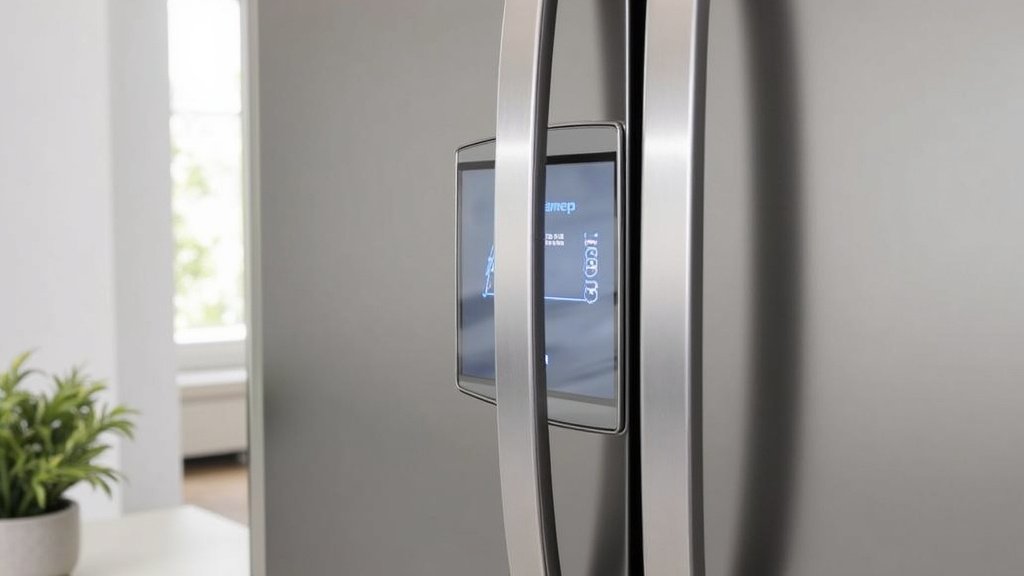
On your Family Hub touchscreen, look for the main menu. It usually has an icon that looks like a gear or a list. This is where all the settings live. Tap it to open up the options. This is your starting point for customizing your fridge’s behavior.
Locating the Notification Options
Once the settings menu is open, you’ll see several categories. Look for something clearly labeled. It might say “Notifications” or “Alerts.” Sometimes, it’s tucked inside a broader category like “System” or “Advanced Settings.” We found that it’s usually pretty easy to spot. Tap on this section to see all the available alerts. Keeping your Family Hub updated is important, and this guide explains how to update software.
Types of Notifications You Can Enable
Your Family Hub can send you alerts for many different things. Understanding what each notification does can help you decide which ones you really need. This ensures you’re not getting overwhelmed with messages.
Essential Refrigerator Alerts
These are the alerts that help keep your food safe and your fridge running smoothly. You’ll definitely want to pay attention to these.
Door Ajar Warnings
Ever forget to close the fridge door all the way? This alert is a lifesaver. It notifies you if the door has been left open for too long. This is important because warm air can spoil food. It also makes your fridge work harder, using more energy. We found this is one of the most useful alerts for any household (Consumer Reports).
- What it does: Alerts you when a door is left open.
- Why enable it: Prevents food spoilage and saves energy.
- How to find it: Usually under “Refrigerator Settings” or “Alerts.”
Temperature Alerts
Sometimes, the fridge or freezer temperature can go outside the safe zone. This might happen if there’s a power outage or if the appliance is having issues. Getting an alert means you can act fast. You can move your food to a cooler place. This is critical for food safety, especially for perishable items. Many food safety guidelines stress the importance of maintaining proper temperatures (FDA). Learn about the best temperature settings for your smart refrigerator to keep food safe.
- What it does: Notifies you if temperatures rise too high.
- Why enable it: Protects your food from spoiling.
- How to find it: Often in the main “Notifications” or “Temperature Settings” area.
Food Management Alerts
These notifications help you keep track of your groceries. They are designed to reduce food waste and save you money.
Expiration Date Reminders
Did you put something in the fridge and forget about it? Your Family Hub can help. If you input expiration dates for your food items, you can set reminders. This is a fantastic way to use up food before it goes bad. We found that reducing food waste is a big win for both your wallet and the environment.
- What it does: Alerts you when food items are nearing their expiration date.
- Why enable it: Helps you use food before it spoils, reducing waste.
- How to find it: Typically within the “Food Management” or “Inventory” app settings.
Water Filter Replacement Alerts
If your refrigerator has a water dispenser or ice maker, it likely uses a filter. These filters need to be replaced periodically. Your Family Hub can track filter usage and remind you when it’s time for a change. This ensures you always have clean, fresh water and ice. Following manufacturer recommendations for filter changes is key for optimal performance (EPA).
- What it does: Reminds you to replace your water filter.
- Why enable it: Ensures clean water and ice, and proper appliance function.
- How to find it: Usually in the “Water Filter” or “Appliance Settings” menu.
Other Useful Notifications
Beyond the essentials, your Family Hub can keep you updated on other aspects of its operation.
Software Update Notifications
Like any smart device, your Family Hub gets software updates. These updates can bring new features, improve performance, or fix bugs. You can choose to be notified when an update is available. This helps you keep your fridge running at its best. Keeping software updated is a good practice for all smart devices (NIST).
- What it does: Informs you about available software updates.
- Why enable it: Ensures your fridge has the latest features and security.
- How to find it: Often under “System,” “About Device,” or “Software Update.”
Customizing Your Notification Preferences
Not everyone wants the same alerts. Your Family Hub allows you to tailor these notifications to your liking. You can often choose how you receive alerts and what information they contain.
Turning Notifications On and Off
For each type of alert, there’s usually a simple toggle switch. A green or blue indicator often means it’s on. A gray or red indicator means it’s off. You can go through the list and simply tap the switches for the notifications you want. It’s like flipping a light switch for each alert.
Adjusting Alert Settings (Where Available)
Some notifications might have extra options. For example, you might be able to set a delay for door ajar warnings. Or you could choose the frequency of food expiration reminders. Look for gear icons or “Advanced Settings” next to an alert. This is where you fine-tune the details.
Troubleshooting Common Notification Issues
Sometimes, notifications might not work as expected. Don’t panic! We’ve encountered a few common hiccups. Here’s how to fix them.
Notifications Not Appearing
If you’ve enabled an alert but aren’t seeing it, double-check a few things. First, make sure your fridge is connected to your Wi-Fi network. Notifications often rely on a stable internet connection. Next, ensure the specific app or feature associated with the notification is enabled. For example, food expiration alerts won’t work if you haven’t entered any food items.
Too Many Notifications
Feeling bombarded by alerts? It’s easy to turn down the volume. Go back into your notification settings. You can disable alerts you don’t find useful. You can also adjust the sensitivity for certain alerts if that option is available. It’s all about finding the right balance for your household.
Checklist: Enabling Key Family Hub Notifications
Here’s a quick rundown to make sure you’ve got the most important alerts set up:
- Confirm Wi-Fi Connection: Your fridge needs to be online.
- Check Door Ajar Alert: Ensure this is turned on to prevent spoilage.
- Enable Temperature Warnings: Protect your food with timely alerts.
- Set Up Expiration Reminders: Reduce waste by tracking food dates.
- Activate Water Filter Alerts: Keep your water and ice fresh.
- Review Other Alerts: Customize any other notifications that interest you.
Conclusion
You’ve now learned how to turn on notifications for your Samsung Family Hub refrigerator. We’ve walked through accessing settings, understanding different alert types, and even troubleshooting common issues. Getting these alerts set up means you’ll never miss important updates about your food or your appliance. It’s a simple step that truly helps you manage your kitchen smarter and reduce waste. Now, go ahead and dive into your fridge’s settings to customize your notifications!
Frequently Asked Questions
Can I get Family Hub notifications on my phone?
Yes, you can! Most Samsung Family Hub refrigerators allow you to connect to a mobile app. This app enables you to receive notifications directly on your smartphone or tablet, keeping you updated even when you’re away from the kitchen.
How do I make sure my Family Hub is connected to Wi-Fi for notifications?
You can check your Wi-Fi connection in the Family Hub’s main settings menu. Look for a “Network” or “Wi-Fi” section. Ensure your refrigerator is connected to your home network for notifications to function correctly.
What should I do if I’m getting too many notifications from my Family Hub?
If you’re overwhelmed, revisit your notification settings on the Family Hub screen. You can easily toggle off any alerts you don’t find useful. Adjusting preferences ensures you only receive the updates that matter most to you.
Do expiration date reminders require me to manually enter every food item?
Yes, for the expiration date reminders to work, you typically need to manually enter food items and their dates into the Family Hub’s inventory or food management app. This allows the system to track and alert you accurately.
What if my Family Hub refrigerator doesn’t show a “Notifications” option?
If you can’t find a direct “Notifications” menu, look for options like “Alerts,” “System Settings,” or “Appliance Settings.” The exact location can vary slightly by model, but the notification controls are usually within these broader categories.



