How to Set Up Ge Profile Refrigerator App?
On this page (3 sections)
To set up your GE Profile Refrigerator app, you first need to download the SmartHQ app and connect your appliance to your home Wi-Fi network. This process usually involves following the step-by-step instructions provided within the app and on your refrigerator’s display. It’s a straightforward setup that brings smart features to your kitchen.
Connecting your GE Profile refrigerator to the app lets you control it remotely, get helpful alerts, and even diagnose issues. Imagine adjusting the temperature from your couch or getting a notification if the door is left open. We found that this connectivity can really make your life easier.
- Download the SmartHQ app.
- Connect your refrigerator to Wi-Fi.
- Follow in-app setup prompts.
- Enjoy remote control and alerts.
Let’s walk through exactly how to get your GE Profile refrigerator connected, step by step, so you can start enjoying all its smart capabilities.
Connecting Your GE Profile Refrigerator to the SmartHQ App
Connecting your GE Profile refrigerator to the SmartHQ app is simpler than you might think. We’ll guide you through each step, making sure you don’t miss a thing.
This process brings your appliance into the modern age, letting you control and monitor it remotely. It really adds a layer of convenience to your daily routine.
Before You Begin: What You’ll Need
Before diving into the setup, gather a few essentials. Having these ready will make the process much smoother and faster.
It’s like preparing your ingredients before cooking – everything just flows better. A little preparation goes a long way here.
Essential Items Checklist
- Your GE Profile refrigerator plugged in and powered on.
- A strong Wi-Fi signal in your kitchen.
- Your home Wi-Fi network name (SSID) and password.
- Your smartphone or tablet.
- The SmartHQ app downloaded and installed on your device.
- Your GE Appliances account login information. If you don’t have one, you’ll create it during setup.
Downloading and Setting Up the SmartHQ App
The first digital step is getting the SmartHQ app on your phone. This app is the command center for your smart appliances.
It’s your portal to controlling your refrigerator from anywhere. Think of it as a remote control, but for your kitchen.
Getting the SmartHQ App
Find the SmartHQ app in your device’s app store. It’s available for both Apple iOS and Android devices. Search for “SmartHQ” – you’ll usually see the GE Appliances logo.
Once you find it, tap to download and install. It’s a free app, so no worries there. We found this step is usually quick.
Creating Your GE Appliances Account
Open the SmartHQ app after it installs. If you already have a GE Appliances account, simply log in with your credentials.
If not, you’ll need to create one. This involves entering your email address, creating a password, and agreeing to the terms. Many users find this account creation straightforward.
Connecting Your Refrigerator to Your Home Wi-Fi
This is where your refrigerator learns to communicate with your home network. It’s a crucial step for enabling all the smart features.
Without Wi-Fi, your fridge is just, well, a fridge. But with it, it becomes a smart companion.
Initiating Wi-Fi Connect Mode on Your Refrigerator
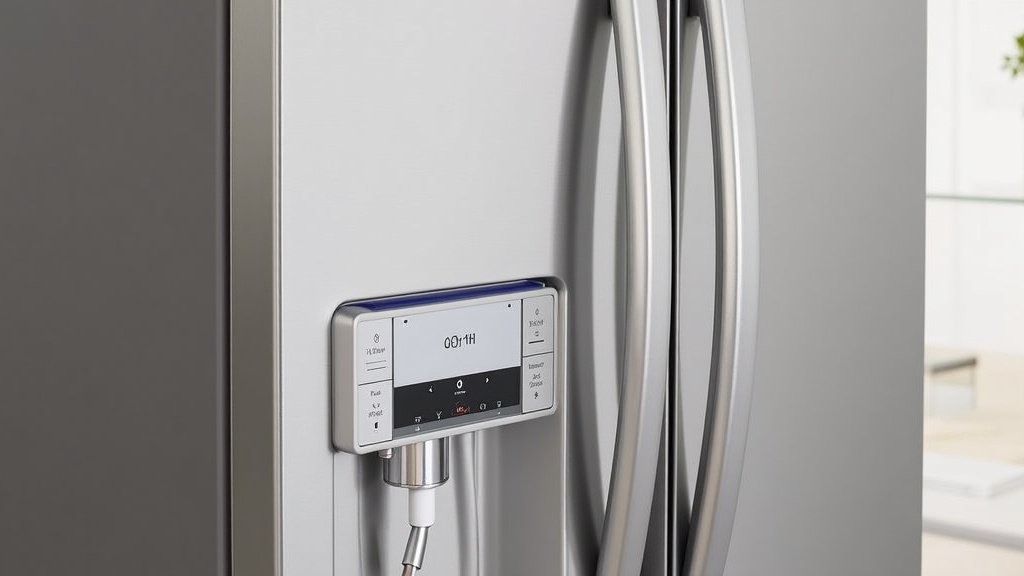
Each GE Profile model might have slightly different steps to enter Wi-Fi Connect mode. You’ll typically look for a “Connect” or “Settings” button on your refrigerator’s display.
Often, you’ll press and hold this button for a few seconds until an indicator light or message appears. Your refrigerator’s owner’s manual is your best friend here if you get stuck (GE Appliances Support).
Here’s a general guide for many models:
- On the refrigerator’s control panel, locate the “Connect” button.
- Press and hold “Connect” for about 3 seconds.
- You should see a “Connect” icon or a message like “Ready to Connect” appear on the display.
- The Wi-Fi indicator light might start blinking. This means it’s ready to pair.
Using the SmartHQ App to Connect to Wi-Fi
Now, switch back to the SmartHQ app on your phone. It’s time to bridge the gap between your app and your appliance.
The app will guide you, but knowing what to expect helps. We found that the app’s instructions are usually very clear.
- In the SmartHQ app, tap the “+” icon to add a new appliance.
- Select “Refrigerator” from the list of appliance types.
- The app will then ask you to select your refrigerator’s model from a list or scan a QR code. Often, scanning is the easiest.
- The app will search for available networks. Choose your home Wi-Fi network from the list.
- Enter your Wi-Fi password when prompted. Make sure to double-check for typos.
- The app will attempt to connect. This usually takes a minute or two.
- Once connected, the app will confirm success, and the Wi-Fi indicator light on your refrigerator should become solid.
Troubleshooting Common Connection Issues
Sometimes, things don’t go perfectly on the first try. Don’t worry, connection issues are common and usually easy to fix.
It’s like when your phone doesn’t connect to a new Bluetooth speaker – a quick restart often does the trick. Patience is key here.
Wi-Fi Signal Strength
Is your refrigerator far from your Wi-Fi router? A weak signal can prevent a stable connection. Try moving your router closer or using a Wi-Fi extender.
We found that poor signal is a very common culprit. Think about how many bars your phone gets in the kitchen – your fridge needs a good signal too.
Incorrect Password or Network
Double-check your Wi-Fi network name (SSID) and password. It’s easy to mistype. Remember, passwords are case-sensitive.
Also, ensure you’re connecting to your 2.4 GHz Wi-Fi network. Many smart appliances, including GE Profile refrigerators, don’t support 5 GHz networks (GE Appliances Support).
Restarting and Retrying
Sometimes, simply restarting the process can help. Power cycle your refrigerator by unplugging it for 30 seconds, then plugging it back in.
You can also close and reopen the SmartHQ app. This refreshes everything and often resolves temporary glitches.
Verifying Your Connection and Exploring App Features
Once you’re connected, the real fun begins! It’s time to confirm everything works and explore what your smart fridge can do.
You’ve done the hard part; now enjoy the rewards of your effort. It’s like unwrapping a present after careful packaging.
Confirming App Connectivity
Open the SmartHQ app. You should see your GE Profile refrigerator listed under your appliances. Tap on it.
Try a simple command, like checking the current temperature or adjusting it. If it responds, congratulations, you’re connected!
Key Features to Explore in the SmartHQ App
Your GE Profile refrigerator offers a range of smart features through the app:
- Remote Temperature Control: Adjust fridge and freezer temps from anywhere.
- Door Ajar Alerts: Get notifications if the door is left open, saving energy and food.
- Water Filter Monitoring: Track filter life and reorder easily.
- Diagnostic Tools: Receive alerts about potential issues and get troubleshooting advice.
- Customizable Settings: Tailor various functions to your preferences.
We often hear from users how much they appreciate the door ajar alerts. It saves food and prevents energy waste, especially with busy households (Consumer Reports). It’s a small feature that makes a big difference.
| Feature | Benefit | How It Helps You |
|---|---|---|
| Remote Temp Control | Adjust settings from afar | Change temperature for groceries on the way home. |
| Door Ajar Alerts | Prevents energy waste | Notifies you if the fridge door is open too long. |
| Water Filter Status | Maintenance tracking | Tells you when to replace your water filter. |
| Diagnostic Reports | Early issue detection | Helps identify problems before they get worse. |
This table summarizes some of the benefits we found most useful. Each feature aims to make your life just a little bit easier.
Conclusion
You’ve successfully turned your GE Profile refrigerator into a smart appliance. This means you now have convenient remote control and helpful alerts at your fingertips. We know that taking the time for this setup truly enhances your kitchen experience. You’ll enjoy peace of mind knowing your food is safe and your fridge is running efficiently. Start exploring all the SmartHQ app has to offer; it’s designed to make your daily life simpler and more connected.
Frequently Asked Questions
Can I connect more than one GE Profile appliance to the SmartHQ app?
Yes, the SmartHQ app is designed to manage multiple GE Appliances. You can add your GE Profile refrigerator, oven, dishwasher, and more to the same app. This creates a central hub for all your smart kitchen devices.
What if my Wi-Fi network requires a password?
Most home Wi-Fi networks are password-protected. During the setup process in the SmartHQ app, you will be prompted to enter your Wi-Fi password. Make sure to input it carefully, as passwords are case-sensitive.
Does the GE Profile refrigerator app work with both 2.4 GHz and 5 GHz Wi-Fi bands?
No, most GE Profile smart appliances, including refrigerators, connect only to the 2.4 GHz Wi-Fi band. If you have a dual-band router, ensure your phone is connected to the 2.4 GHz network during setup, and select it when prompted by the app.
How do I update the firmware on my GE Profile refrigerator through the app?
Firmware updates are typically managed automatically through the SmartHQ app. You’ll usually receive a notification within the app when an update is available. You can then approve the update, and it will download and install wirelessly.
What should I do if my refrigerator loses its Wi-Fi connection after successful setup?
First, check your home Wi-Fi network to ensure it’s working properly. Then, try restarting your refrigerator by unplugging it for 30 seconds and plugging it back in. You can also try closing and reopening the SmartHQ app to refresh the connection.



