How to Connect Lg InstaView Refrigerator to WiFi?
On this page (3 sections)
To connect your LG InstaView refrigerator to Wi-Fi, you will typically use the LG ThinQ app on your smartphone. We found that the process involves putting your fridge into pairing mode and then following the app’s guided steps. This allows you to set up your LG InstaView refrigerator for smart features.
Connecting your smart fridge opens up a world of convenience. You can remotely manage settings, receive alerts, and even see inside your fridge without opening the door. We found these features make daily life much easier and help you save energy too.
- The LG ThinQ app is your main tool.
- Put your fridge in pairing mode.
- Follow the app’s clear instructions.
- Enjoy smart features and remote control.
- Expect better convenience and energy use.
Ready to get your smart fridge connected? For Bosch owners, see our Bosch Wi-Fi setup guide. Let’s walk through the simple steps to link your LG InstaView refrigerator to your home Wi-Fi network.
Connecting Your LG InstaView Refrigerator to Your Home Network
Connecting your LG InstaView refrigerator to Wi-Fi is straightforward and uses the LG ThinQ app. For Frigidaire owners, see our Frigidaire Wi-Fi setup guide. This setup process allows you to unlock all the smart features of your appliance.
Before You Begin: Essential Preparations
A little preparation goes a long way. For Whirlpool owners, see our Whirlpool Wi-Fi setup guide. Before diving into the Wi-Fi connection, taking a few moments to gather some information will make the process much smoother. Think of it as gathering your ingredients before baking!
Gathering Your Network Information
You’ll need your home Wi-Fi network’s name and password. For background on this refrigerator line, see our LG InstaView explained guide. This is often called the SSID and Wi-Fi password. We found it helpful to write this down beforehand.
- Your Wi-Fi network name (SSID).
- Your Wi-Fi network password.
- Make sure your router is turned on and working.
Download and Install the LG ThinQ App
The LG ThinQ app is your control center. You’ll need it installed on your smartphone or tablet. It’s available for both Apple and Android devices.
- Search for “LG ThinQ” in your app store.
- Download and install the app.
- Create an account or log in if you already have one. This is usually a quick process.
Understanding Your Refrigerator’s Wi-Fi Requirements
Not all Wi-Fi is created equal, especially for smart appliances. Your LG InstaView refrigerator has specific network requirements to connect successfully.
2.4 GHz vs. 5 GHz Wi-Fi Networks
Most LG smart appliances, including your InstaView refrigerator, use the 2.4 GHz Wi-Fi band. This is a common point of confusion for many users, we found.
- The 2.4 GHz band offers a wider range.
- The 5 GHz band is faster but has a shorter range.
- Your refrigerator likely needs 2.4 GHz for a stable connection.
If your router broadcasts both, ensure your phone is connected to the 2.4 GHz network during setup. This helps the fridge find the right one.
Here’s a quick comparison:
| Feature | 2.4 GHz Wi-Fi | 5 GHz Wi-Fi |
|---|---|---|
| Range | Longer, better for going through walls | Shorter, less interference from walls |
| Speed | Slower, but usually sufficient for smart appliances | Faster, great for streaming and gaming |
| Interference | More prone to interference from other devices | Less prone to interference |
| Typical Use | Smart home devices, wider home coverage | High-bandwidth tasks, specific rooms |
| LG Fridge Compatibility | Generally required | Usually not compatible |
Step-by-Step Connection Process with LG ThinQ
Alright, let’s get down to business! Now that you’re prepared, connecting your refrigerator is a guided process within the LG ThinQ app. Don’t worry, we’ll walk you through each step.
Adding Your Appliance in the App
Open the LG ThinQ app and look for the option to add a new device. It’s usually a prominent button, perhaps a plus sign (+) or “Add Product.”
When prompted, select “Refrigerator” from the list of appliance types. Then, choose your specific LG InstaView model if options are given. Sometimes, a general “refrigerator” option works too.
Activating Pairing Mode on Your Refrigerator
This is where your fridge “listens” for the app. The method to activate pairing mode varies slightly by model, but we found a common pattern.
- Locate the Wi-Fi button or icon on your refrigerator’s display.
- Press and hold this button for about 3 to 5 seconds.
- You should see the Wi-Fi indicator light flash or hear a specific chime. This means it’s in pairing mode.
- If you don’t find a dedicated Wi-Fi button, check your refrigerator’s user manual. Some models might require pressing a combination of buttons.
Following In-App Instructions to Connect
Once your fridge is in pairing mode, the LG ThinQ app will guide you. It often uses a “wizard” style setup.
- The app will ask to search for nearby devices. Allow this permission.
- It should then discover your LG InstaView refrigerator.
- You’ll be prompted to select your home Wi-Fi network (the 2.4 GHz one!).
- Enter your Wi-Fi network password carefully. Typos are common culprits, we’ve noticed.
- The app will then attempt to bond with your refrigerator. This can take a minute or two.
Troubleshooting Common Connection Issues
Sometimes, things don’t go perfectly the first time. If you run into a snag, don’t worry! We’ve identified some common issues and their solutions.
Connectivity Checklist
Here’s a quick checklist to run through if your connection isn’t working:
A little patience and troubleshooting often solve most problems, we believe.
- Is your refrigerator powered on? (Obvious, but worth checking!)
- Is your home Wi-Fi network working for other devices?
- Are you definitely trying to connect to a 2.4 GHz network?
- Is your Wi-Fi password entered correctly in the app?
- Is your router reasonably close to the refrigerator?
Restarting and Resetting
The classic IT solution: “Have you tried turning it off and on again?” It often works wonders!
- Restart your smartphone.
- Restart your home router by unplugging it for 30 seconds and plugging it back in.
- If necessary, try to reset the Wi-Fi on your refrigerator. Your manual will tell you how, but it often involves holding the Wi-Fi button for a longer duration.
- Try reinstalling the LG ThinQ app on your phone. Sometimes a fresh install can clear up glitches.
Router Settings and Interference
Sometimes, your router settings can prevent a smooth connection. While we won’t dive deep into advanced router settings here, we can give you a couple of pointers.
Ensure your router isn’t using MAC address filtering. If it is, you’ll need to disable it or add your refrigerator’s MAC address to the allowed list (you can find the fridge’s MAC address on a sticker, usually inside the door, or in the fridge’s settings menu).
Consider moving other devices that might cause interference away from your refrigerator during setup. Things like microwaves or powerful cordless phones operate on the 2.4 GHz band and can disrupt the signal.
Enjoying Your Connected InstaView Refrigerator
Once connected, pat yourself on the back! You’re now ready to explore all the smart functionalities. The LG ThinQ app makes your life easier, we found.
What Smart Features Can You Use?
Your connected LG InstaView refrigerator offers a host of convenient features:
- Remote control: Adjust temperatures or activate special functions from anywhere.
- Door open alerts: Get a notification if the fridge door is left ajar (a real energy saver!).
- Smart Diagnosis: Help diagnose issues before they become major problems.
- Food management: Some models offer features to help you track food expiration.
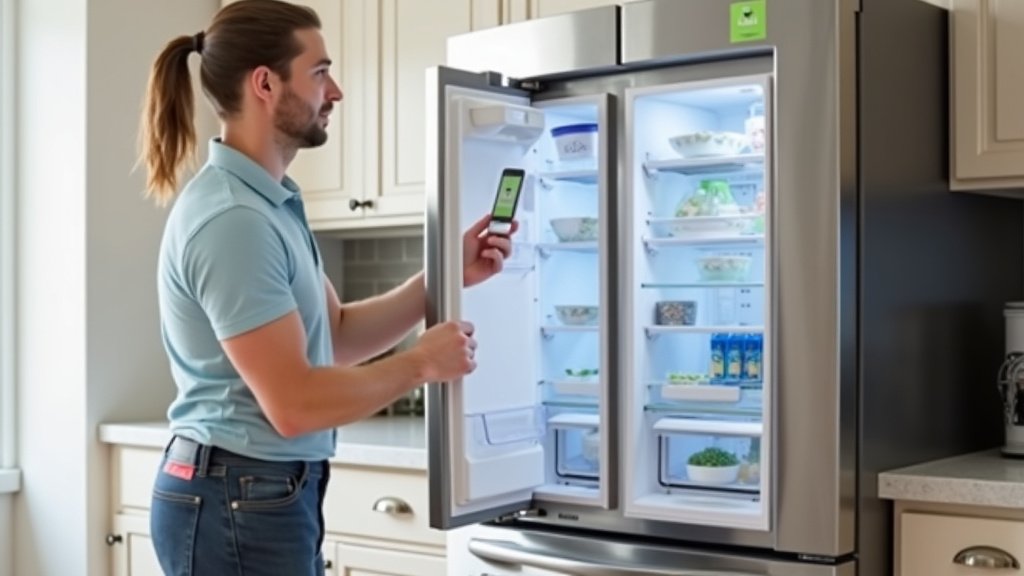
- Internal camera views: See what’s inside without opening the door, saving cold air.
These features help streamline your kitchen and provide peace of mind. It’s like having a helpful assistant right inside your fridge!
Conclusion
Connecting your LG InstaView refrigerator to Wi-Fi is a simple process when you follow these steps. You’ve gathered your network details, downloaded the LG ThinQ app, and identified the 2.4 GHz network. With your fridge in pairing mode and a careful entry of your Wi-Fi password, you’re all set.
We found that overcoming common hurdles like 2.4 GHz requirements or a simple router restart makes a big difference. Now your smart fridge offers convenient features like remote control and energy-saving alerts. Take a moment to explore the LG ThinQ app and enjoy the enhanced control over your kitchen appliance.
Frequently Asked Questions
My LG InstaView fridge disconnects from Wi-Fi often. What’s wrong?
Frequent disconnections often point to a weak Wi-Fi signal in your kitchen. We recommend checking if your router is too far from the refrigerator or if there are many obstacles in between. Moving your router closer or using a Wi-Fi extender could help.
Can I control my LG InstaView refrigerator using voice commands?
Yes, once your LG InstaView refrigerator is connected to Wi-Fi via the LG ThinQ app, you can often integrate it with voice assistants like Google Assistant or Amazon Alexa. This allows you to use voice commands for certain functions.
What if my LG ThinQ app isn’t recognizing my refrigerator during setup?
First, ensure your refrigerator is in pairing mode and its Wi-Fi indicator light is flashing. We found it’s also helpful to make sure your phone is connected to the same 2.4 GHz Wi-Fi network that you intend to connect the fridge to. Sometimes, restarting both your phone and the app can resolve this.
Does connecting my LG InstaView to Wi-Fi use a lot of data?
No, your LG InstaView refrigerator uses a minimal amount of data once connected to Wi-Fi. It primarily sends small packets of information for alerts, status updates, and remote commands. It won’t significantly impact your internet data usage.
Where can I find my refrigerator’s MAC address if my router uses MAC filtering?
You can usually find your refrigerator’s MAC address on a sticker located on the inside wall of the fridge compartment, often near the model and serial number sticker. Some models also allow you to view the MAC address within the refrigerator’s settings menu on its display.


