
How to Set Up Whirlpool Refrigerator App?
You can set up your Whirlpool refrigerator app by downloading the Whirlpool app, creating an account, and then connecting your refrigerator. This process usually involves putting your appliance into a pairing mode. We found this is a straightforward way to manage your smart fridge features.
Connecting your Whirlpool refrigerator to its app lets you access convenient features right from your phone. You can receive alerts, adjust settings, and even troubleshoot minor issues remotely. It’s a great way to stay in control of your kitchen appliance, even when you’re not home, making your life a little easier.
- Download the Whirlpool app.
- Create or log into your Whirlpool account.
- Prepare your refrigerator for pairing.
- Connect your fridge using the app’s guide.
- Start enjoying smart features.
Ready to get started? Let’s walk through exactly how to connect your Whirlpool refrigerator to its smart app, step by step, so you can enjoy all its benefits.
Connecting Your Whirlpool Refrigerator to the App
Connecting your Whirlpool refrigerator to its app is a straightforward process. We found that most users can complete it in about 10-15 minutes. It lets you tap into smart features that make managing your kitchen easier.
Getting Ready for Connection
Before you dive into the app setup, there are a few things to check. Think of it like getting your ingredients ready before you start cooking. Having everything prepared makes the process much smoother.
Check Your Refrigerator’s Compatibility
Not all Whirlpool refrigerators are “smart” appliances. First, confirm your model is designed to connect to the app. You can usually find this information in your owner’s manual or on the product’s official Whirlpool page. It’s often indicated by terms like “Smart Appliance” or “Wi-Fi Connected.”
Ensure Strong Wi-Fi Signal
Your refrigerator needs a good internet connection to talk to the app. Make sure your home Wi-Fi signal is strong where your fridge is located. A weak signal can cause connection issues or slow performance. We found that a 2.4 GHz network is usually best for smart appliances (Whirlpool Support).
Gather Your Wi-Fi Network Information
You’ll need your Wi-Fi network name (SSID) and password. Jot these down if you don’t have them memorized. It saves you from scrambling for them during the setup process.
Downloading and Setting Up the Whirlpool App
The journey begins with the app itself. This is your command center for your smart refrigerator. Don’t worry, it’s designed to be user-friendly.
Download the Whirlpool App
First, grab your smartphone or tablet. Head over to your device’s app store – either the Apple App Store for iPhones or Google Play Store for Android devices. Search for “Whirlpool App.” It should be easy to spot with the Whirlpool logo. Download and install it, just like any other app.
Create or Log In to Your Account
Once the app is installed, open it up. If you’re a new user, you’ll need to create a Whirlpool account. This typically involves providing your email address, creating a password, and agreeing to their terms of service. If you already have an account, simply log in with your existing credentials. This account stores all your appliance information.
Pairing Your Refrigerator with the App
Now for the main event: connecting your fridge. This is where your appliance and your phone start communicating. We found this step is often the most critical for success.
Initiate Appliance Pairing in the App
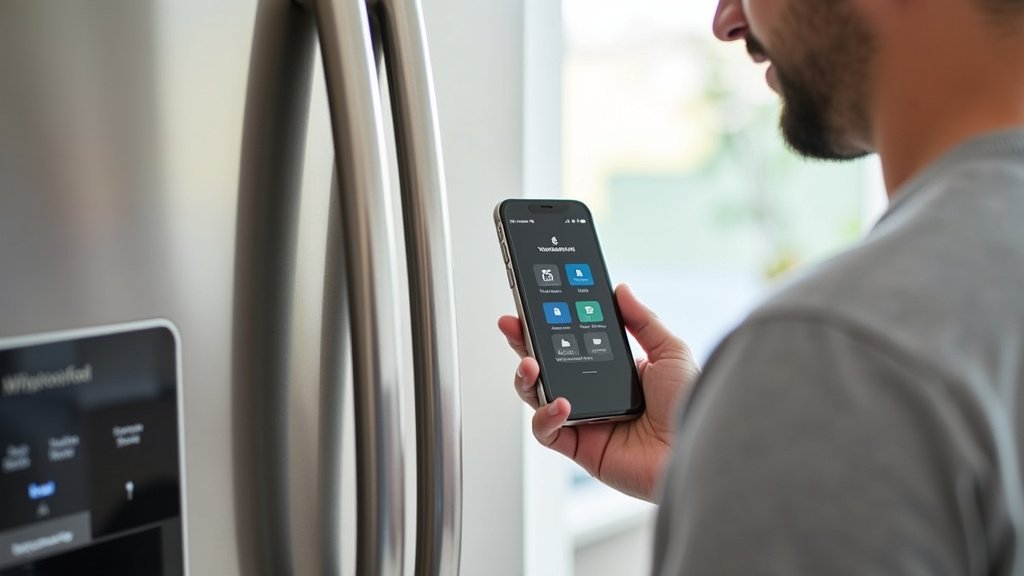
Inside the Whirlpool app, look for an option to “Add Appliance” or “Connect a New Appliance.” It’s usually a prominent button or link on the home screen or in a settings menu. The app will then guide you through a series of steps specific to your refrigerator model.
Put Your Refrigerator into Pairing Mode
This is where your fridge needs a little help from you. On your refrigerator’s control panel, you’ll need to activate its pairing mode. The exact steps vary by model, but it often involves pressing and holding a specific button for a few seconds. Common buttons include “Connect,” “Smart,” or even “Filter Reset.” Your owner’s manual will have precise instructions. The refrigerator’s display might show a blinking Wi-Fi icon or a message indicating it’s ready to connect.
Connect to Your Home Wi-Fi Network
The app will then ask you to select your home Wi-Fi network from a list and enter its password. This is where that prepared Wi-Fi information comes in handy. Double-check that you’re selecting your 2.4 GHz network, as many smart appliances prefer it. Once entered, the app will attempt to connect your refrigerator to your network.
Troubleshooting Common Connection Issues
Sometimes, things don’t go perfectly on the first try. Don’t worry; it’s quite common for smart devices. Here are a few things to check if you run into a snag.
| Issue | Possible Solution | Why it Helps |
|---|---|---|
| Refrigerator won’t enter pairing mode | Consult your owner’s manual for specific instructions. Try unplugging the fridge for 1 minute and plugging it back in (power cycle). | Each model is different. A power cycle can clear temporary glitches. |
| App can’t find the refrigerator | Ensure your phone is on the same 2.4 GHz Wi-Fi network as you want to connect the fridge to. Move closer to the refrigerator and Wi-Fi router. | Proximity and matching networks are key for initial discovery. |
| Connection fails after password entry | Double-check your Wi-Fi password for typos. Make sure you’re using a 2.4 GHz network, not 5 GHz. | Incorrect credentials or network band are common culprits. |
| Refrigerator shows a weak Wi-Fi signal | Consider using a Wi-Fi extender if your fridge is far from the router. Reposition your router if possible. | A stronger signal ensures reliable communication. |
Finalizing Setup and Enjoying Smart Features
Once connected, you’re ready to explore. The app will likely confirm a successful connection. Give yourself a pat on the back!
Name Your Appliance and Explore Features
The app might prompt you to give your refrigerator a custom name, like “Kitchen Fridge.” This is especially useful if you have multiple Whirlpool smart appliances. Then, take some time to browse the app’s features. You might find options to adjust temperatures, receive alerts when the door is left open, or even get notifications about filter changes.
Consider this checklist to make sure you’ve covered all your bases:
- Confirmed refrigerator is a smart model.
- Downloaded the official Whirlpool app.
- Created or logged into your Whirlpool account.
- Located your Wi-Fi network name and password.
- Successfully put your refrigerator into pairing mode.
- Connected your refrigerator to your 2.4 GHz Wi-Fi network.
With your Whirlpool refrigerator now connected, you’ve unlocked a new level of convenience. From remote temperature control to helpful diagnostics, your phone just became your fridge’s best friend. Enjoy the smart life!
Conclusion
Setting up your Whirlpool refrigerator app doesn’t have to be complicated. By following these steps, you’ve successfully connected your appliance. You now have the power to manage your fridge from almost anywhere. This makes everyday tasks more convenient and gives you greater control. We’ve seen how these smart features genuinely simplify your kitchen routine. So, take a moment to explore the app. Discover all the ways it can enhance your ownership experience. You’ll be glad you took the time to get connected!
Frequently Asked Questions
What if my Whirlpool app won’t open or crashes during setup?
If your Whirlpool app is misbehaving, try closing it completely and reopening it. Sometimes, simply restarting your phone can also resolve app performance issues. Ensure your phone’s operating system is up-to-date, as outdated software can cause compatibility problems.
Can I connect my Whirlpool refrigerator to more than one phone?
Yes, you can connect your Whirlpool refrigerator to multiple devices. Each family member can download the app and log in using the same Whirlpool account credentials. This allows everyone in the household to access and control the smart features.
Does my Whirlpool smart refrigerator need to be online constantly?
For full functionality, your smart refrigerator needs a continuous Wi-Fi connection. This allows it to send alerts, receive commands, and update software. If the Wi-Fi connection is lost, the basic refrigeration functions will continue, but smart features will be unavailable.
What kind of alerts can I get from the Whirlpool refrigerator app?
The Whirlpool app can send various helpful alerts to your phone. These might include notifications if the door is left ajar, reminders to change your water filter, or even warnings about power outages. Some models also offer alerts for unusual temperature fluctuations.
Is there a monthly fee to use the Whirlpool refrigerator app?
No, there is typically no monthly subscription fee to use the standard features of the Whirlpool refrigerator app. Once you purchase a compatible appliance, the app and its basic smart functions are free to use. Any premium features, if available, would be clearly indicated by Whirlpool.
