How to Factory Reset Ge Profile Refrigerator Screen?
On this page (7 sections)
Yes, you can factory reset your GE Profile refrigerator screen when it’s acting up. This process helps fix software glitches and restore normal function. Resetting your screen can resolve many common issues without needing a technician, saving you time and stress. It’s a straightforward fix for a frustrated user.
A factory reset erases personalized settings and custom data on the screen. Think of it like restarting your computer when it freezes. You’ll need to re-enter your preferences afterward. This often clears up annoying display problems and ensures your smart fridge works correctly again. Many users find it’s the quickest solution.
- Factory reset fixes GE Profile screen glitches.
- It returns the screen to its original settings.
- Personalized settings will be removed.
- It’s a good first step for troubleshooting.
Let’s walk through exactly how to get your GE Profile refrigerator screen back to its best, step by step. We’ll make it as easy as possible for you!
“`htmlResetting Your GE Profile Refrigerator Display
So, your GE Profile refrigerator screen is acting a bit strange? Maybe it’s frozen, unresponsive, or just not behaving like it should. Before you call for a service technician, there’s a simple fix you can try yourself: a factory reset. This process essentially wipes the slate clean for your screen’s software.
A factory reset will return the display panel to its original, out-of-the-box settings. It’s a powerful troubleshooting step. It can resolve many common software glitches without causing any harm to your refrigerator’s core functions. Think of it like restarting your phone when an app crashes. You’re not hurting the phone; you’re just giving its software a fresh start.
Why Would You Need to Reset Your GE Profile Screen?
Several situations might prompt you to consider a screen reset. Often, it’s when the touch interface seems sluggish or unresponsive. Sometimes, certain features might stop working correctly. These can include things like the water dispenser not registering, ice maker settings not saving, or even connectivity issues with your smart home app.
Common Screen Issues Addressed by a Reset
We’ve found that a factory reset is a go-to solution for many common display annoyances. Here are a few you might be experiencing:
- The screen is completely frozen and won’t respond to touch.
- Touch inputs are delayed or inaccurate.
- Error messages are appearing on the screen that you can’t clear.
- Smart features, like app connectivity or personalized recipes, are not working.
- The display is showing unusual graphics or behaving erratically.
Resetting the screen can clear up these software-related hiccups. It’s like clearing out temporary files on your computer. These files can sometimes build up and cause performance issues. Your refrigerator’s screen is a mini-computer, after all!
What a Factory Reset Changes
It’s important to know exactly what happens when you perform this reset. The primary effect is that all custom settings you’ve made on the screen will be erased. This includes things like:
- Saved Wi-Fi network credentials.
- Customized temperature presets for different compartments.
- User profiles you might have set up.
- Any downloaded apps or app settings specific to the screen.
- Personalized lighting preferences or energy-saving modes.
Think of it like setting up a new phone. You’ll need to go through the initial setup process again. This means reconnecting to your Wi-Fi and re-entering any preferences you had. While this might seem like a hassle, it’s usually a small price to pay for a fully functional screen. Many users report that the relief of having a working display is well worth the minor reconfiguration.
How to Perform a Factory Reset on Your GE Profile Refrigerator Screen
The exact steps can vary slightly depending on your specific GE Profile model. However, the general procedure is quite similar across most units. We’ll guide you through the most common method. Always check your refrigerator’s user manual if you have it handy, as it will have the most precise instructions for your model.
Locating the Reset Option
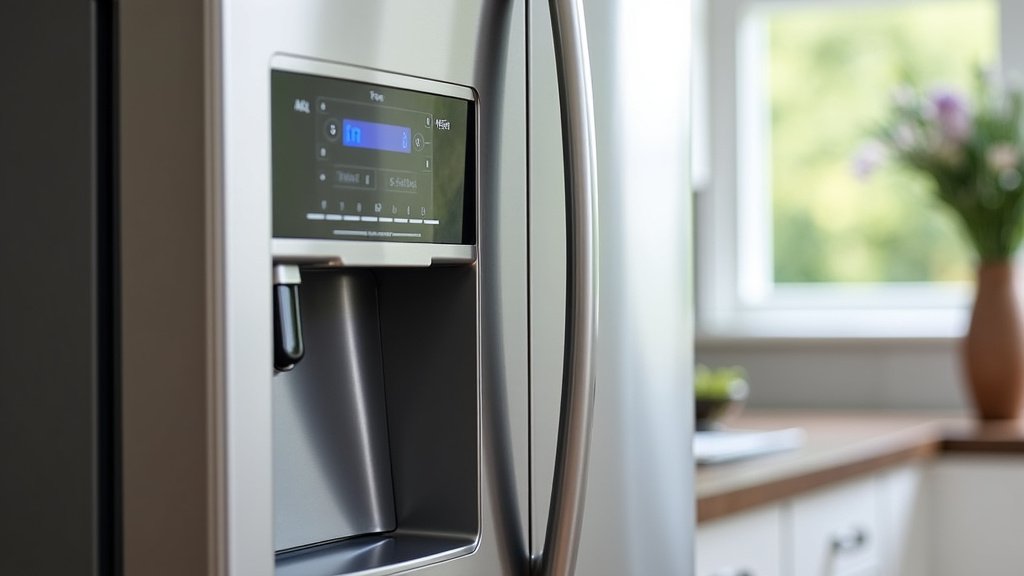
You’ll typically find the reset option buried within the refrigerator’s settings menu. This is usually accessible through the main display panel itself. Here’s a breakdown of how you’ll likely navigate:
- Access the main menu on your refrigerator’s touchscreen.
- Look for a “Settings” or “Gear” icon. Tap on it.
- Within the settings menu, you’ll want to find a section related to “System,” “General,” “About,” or “Factory Reset.”
- Once you find the factory reset option, select it.
Initiating the Reset Process
Once you’ve located the factory reset function, the system will usually prompt you for confirmation. This is a safeguard to prevent accidental resets.
Confirmation Steps
You will likely see a message warning you that this action will erase all data and return the device to its factory settings. You will need to confirm your decision. This often involves:
- Tapping a button that says “Confirm,” “Reset,” or “Yes.”
- Sometimes, you might need to enter a code or your refrigerator’s serial number. Check your manual if you’re unsure.
After confirming, the refrigerator screen will likely go blank for a few moments. It will then restart, often displaying the GE logo. This indicates the reset is in progress. Be patient; this can take a few minutes.
What to Expect During the Reset
During the reset, the screen might cycle through several stages. It could show a progress bar or simply restart multiple times. It’s crucial not to interrupt this process. Do not try to touch the screen or turn off the power to the refrigerator during the reset. Doing so could potentially cause further issues.
Post-Reset Setup
After the factory reset is complete, your GE Profile refrigerator screen will be like new. You’ll need to go through the initial setup again.
Re-establishing Your Settings
This part is similar to when you first got your refrigerator. You will need to:
- Connect to your home Wi-Fi network again.
- Set your preferred language and time zone.
- Re-enter any specific temperature settings for your fridge and freezer.
- Sign back into any smart home accounts or apps if you use them.
This is also a good time to explore any new features or settings that may have been updated since your last setup. You might find some improvements you weren’t aware of. Essentially, you’re configuring your smart fridge display from scratch.
Troubleshooting: What If the Reset Doesn’t Work?
If you’ve tried the factory reset and your GE Profile refrigerator screen is still not functioning correctly, it might indicate a more significant hardware issue or a deeper software problem that the reset can’t fix. We found that persistent issues can sometimes point to other causes.
When to Seek Professional Help
If the screen remains unresponsive, continues to display errors, or exhibits the same problems after a reset, it’s time to contact GE Appliances customer support. They can provide further diagnostics and arrange for a qualified technician if needed. Don’t hesitate to reach out if you’re stuck.
A technician can check for issues with the display panel itself, the internal wiring, or the refrigerator’s main control board. These are components that are beyond the scope of a simple user-initiated reset. Many user manuals provide direct contact information for support. It’s often best to have your refrigerator’s model number ready when you call.
Important Considerations Before Resetting
Before you proceed with a factory reset, there are a few things to keep in mind. This ensures you’re prepared for the process and its outcomes.
Have your Wi-Fi password ready. You’ll need it to reconnect your refrigerator to your home network. If you don’t have it handy, you might want to find it before starting the reset.
Note down custom settings. If you have specific temperature preferences or unique configurations, write them down. This makes it easier to re-apply them after the reset. It’s a small step that can save you guesswork later.
Ensure a stable power supply. Make sure your refrigerator is plugged in and has consistent power during the reset. Interrupting the process could cause problems.
Understand the data loss. As we’ve discussed, all personalized data will be removed. Be prepared to reconfigure your preferences. This is the most significant consequence of a factory reset.
Troubleshooting Checklist: Quick Steps to Try
If your GE Profile screen is glitching, run through this quick checklist:
- Check Power: Ensure the refrigerator is properly plugged in and the circuit breaker is on.
- Clean the Screen: Sometimes, dirt or smudges can interfere with touch sensitivity. Clean it gently with a microfiber cloth.
- Soft Reset (If Available): Some models might have a softer reboot option in the settings before a full factory reset.
- Consult Your Manual: Always refer to your specific model’s user guide for precise instructions.
- Perform Factory Reset: Follow the steps outlined above carefully.
- Contact Support: If issues persist after a reset, reach out to GE Appliances.
Conclusion
You’ve now learned how to tackle common GE Profile refrigerator screen issues with a factory reset. Remember, this process clears your custom settings but often solves frustrating glitches. It’s your first line of defense before calling a technician. If the reset doesn’t do the trick, don’t hesitate to reach out to GE Appliances support. Take a deep breath, follow the steps carefully, and get your smart fridge display working smoothly again!
Frequently Asked Questions
Will a factory reset delete my refrigerator’s main settings?
No, a factory reset on the GE Profile screen only affects the display’s software and settings. Your refrigerator’s core cooling functions, temperature controls, and ice maker operation remain untouched. You will only need to reconfigure your screen preferences afterward.
How long does a GE Profile refrigerator screen factory reset usually take?
The reset process typically takes between 5 to 15 minutes to complete. During this time, the screen may go blank, restart, or show a GE logo. It’s important to be patient and avoid interrupting the process by touching the screen or unplugging the refrigerator.
What should I do if my GE Profile refrigerator screen is still frozen after the reset?
If the screen remains frozen or unresponsive after a factory reset, it might indicate a hardware problem. In this case, it’s best to consult your user manual for specific troubleshooting or contact GE Appliances customer support for further assistance. They can help diagnose if a technician visit is needed.
Can I lose my Wi-Fi connection after resetting the GE Profile screen?
Yes, you will lose your Wi-Fi connection. The factory reset erases all saved network credentials from the screen. You will need to reconnect your refrigerator to your home Wi-Fi network by re-entering your network name and password during the post-reset setup.
Is a factory reset safe for my GE Profile refrigerator?
Yes, performing a factory reset on your GE Profile refrigerator screen is safe. It is designed to resolve software issues without impacting the essential cooling operations of your appliance. It’s a standard troubleshooting step recommended by many manufacturers.