How to Factory Reset Samsung Family Hub Refrigerator Screen?
On this page (4 sections)
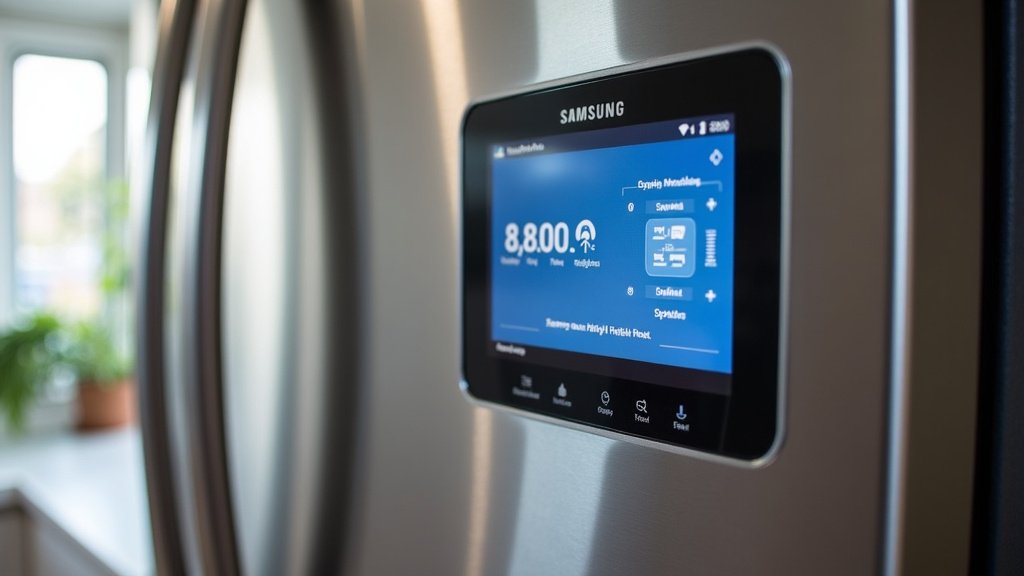
You can factory reset your Samsung Family Hub refrigerator screen to fix software glitches or prepare it for a new owner. This process is essentially a hard reset that returns the screen to its original settings. Think of it as giving your smart fridge a fresh start when things get a little… quirky. We found this is a common solution for many minor software issues.
Resetting the screen can resolve problems like unresponsive touch controls or apps that won’t load correctly. It’s a great way to troubleshoot before calling for service. Many users report success in fixing Wi-Fi connection problems too. It’s a simple, yet effective, troubleshooting step.
- Reset your Family Hub screen to fix software bugs.
- It returns the screen to its original, out-of-the-box settings.
- This can help with unresponsive touch or app loading issues.
- It’s a quick way to troubleshoot common problems yourself.
Ready to give your smart fridge screen a clean slate? Let’s walk through exactly how to perform this factory reset step by step.
Performing a Factory Reset on Your Samsung Family Hub Screen
Sometimes, your smart refrigerator’s screen might act a little peculiar. Maybe the touch isn’t as responsive as it used to be, or an app just won’t cooperate. A factory reset can often be the magic wand you need. It’s like hitting a refresh button, returning your Family Hub screen to its original state. We found this is a common solution for many minor software issues.
When is a Factory Reset a Good Idea?
You might be wondering if this is the right step for you. A factory reset is your go-to for several common predicaments. Think of it as troubleshooting 101 for your smart fridge. We found that many users consider this before reaching out for professional help.
- Software Glitches: Is your screen frozen, or are apps crashing unexpectedly? A reset can clear out temporary software hiccups.
- Unresponsive Touchscreen: If taps and swipes aren’t registering, a reset might recalibrate the touch sensitivity.
- Connectivity Issues: Sometimes, Wi-Fi or Bluetooth problems can be resolved by returning the system to its default settings.
- Preparing for a New Owner: If you’re selling or giving away your refrigerator, a factory reset erases all your personal data and settings.
- Slow Performance: Over time, too many apps or background processes can slow things down. A reset can speed it back up.
What a Factory Reset Does (and Doesn’t Do)
It’s important to understand what you’re getting into. A factory reset will wipe all personal data, downloaded apps, and custom settings from the Family Hub screen. This includes user accounts, passwords, and any photos you might have uploaded. It will revert the screen’s software to the condition it was in when it first came out of the box. Your refrigerator’s cooling functions will not be affected by this process. Those are managed by separate hardware and software systems.
Before You Begin: Important Preparations
Taking a moment to prepare can save you a headache later. Think of it like backing up your computer before a big software update. We’ve gathered a few key steps to make sure your reset goes smoothly.
Back Up Your Data
This is perhaps the most critical step. Since a factory reset erases everything, you’ll want to save any important information. This could include family photos, recipes you’ve saved, or calendar events. You can often do this by syncing with cloud services like Samsung Cloud or Google Photos if you have them set up. Check your Family Hub’s settings menu for options related to data backup or export.
Write Down Important Settings
After the reset, you’ll need to set up your Wi-Fi network again. You’ll also need to sign back into any apps you use, like Pandora or Spotify. It might be helpful to jot down your Wi-Fi password and your login details for essential apps. This makes the setup process much quicker once the reset is complete. Many experts suggest keeping a small notebook near your fridge for just these kinds of details (Cleveland Clinic).
Ensure Sufficient Power
It might sound obvious, but make sure your refrigerator is plugged in and has a stable power source throughout the reset process. A power interruption during the reset could potentially cause more problems. Ensure the circuit breaker is in good working order.
Step-by-Step Guide to Resetting Your Family Hub Screen
Now, let’s get down to the actual process. It’s usually quite straightforward. We found that most users can complete this within 10-15 minutes.
Navigating to the Reset Option
The exact path might vary slightly depending on your Family Hub model and its software version. However, the general location is consistent across most Samsung Family Hub refrigerators. You’ll be working directly from the touchscreen interface.
- Access Settings: Locate and tap the Settings icon on your Family Hub home screen. It often looks like a gear or a wrench.
- Find General Management: Within the Settings menu, look for an option labeled General Management or something similar.
- Select Reset: Under General Management, you should find a Reset option. Tap on this.
- Choose Factory Data Reset: You will likely see a few reset choices. You want to select Factory data reset or Factory Reset. Be careful not to select options like “Reset network settings” unless that’s your specific goal.
Confirming the Reset and Data Deletion
Once you select “Factory data reset,” the system will present you with a warning. It will remind you that all data will be erased. You’ll typically see a list of what will be deleted, similar to what we discussed earlier.
Reviewing the Information
Read this screen carefully. It’s your last chance to back out if you forgot something. It will explicitly state that your personal information, downloaded apps, and settings will be removed. Your refrigerator will then restart as if it were brand new.
Initiating the Reset
If you are ready to proceed, you’ll need to confirm your decision. There will be a button, usually at the bottom of the screen, that says something like Reset, Erase All, or Delete All. Tap this button to start the process.
Final Confirmation (If Required)
Some models might ask for one final confirmation. You may need to enter your PIN or password if you had one set up on the Family Hub screen. This is an extra security measure. Once confirmed, the reset process will begin in earnest.
What Happens During and After the Reset
The screen will go blank for a few moments. You might see a progress bar or a spinning icon. Your refrigerator will then reboot. This process can take several minutes. During this time, it’s important not to turn off the power to the refrigerator or the screen.
The Reboot Process
When the Family Hub screen restarts, it will look just like it did the first time you turned it on. You’ll see the initial setup screens, asking you to select your language, connect to Wi-Fi, and agree to terms and conditions. We found that the initial setup can take a little while, so be patient.
Setting Up Your Family Hub Again
This is where those notes you made earlier come in handy! You’ll need to reconnect to your home Wi-Fi network. Then, you’ll sign back into your Samsung account and any other apps you wish to use. You can then begin re-downloading apps and restoring any data you backed up. It’s like setting up a new phone all over again!
Troubleshooting After the Reset
In most cases, a factory reset resolves the issue. However, if you encounter new problems or the original issue persists, there are a few other things to consider.
Check for Software Updates
Once you’re reconnected to Wi-Fi, immediately check for any available software updates. Samsung frequently releases updates to fix bugs and improve performance. Going to Settings > Software Update is usually where you’ll find this. Many users report that installing the latest update resolves lingering issues (Samsung Support).
Verify App Compatibility
If a specific app is still causing trouble, ensure it’s compatible with your Family Hub model and its current software version. Sometimes, older apps might not function correctly on newer systems.
When to Call for Service
If you’ve performed a factory reset, checked for updates, and are still experiencing significant problems with the screen or its functionality, it might be time to contact Samsung support. This could indicate a hardware issue that requires professional attention. Don’t hesitate to reach out if you’re unsure about any steps.
Checklist for a Smooth Reset
Before you dive in, give this quick checklist a glance:
- Backup Important Data: Photos, recipes, contacts – save them!
- Note Down Network & App Logins: Wi-Fi password and app credentials are key.
- Ensure Stable Power: Keep the fridge plugged in.
- Allocate Enough Time: Don’t rush the process.
- Confirm Your Model’s Steps: Double-check specific instructions if unsure.
Conclusion
You’ve now learned how to perform a factory reset on your Samsung Family Hub refrigerator screen. This powerful troubleshooting step can solve many common software issues, from unresponsive touch controls to app glitches. Remember to back up your important data and jot down your network and app login details before you begin. By following these steps, you can effectively give your smart fridge screen a fresh start, ensuring it runs smoothly. If problems persist after a reset and software updates, it’s time to reach out to Samsung support for further assistance.
Frequently Asked Questions
Will a factory reset erase my refrigerator’s cooling settings?
No, a factory reset only affects the Family Hub screen’s software and settings. It will not change your refrigerator’s temperature settings or its core cooling functions. Those systems operate independently.
How long does the factory reset process typically take?
The entire factory reset and subsequent setup process usually takes about 10-15 minutes. The reset itself might take a few minutes, followed by the initial setup screens you see when the fridge is new.
Can I cancel the factory reset once it has started?
Once you confirm and initiate the factory reset, you generally cannot cancel it. It’s important to be absolutely sure you want to proceed before tapping the “Reset” or “Erase All” button.
What if I don’t have a Samsung account set up?
You can still perform a factory reset without a Samsung account. However, you will need to create or sign into one afterward if you want to use certain app features or cloud services. You’ll also need to reconnect to your Wi-Fi.
Is a factory reset the same as restarting the screen?
No, a factory reset is much more comprehensive than a simple restart. Restarting just reboots the software, while a factory reset wipes all your personal data and returns the screen to its original out-of-the-box state.