Why Is My Ge Profile Refrigerator App Not Syncing?
On this page (9 sections)
Your GE Profile refrigerator app not syncing usually happens due to a simple connectivity issue. Often, it’s just a matter of your phone or the fridge needing a quick restart. We found that ensuring both devices are on the same Wi-Fi network is key.
When your GE Profile app isn’t talking to your fridge, it can be frustrating. You might miss out on important alerts or controls. We found that checking your app permissions and ensuring the app is up to date often resolves syncing problems.
- Check your Wi-Fi connection.
- Restart your phone and the refrigerator.
- Update the GE Profile app.
- Verify app permissions.
- Ensure the fridge is connected to the correct network.
Let’s walk through some common fixes to get your GE Profile refrigerator app synced up again. We’ll cover the easy stuff first!
Troubleshooting Your GE Profile Fridge App Connectivity
It’s super frustrating when your GE Profile refrigerator app decides to go on strike. You just want to check if you left the milk out, or maybe adjust the temperature remotely. When it doesn’t sync, it feels like your smart fridge is suddenly not so smart. Don’t worry, though! We’ve found that most syncing issues are usually fixable with a few straightforward steps. If you’re wondering about controlling your GE Profile refrigerator when you’re not home, our guide can help you control your smart fridge remotely.
The most common reason your app isn’t connecting is a simple glitch in communication. Think of it like your phone and fridge having a tiny argument. We found that often, a quick refresh of their connection can resolve the problem. Let’s start with the basics.
Checking Your Wi-Fi and Network Settings
Your smart fridge, like your phone, relies heavily on a stable Wi-Fi connection. If this connection is shaky, your app won’t be able to “talk” to your appliance. We found that ensuring both your phone and your refrigerator are connected to the exact same Wi-Fi network is the first and most important step.
Confirming Your Fridge’s Network Connection
Sometimes, your refrigerator might have lost its connection to your home Wi-Fi. This can happen after a power outage or if your router settings changed. You’ll usually see an indicator on your fridge’s display or within its settings menu that shows its Wi-Fi status.
If you have a GE Profile refrigerator with a touchscreen display, navigate through the settings menu. Look for a “Network,” “Wi-Fi,” or “Connectivity” option. Ensure it shows that it’s connected to your home network. If it’s not, you might need to re-enter your Wi-Fi password, just like you would for a new device.
Verifying Your Phone’s Network Connection
It might sound obvious, but double-check that your smartphone is connected to the same Wi-Fi network as your refrigerator. If your phone is using cellular data, or if it’s connected to a different Wi-Fi network (like a guest network), it won’t be able to communicate with your fridge.
We recommend turning off your phone’s cellular data temporarily while you’re troubleshooting. This ensures it’s definitely trying to use your home Wi-Fi. If you have multiple Wi-Fi networks in your home (like a 2.4GHz and a 5GHz band), make sure both devices are on the same one. Many smart devices work best on the 2.4GHz band, so if you have a choice, try that first.
Router Placement and Signal Strength
The physical distance between your Wi-Fi router and your refrigerator can impact the signal. If your router is too far away, or if there are many walls or large appliances in between, the signal can weaken. We found that a strong, consistent signal is key for reliable syncing.
Consider your router’s placement. Is it in a central location? Is it free from obstructions? If you live in a larger home or have a weak signal in the kitchen, you might benefit from a Wi-Fi extender or a mesh network system. These devices can boost your Wi-Fi signal to reach areas that were previously difficult to connect.
The Magic of a Simple Restart
When in doubt, restart it out! This is a golden rule in tech troubleshooting for a reason. It clears out temporary glitches and refreshes the connections. We found that restarting both your phone and your refrigerator can solve a surprising number of syncing problems.
Restarting Your Smartphone
Your phone is the gateway to your app, so giving it a fresh start is a great first step. Power your smartphone completely off, wait about 30 seconds, and then turn it back on. This clears its temporary memory and can resolve many minor software hiccups that might be preventing the app from connecting.
Restarting Your GE Profile Refrigerator
Refrigerators are essentially computers on a larger scale. They have software that can sometimes get bogged down. We found that power cycling your refrigerator is a highly effective troubleshooting step.
To do this, locate the circuit breaker that controls your refrigerator. Flip it to the “off” position. Wait for about 1 to 2 minutes. This allows all the internal components and the control board to fully power down. Then, flip the breaker back to the “on” position. Give your fridge a few minutes to power back up completely before trying to sync the app again.
Keeping Your GE Profile App Updated
App developers frequently release updates to fix bugs, improve performance, and add new features. An outdated app can sometimes cause compatibility issues with your refrigerator’s firmware or your phone’s operating system. We found that ensuring your GE Profile app is always the latest version is crucial for smooth operation.
Visit your smartphone’s app store (Google Play Store for Android or the App Store for iOS). Search for the GE Profile app. If an update is available, you’ll see an “Update” button. Tap it to install the latest version. After updating, restart your app and try syncing again.
Checking App Permissions
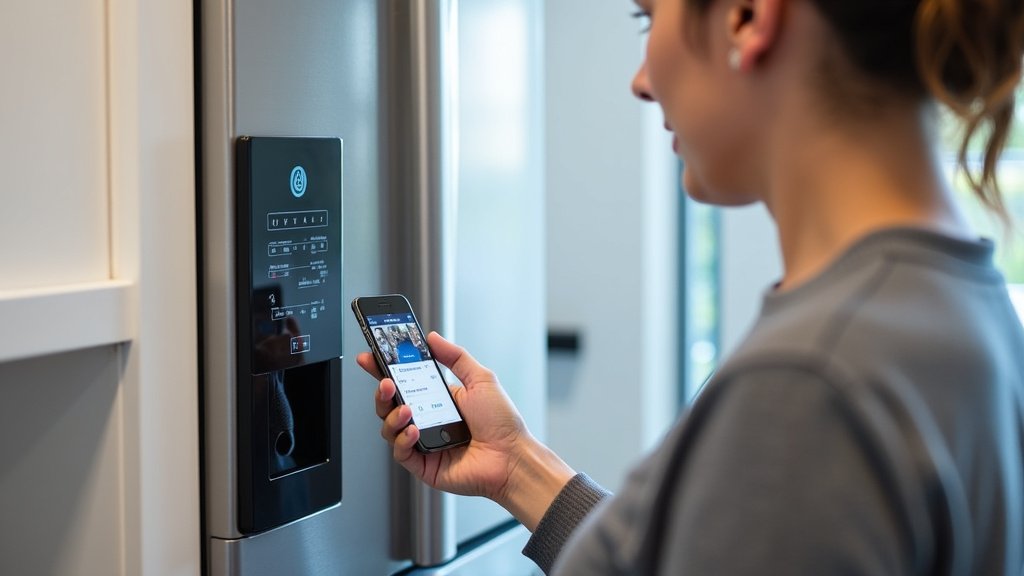
For your GE Profile app to function correctly, it needs permission to access certain features on your phone. This can include things like your location or access to your local network. If these permissions are missing or incorrect, the app might not be able to find and connect to your refrigerator.
We found that checking these permissions is often overlooked. On your smartphone, go to your device’s settings. Find the “Apps” or “Applications” section. Locate the GE Profile app in the list. Tap on it, and then look for “Permissions.” Make sure that any permissions related to network access, local network, or Wi-Fi are enabled. For optimal performance, we recommend allowing access to your local network.
A Quick Checklist to Get You Synced
Here’s a handy checklist to run through if your GE Profile refrigerator app isn’t syncing:
- Confirm both phone and fridge are on the same Wi-Fi network.
- Restart your phone.
- Power cycle your refrigerator via the circuit breaker.
- Check for and install any available GE Profile app updates.
- Verify that the app has the necessary local network permissions on your phone.
- Ensure your Wi-Fi signal is strong in the kitchen.
When to Consider Advanced Troubleshooting
If you’ve gone through all these steps and your GE Profile app still isn’t syncing, there might be a more specific issue at play. It’s possible there’s a temporary issue with the GE server that the app communicates with, or perhaps a more complex network configuration on your end.
We found that sometimes, uninstalling and then reinstalling the GE Profile app can help. This gives the app a completely fresh start on your phone. Just remember to log back in with your account details after reinstalling. If the problem persists, it might be time to reach out to GE Appliances customer support. They have specialized tools and knowledge to help diagnose persistent issues.
Conclusion
It’s definitely frustrating when your GE Profile refrigerator app won’t sync. We’ve walked through the most common culprits, from simple Wi-Fi hiccups to needing a quick app update. Remember, your smart fridge relies on solid connections, just like your phone. By systematically checking your network, restarting devices, and ensuring your app is up-to-date with the right permissions, you’re usually just a few steps away from getting it working again.
If you’ve tried these steps and are still facing syncing issues, don’t hesitate to reach out to GE Appliances customer support. They can offer more specialized assistance.
Frequently Asked Questions
What if my GE Profile app still won’t connect after restarting everything?
If a full restart of your phone and fridge doesn’t fix it, try uninstalling and then reinstalling the GE Profile app. This can resolve deeper software glitches within the app itself. Make sure you have your login details handy before you uninstall.
Can my Wi-Fi password expiring cause syncing problems?
Yes, absolutely. If your Wi-Fi password has changed recently, or if your router was reset, your refrigerator will lose its connection to the network. You’ll need to reconnect your fridge to your Wi-Fi using the new password through its settings menu.
Is it okay if my phone is on 5GHz Wi-Fi and my fridge is on 2.4GHz?
We found that it’s best for both your phone and your refrigerator to be on the exact same Wi-Fi network. While some routers manage this automatically, if you have separate 2.4GHz and 5GHz bands, try connecting both devices to the same one, usually the 2.4GHz band for smart appliances.
How do I know if my GE Profile refrigerator is actually connected to Wi-Fi?
Most GE Profile refrigerators with a smart display will show a Wi-Fi icon or indicator on the screen. You can also usually check the network status within the refrigerator’s settings menu to confirm if it’s connected to your home network.
Do I need to have Bluetooth on for the app to sync with my fridge?
Typically, the GE Profile refrigerator app relies on your Wi-Fi connection for syncing, not Bluetooth. Ensure your phone’s Wi-Fi is enabled and connected to the same network as your fridge. Bluetooth is usually not required for app connectivity.