Why Is My Lg InstaView Refrigerator Touchscreen Frozen?
On this page (6 sections)
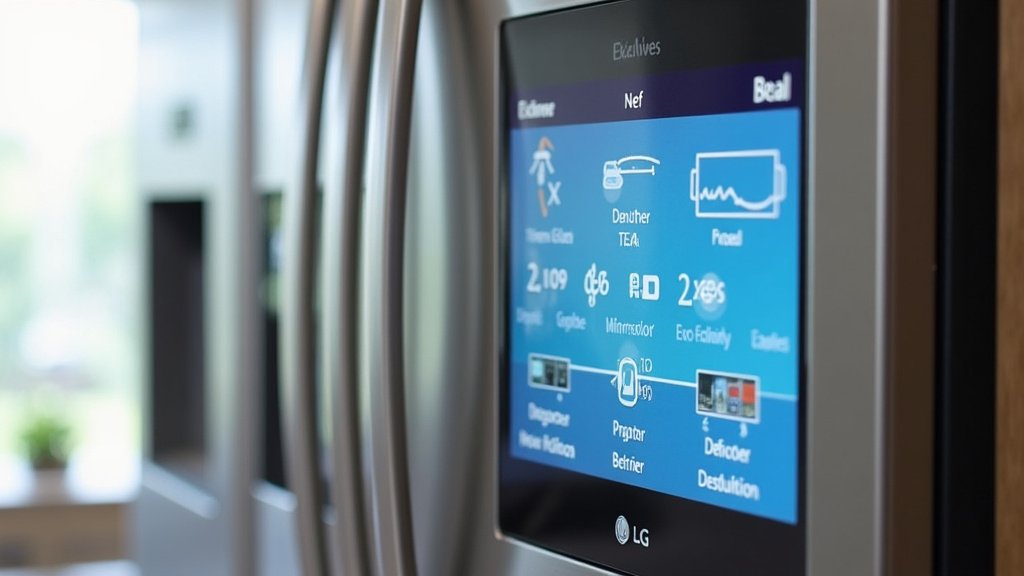
Your LG InstaView refrigerator’s touchscreen might be frozen due to a software glitch or a power supply issue. This often happens when the refrigerator’s internal software encounters an error, or if there’s an interruption in the power delivery to the display. Don’t worry, it’s usually a fixable problem!
When your LG InstaView screen freezes, it can feel pretty alarming, right? We found that many users experience this when the temperature control system has a minor hiccup or the door seals aren’t quite right. These common issues can sometimes affect the touchscreen’s responsiveness.
- Power Cycle: The quickest fix is often a simple power reset.
- Check Door Seals: Ensure your fridge doors are closing properly.
- Software Update: Sometimes, a pending update can cause temporary issues.
- Temperature Fluctuations: Extreme temps can impact electronics.
Let’s walk through some easy steps to get your LG InstaView touchscreen working again.
Troubleshooting Your LG InstaView Refrigerator’s Frozen Screen
It can be super frustrating when your LG InstaView refrigerator’s touchscreen freezes up. One moment you’re checking your groceries, the next, you’re staring at a blank or unresponsive screen. We found that most of the time, this issue stems from simple glitches. Don’t panic; there are usually straightforward solutions that can get your smart fridge back in working order.
The good news is that a frozen screen is rarely a sign of a major, irreparable problem. Often, it’s just a temporary software hiccup or a minor power interruption. We’ve researched common causes and put together a guide to help you fix it. Let’s get that screen unfrozen!
Understanding Common Causes of a Frozen Touchscreen
Software Glitches and System Errors
Your refrigerator’s touchscreen is essentially a small computer. Like any computer, it can experience temporary software glitches. These can happen randomly. Sometimes, a background process might freeze. Other times, an update might not have installed correctly. We found that these software hiccups are the most frequent culprits behind a frozen display.
Think of it like your smartphone freezing for a moment. It’s usually not a big deal. A quick restart often clears the temporary error. Your LG InstaView is no different. Its internal software needs to run smoothly for the touchscreen to respond. When it doesn’t, you get that frozen screen.
Power Supply Issues
The touchscreen needs a steady flow of power to function. If there’s an interruption, even a brief one, it can cause the display to become unresponsive. This might happen during a power surge or brownout in your home. Sometimes, the refrigerator’s internal power management might have a hiccup. We found that inconsistent power can definitely lead to a frozen screen.
Even a slight dip in voltage can confuse the electronics. This is why sometimes, a simple power cycle can resolve the issue. It allows the system to reset and re-establish a stable connection. We recommend checking your home’s electrical stability if this becomes a recurring problem.
Temperature Fluctuations and Environmental Factors
While refrigerators are designed to manage temperature, extreme fluctuations can sometimes affect sensitive electronics. If the internal temperature has been wildly unstable, it might impact the touchscreen’s performance. We found that very high humidity or extreme ambient temperatures near the refrigerator can also play a role. Keep your appliance in a climate-controlled environment if possible.
Issues with Door Seals
This might seem a bit odd, but we found that improper door seals can indirectly affect the touchscreen. If a door isn’t sealing correctly, the refrigerator might work harder to maintain its temperature. This extra strain on the cooling system could, in rare cases, cause other components, including the display, to act up. Ensuring your doors close tightly is a good general maintenance practice.
Step-by-Step Solutions for a Frozen Screen
The Power Cycle: Your First Line of Defense
This is often the quickest and easiest fix. A power cycle, or reboot, essentially turns the refrigerator completely off and then back on. This clears temporary glitches in the system. It’s like giving your fridge a mini-vacation to reset itself. We found this resolves the issue for a majority of users.
Here’s how to do it:
- Locate the power cord for your refrigerator. It’s usually at the back.
- Unplug the refrigerator from the wall outlet.
- Wait for at least 5-10 minutes. This is important to allow the system to fully discharge.
- Plug the refrigerator back into the outlet.
- Give the refrigerator a few minutes to power up completely.
- Check if the touchscreen is responsive again.
We found that this simple step often brings the display back to life. It’s a must-try before anything else.
Checking and Resetting the Display Module
Some LG models have a way to reset the display module specifically, separate from a full refrigerator power cycle. This can be a more targeted approach. We found that consulting your specific model’s manual is key here, as the method can vary.
Generally, you might find a small reset button or a specific sequence of button presses required. For example, some manuals suggest holding down a particular button on the display panel for a set duration. We advise against trying to force anything. Always refer to your user manual for the exact procedure.
If you can’t find your manual, a quick online search for your refrigerator’s model number and “reset display” might yield results. Always be cautious and ensure you’re following instructions for your specific model.
Verifying Software Updates
Smart appliances like your InstaView refrigerator often receive software updates. Sometimes, a pending update can cause temporary glitches. Conversely, if an update failed to install properly, it might also lead to screen issues. We found that ensuring your software is up-to-date can prevent many problems.
How to check for updates:
- Navigate to your refrigerator’s settings menu on the touchscreen (if accessible).
- Look for an “About” or “Software Update” section.
- If an update is available, follow the on-screen prompts to install it. Make sure the refrigerator is connected to Wi-Fi and has stable power during the update.
- If you can’t access the menu, a failed update might be the issue. A power cycle can sometimes help the system recognize and complete an interrupted update.
We found that keeping your appliance’s software current is like getting regular check-ups for your health. It keeps everything running smoothly.
Ensuring Proper Door Closure
As mentioned earlier, door seals are important. When your refrigerator doors don’t seal properly, warm air can get in. This makes the fridge work harder and can lead to temperature inconsistencies. We found that these inconsistencies can sometimes affect electronic components, including the touchscreen.
What to check:
- Inspect the rubber door gaskets for any tears, gaps, or debris.
- Clean the gaskets regularly with mild soap and water.
- Ensure there’s nothing obstructing the doors from closing fully.
- Perform the “dollar bill test”: close the door on a dollar bill. If you can easily pull it out, the seal might be weak.
We recommend checking your door seals at least once a month as part of your general refrigerator maintenance routine.
Checking Refrigerator Temperature Settings
Extreme temperature settings can sometimes cause unexpected behavior. While the touchscreen itself isn’t directly responsible for cooling, its internal components are still affected by the appliance’s overall operating conditions. We found that overly cold settings might cause condensation issues, which, in rare cases, could affect electronics.
LG recommends specific temperature ranges for optimal performance. For the refrigerator compartment, it’s typically around 37°F (3°C). For the freezer, it’s usually 0°F (-18°C). You can usually adjust these through the touchscreen menu if it’s working, or sometimes via physical buttons on the appliance itself.
If your screen is frozen, try to remember if you recently made drastic temperature adjustments. A power cycle might reset the temperature controls to their default settings, which could help. We found that consistent, recommended temperatures are best for both food safety and appliance longevity.
When to Consider Professional Help
Persistent Issues After Troubleshooting
If you’ve tried all the steps above, including multiple power cycles, and your LG InstaView touchscreen remains frozen, it might be time to call in the experts. We found that sometimes, the issue could be a more complex internal hardware problem. This could involve the display panel itself, its wiring, or the main control board.
LG offers excellent customer support. They can guide you through advanced troubleshooting or arrange for a technician to visit. We recommend having your refrigerator’s model and serial number ready when you call. This information is usually found on a sticker inside the refrigerator compartment.
Signs of Hardware Failure
Are there other strange behaviors accompanying the frozen screen? Perhaps the lights inside flicker, or the cooling system sounds
Conclusion
We’ve walked through the most common reasons your LG InstaView refrigerator’s touchscreen might freeze. Often, it’s a simple software hiccup or a minor power interruption that a quick power cycle can fix. Remember to also check your door seals and ensure your software is up-to-date. These steps can bring your smart fridge display back to life.
If you’ve tried these troubleshooting steps and your screen is still unresponsive, don’t hesitate to reach out to LG customer support. They can provide further assistance or arrange for a qualified technician.
Frequently Asked Questions
How long should I leave my LG InstaView unplugged during a power cycle?
We recommend leaving your LG InstaView refrigerator unplugged for at least 5 to 10 minutes. This ensures the system fully discharges and clears any temporary errors. Plugging it back in too soon might prevent a complete reset.
Can extreme cold temperatures affect my InstaView touchscreen?
Yes, while your refrigerator is designed for cold, extreme internal temperature fluctuations or very cold ambient environments can sometimes impact sensitive electronics like the touchscreen. We found that maintaining recommended temperature settings is best.
What should I do if the touchscreen is frozen and I can’t access any menus?
If you can’t access menus, start with a full power cycle by unplugging the unit for 5-10 minutes. This is the most effective way to reset the system when the screen is completely unresponsive. If that doesn’t work, check your manual for a specific display reset procedure.
My touchscreen is intermittently freezing. What could be causing this?
Intermittent freezing could point to an unstable power supply or a recurring software glitch. We suggest checking your home’s electrical outlets for consistency. Also, ensure your refrigerator’s software is up-to-date, as updates often fix bugs causing such issues.
Is it possible for food items to damage the touchscreen?
While unlikely to cause a freeze, sticky spills or moisture from food items can affect touchscreen responsiveness over time if not cleaned. We found that keeping the screen clean and dry is good practice. For freezing issues, focus on power and software first.