Why Is My Ge Profile Refrigerator Touchscreen Frozen?
On this page (3 sections)
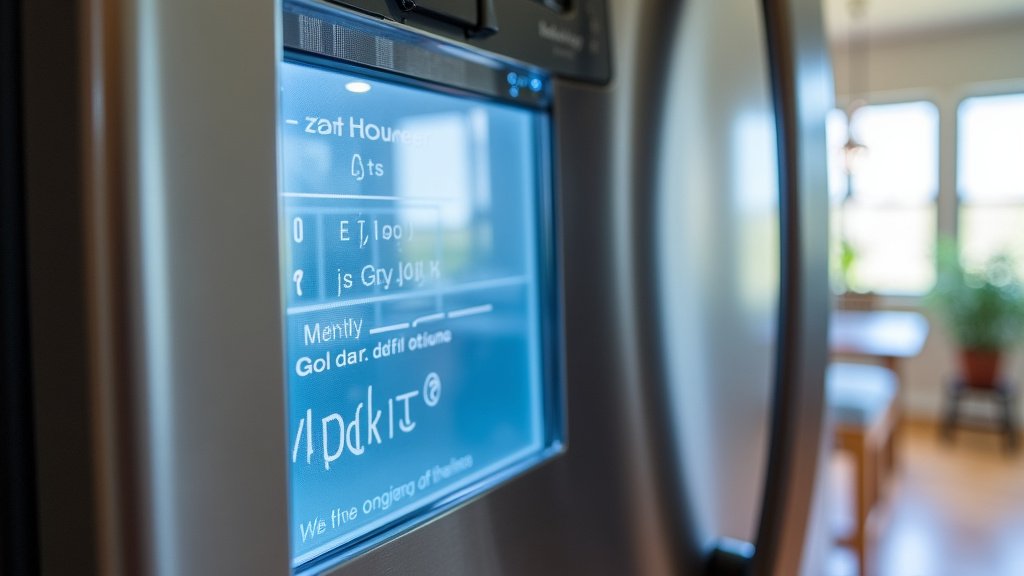
Your GE Profile refrigerator’s touchscreen freezing up is often due to software glitches or temperature fluctuations. When the screen becomes unresponsive, it can be frustrating, but many common issues have straightforward fixes you can try yourself. This usually means the control panel is having trouble communicating.
This problem can occur if the refrigerator’s internal components are too cold or too warm. A common culprit is a faulty temperature sensor. Sometimes, simple troubleshooting can restore normal function to your smart fridge. It’s wise to consider both the electronic and environmental factors.
- Frozen touchscreens are often caused by software bugs.
- Extreme temperatures inside the fridge can also be the culprit.
- A faulty temperature sensor is a frequent reason.
- Power cycling your refrigerator can often resolve the issue.
Let’s walk through the most common reasons your GE Profile touchscreen might be frozen and how you can get it working again.
Troubleshooting a Frozen GE Profile Refrigerator Touchscreen
It can be quite unsettling when your GE Profile refrigerator’s touchscreen screen goes blank or becomes unresponsive. You might be trying to adjust the temperature or check on your groceries, only to find a frozen display. This common issue often stems from minor software hiccups or temperature-related problems within the appliance. Fortunately, many of these situations have simple fixes that you can handle without needing a technician.
Why is the Touchscreen Unresponsive? Common Causes Explained
When your GE Profile refrigerator’s smart display freezes, it’s usually a sign that the electronic control panel is having trouble processing information or receiving the right signals. Think of it like your smartphone freezing up – it’s typically not a hardware failure but a temporary software or environmental issue.
Software Glitches: The Most Frequent Culprit
Modern refrigerators are essentially computers on wheels, and just like any computer, they can experience temporary software glitches. These can happen unexpectedly. Sometimes, an update might not install correctly, or a background process might get stuck. This can cause the screen to freeze or become unresponsive. We’ve found that a simple restart often clears these minor bugs.
Temperature Fluctuations: Extreme Cold or Heat
Your refrigerator’s internal temperature plays a big role in its electronic components. If the inside gets too cold, moisture can form and potentially affect the touchscreen’s circuitry. Conversely, if it gets too warm, especially near the control panel, the components can overheat, leading to performance issues. GE refrigerators are designed to operate within specific temperature ranges, and deviations can cause problems.
Faulty Temperature Sensor: The Unsung Hero
Inside your refrigerator are sensors that monitor the internal temperature. If one of these sensors malfunctions, it can send incorrect data to the control board. This can cause the refrigerator to over-cool or under-cool, which, in turn, can affect the touchscreen. A faulty sensor is a more serious issue, but it’s worth considering if other simple fixes don’t work.
Power Surges or Outages: A Shock to the System
Sudden power fluctuations, like those during a thunderstorm or a brief power outage, can sometimes disrupt the electronic control systems of your refrigerator. This jolt can cause the touchscreen to freeze or behave erratically. These are often temporary problems that a power cycle can resolve.
Your First Steps: Simple Solutions to Try
Before you call for professional help, there are several straightforward troubleshooting steps you can take. These are designed to reset the system and address the most common causes of a frozen touchscreen.
The Power Cycle: Your Go-To Reset Method
This is often the most effective first step. It’s similar to restarting your computer when it acts up. A power cycle forces the refrigerator’s control board to reboot, clearing out any temporary software errors.
- First, locate the circuit breaker that controls your refrigerator.
- Turn the breaker off.
- Wait for at least 5 to 10 minutes. This allows any residual power to drain from the system.
- Turn the circuit breaker back on.
- Give the refrigerator a few minutes to power up fully.
You should then see your touchscreen come back to life. We’ve found this simple procedure resolves the majority of frozen screen issues.
Checking the Temperature Settings: Is It Too Cold?
Sometimes, the problem isn’t with the screen itself but with how cold the refrigerator is trying to get. If the internal temperature is set too low, it can sometimes cause components to malfunction. Check your current temperature settings. For the refrigerator compartment, aim for around 37°F (3°C), and for the freezer, around 0°F (-18°C) (FDA recommendations). If your settings are much lower than this, try increasing them slightly. This can prevent excessive frost buildup and electrical issues. Learn about the best temperature setting for your GE Profile refrigerator to prevent issues.
Cleaning the Touchscreen: A Gentle Approach
While less common for a frozen display, dirt or moisture on the screen can sometimes interfere with its responsiveness. If the screen is just generally sluggish and not completely frozen, a gentle cleaning might help. Use a soft, damp cloth. Avoid abrasive cleaners or excessive moisture. You can use a mild, non-ammonia glass cleaner sparingly if needed, but always follow the manufacturer’s instructions.
When Simple Fixes Don’t Work: Deeper Dives
If you’ve tried power cycling and adjusting temperatures without success, it might be time to look at other potential causes or consider if professional help is needed.
Investigating the Temperature Sensor Issue
As mentioned, a faulty temperature sensor can lead to a cascade of problems, including touchscreen malfunctions. If you notice your refrigerator isn’t cooling properly, or if there’s excessive frost buildup, it could point to a sensor problem. Diagnosing and replacing a temperature sensor usually requires a technician. They have the tools to accurately test the sensor’s readings and ensure it’s functioning as it should.
Examining Door Seals: Preventing Temperature Leaks
Poorly sealing doors can let warm, moist air into your refrigerator. This can cause the internal temperature to fluctuate wildly and lead to condensation buildup. When condensation affects the electronic components near the door or control panel, it can cause them to freeze up. Check your door seals for any signs of damage or gaps. Ensure they are clean and making a good seal.
Software Updates: Keeping Your Fridge Smart
GE Profile refrigerators often receive software updates to improve performance and fix bugs. If your refrigerator is connected to your home Wi-Fi, it should ideally download these updates automatically. However, sometimes an update might fail or a new bug might be introduced. While you can’t typically manually force an update on most models, ensuring your refrigerator has a stable Wi-Fi connection is important for its smart features.
Condensation and Ice Buildup: A Frosty Problem
Excessive ice buildup inside your freezer or refrigerator compartments is a red flag. This can be caused by a malfunctioning defrost system, a faulty door seal, or even a problem with the evaporator fan. When this ice gets into the wrong places, it can interfere with the electronics, including the touchscreen. If you see significant ice buildup, this is a strong indicator that something is wrong with the cooling system itself.
Understanding Internal Components: What Might Be Happening
When the touchscreen is frozen, it’s a symptom of an underlying issue, often related to the core cooling or control systems.
The Role of the Control Board
The main control board is the brain of your refrigerator. It receives information from all the sensors and controls everything from the compressor to the ice maker and, of course, the touchscreen. If the control board itself is failing or receiving faulty data, it can lead to various issues, including a frozen display. This is a more complex repair that typically requires professional diagnosis.
Wiring and Connections: The Nervous System
Like any electronic device, your refrigerator has a network of wires and connectors that transmit signals. A loose connection or a damaged wire, perhaps due to vibration or wear and tear, could prevent the touchscreen from receiving the signals it needs to function. This is another area that is best left to a qualified technician.
A Checklist for Your Frozen Touchscreen Troubles
Here’s a quick rundown of steps you can take to diagnose and potentially fix your GE Profile refrigerator’s frozen touchscreen:
- Perform a full power cycle by turning off the circuit breaker for 5-10 minutes.
- Verify that your refrigerator and freezer temperatures are set within the recommended ranges.
- Gently clean the touchscreen with a soft, damp cloth.
- Inspect the door seals for any damage or gaps.
- Listen for unusual noises or check for excessive frost buildup.
- Ensure your refrigerator has a stable Wi-Fi connection if it’s a smart model.
Conclusion
It’s frustrating when your GE Profile refrigerator’s touchscreen freezes, but you’ve learned that the cause is often simple. You’ve seen how software glitches or temperature issues are common culprits. Most of the time, a straightforward power cycle can bring your display back to life. If that doesn’t work, checking your temperature settings and door seals are logical next steps.
If these basic fixes don’t resolve the frozen screen, don’t hesitate to reach out to GE Appliances support or a qualified technician. They can help diagnose more complex issues like faulty sensors or internal wiring. Taking these steps ensures your smart refrigerator keeps functioning smoothly for you.
Frequently Asked Questions
How long should I leave my GE Profile refrigerator unplugged during a power cycle?
We recommend leaving your refrigerator unplugged for at least 5 to 10 minutes. This ensures that all residual power drains from the system, allowing the control board to fully reset. This waiting period is key for a successful reboot.
Can a dirty touchscreen cause it to freeze on my GE Profile refrigerator?
While dirt or moisture on the screen is less likely to cause a complete freeze, it can definitely make the touchscreen unresponsive or sluggish. A gentle cleaning with a soft, damp cloth is a good step to try if the screen is acting up, but it’s rarely the cause of a truly frozen display.
My GE Profile refrigerator is too cold, and the screen is frozen. What should I do?
If your refrigerator compartment is freezing food and the touchscreen is unresponsive, try increasing the temperature setting slightly. Setting it too low can cause excessive frost and affect component performance. Aim for the recommended 37°F (3°C) and see if that helps.
What if I smell a strange odor coming from my GE Profile refrigerator when the screen is frozen?
A strange odor, especially when combined with a frozen screen, could indicate a more serious issue like a malfunctioning component or a problem with the defrost system. We suggest power cycling first, but if the odor persists or the screen remains frozen, it’s best to contact a professional technician promptly.
How do I know if my GE Profile refrigerator’s temperature sensor is faulty?
Signs of a faulty temperature sensor include inconsistent cooling (too cold or not cold enough), excessive frost buildup, or the refrigerator not reaching the set temperature. If you notice these issues alongside a frozen touchscreen, it’s a strong indicator that the sensor may need attention from a technician.